You're viewing **Apigee Edge** documentation.
[Go to the
**Apigee X** documentation](http://cloud.google.com/apigee/docs). info
You can combine policies and resources into a *shared flow* that you can consume from
multiple API proxies, and even from other shared flows. Although it's like a proxy, a shared flow
has no endpoint. It can be used only from an API proxy or shared flow that's in the same
organization as the shared flow itself.
By capturing in one place functionality that's useful in multiple places, a shared flow helps
you ensure consistency, shorten development time, and more easily manage code.
The following video demonstrates how to create and trace a shared flow in the Edge UI.
The following 5-minute video demonstrates how to create and trace a shared flow in the New
Edge UI (Edge for Private Cloud only).
You can call a shared flow using the FlowCallout policy. Also, by attaching a shared flow to
a *flow hook*, you can have the shared flow execute before a proxy or target request, or
after a proxy or target response.
For reference on the FlowCallout policy, see [FlowCallout policy](https://docs.apigee.com/api-platform/reference/policies/flow-callout-policy). For more on
flow hooks, see [Attaching a shared flow
using a flow hook](https://docs.apigee.com/api-platform/fundamentals/flow-hooks).
For example, imagine you have areas of functionality that are either used in multiple places
or must be standardized across APIs in your organization. You could have a shared flow for each
category, including:
- **security**, with authorization code using OAuth and API key verification, as well as threat protection code.
- **logging**, for generating standard error messages.
- **mediation**, for transforming between XML and JSON message formats.
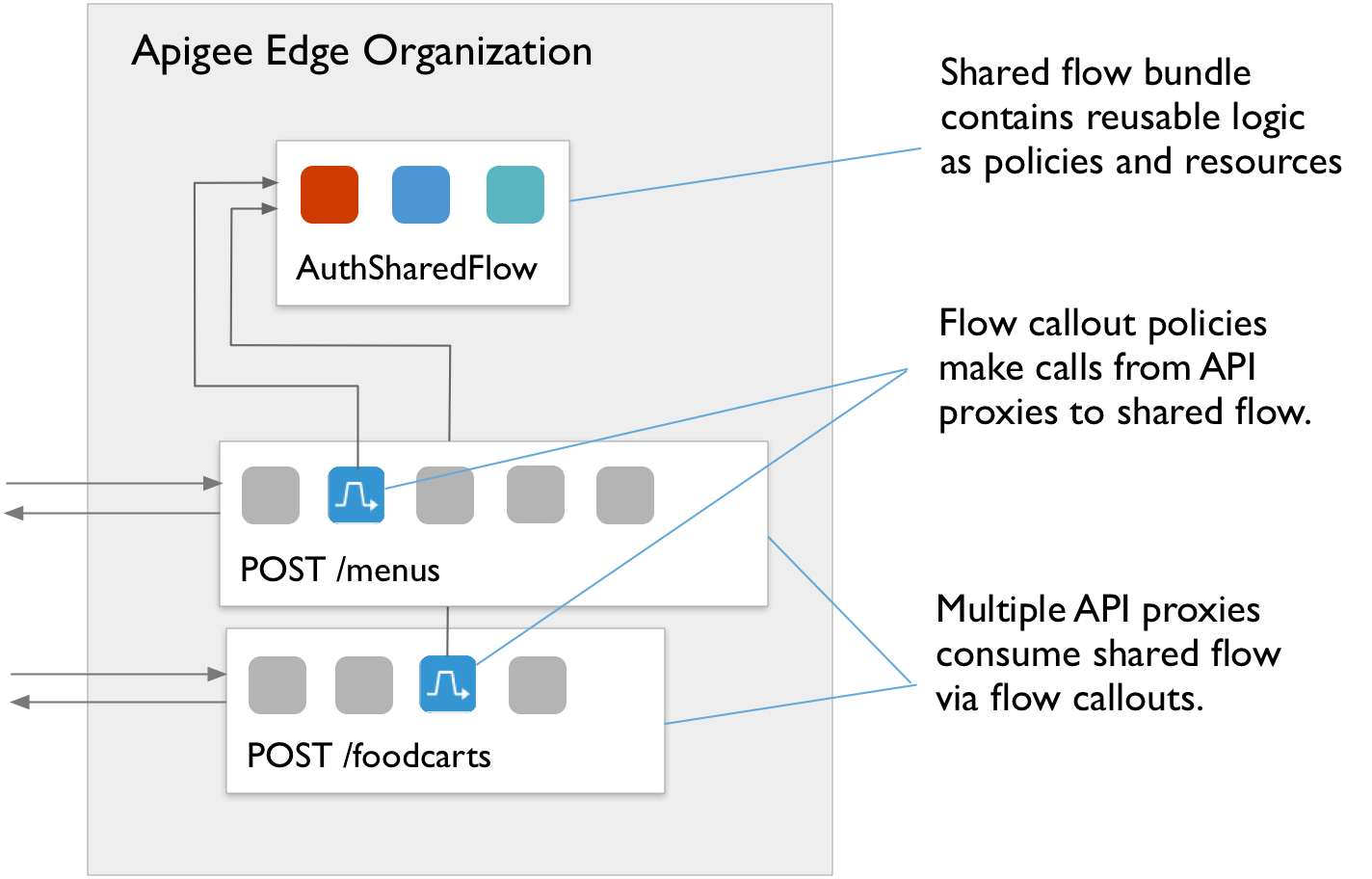
In the following illustration, two API proxies call out (with a FlowCallout policy) to a
shared flow to authenticate incoming user requests. The AuthSharedFlow has been deployed
separately to the org before the proxies so that it is available to support requests from the
proxies. A shared flow can be developed and managed by a team responsible for broad company
policies, then consumed in proxies by line-of-business teams building more specialized apps.
## Developing a shared flow
> [!NOTE]
> Handle faults from within the API proxy that's calling your shared flow, rather than within the shared flow itself. For more information, see [Handling faults](https://docs.apigee.com/api-platform/fundamentals/fault-handling).
When developing a shared flow, you must always test it with calls sent to an API proxy. In
other words, you can't send requests directly to a shared flow as you would an API proxy.
Instead, you send requests to an API proxy which is, in turn, calling out to the shared flow.
Here are the high-level steps for developing a shared flow:
1. Figure out what the **shared set of features** should be.
For example, you might want to combine traffic management features, including suppressing
traffic spikes. That way, you can manage their configuration outside the workflow of those
implementing line-of-business logic.
2. **Develop a shared flow** by implementing policies and supporting resources, just as you would when developing an API proxy.
A shared flow is a sequence of conditional steps. So developing one is like developing an
API proxy. You can include policies and resources you might include in a proxy.
For example, as part of your traffic management support, you might implement a Spike
Arrest policy to allow only 30 requests per second, as in the following example:
```
Spike Arrest30ps
```
Then, to a shared flow for traffic management, you could attach the Spike Arrest policy as
a step. The policy would execute for any API proxy that calls the shared flow.
```
Spike-Arrest
```
For information on how to get a shared flow started in the management console, see
[Creating a shared flow in the Edge UI](https://docs.apigee.com/api-platform/fundamentals/shared-flows#creating-a-shared-flow).
As with API proxies, you can import a zip file containing your shared flow source
artifacts (see [Import a new
API Proxy](https://docs.apigee.com/management/apis/post/organizations/{org_name}/apis-0) for more about importing proxies). The following illustrates how to import a
shared flow with the management API:
```
curl -X POST -F "file=@/path/to/zip/file.zip" \ 'https://api.enterprise.apigee.com/v1/o/{org_name}/sharedflows?action=import&name=shared-flow-name' \
-u email:password
```
3. **Deploy the shared flow** to the environment before deploying proxies or shared flows that will consume it. You deploy a shared flow in the same way you deploy an API proxy. (For more, see [Deployment
overview](https://docs.apigee.com/api-platform/deploy/understanding-deployment).)
A shared flow must be in the same org and deployed to the same environment as the API
proxies and other shared flows that consume it. Deploying the shared flow before the proxies
makes it possible to resolve the proxy's dependency on the shared flow at deploy time.
You can deploy a shared flow with a management API call such as the following:
```
curl -X POST --header "Content-Type: application/octet-stream" \
https://api.enterprise.apigee.com/v1/o/{org_name}/e/{env_name}/sharedflows/{shared_flow_name}/revisions/{revision_number}/deployments \
-u email:password
```
You can also replace a currently deployed shared flow with no downtime. (This is very like
API proxies. See [Deploy API proxies using
the management API](https://docs.apigee.com/api-platform/deploy/deploy-api-proxies-using-management-api) for more). Here's the request form using the management API:
```
curl -X POST --header "Content-Type:application/x-www-form-urlencoded" \
https://api.enterprise.apigee.com/v1/o/{org_name}/e/{env_name}/sharedflows/{shared_flow_name}/revisions/{revision_number}/deployments?"override=true" \
-u email:password
```
4. **Develop the consuming API proxy** so that it can call the shared flow as part of its own flow.
From an API proxy, you call to a shared flow with a [FlowCallout policy](https://docs.apigee.com/api-platform/reference/policies/flow-callout-policy). (You can
also attach the shared flow to the proxy using a flow hook, as described in [Attaching a shared flow using a flow hook](https://docs.apigee.com/api-platform/fundamentals/flow-hooks).)
For an introductory tutorial on creating an API proxy, see [Build your first API proxy](https://docs.apigee.com/api-platform/get-started/get-started).
To consume a shared flow, you add a FlowCallout policy to the proxy or shared flow that
will consume it. Like a Service Callout policy, with which you call out to another service, a
FlowCallout calls out to the shared flow. The consuming API proxy must be deployed
*after* the shared flow and to the same environment as the shared flow. The
shared flow has to be in place when you want to test a call to it using the FlowCallout policy.
In the following code, a FlowCallout policy calls out to a shared flow called
`traffic-management-shared`.
```
Traffic Management FlowCallouttraffic-management-shared
```
For more, see [Calling a shared flow from an API proxy or
shared flow](https://docs.apigee.com/api-platform/fundamentals/shared-flows#calling-a-shared-flow)
5. **Deploy the consuming API proxy** to begin using the shared flow. (For more on deployment in general, see [Understanding
deployment](https://docs.apigee.com/api-platform/deploy/understanding-deployment).)
6. **Develop iteratively by tracing, as you would with an API proxy.**
As with an API proxy, you develop a shared flow by iteratively invoking and tracing until
you have the logic the way you want it. In this case, because the shared flow doesn't run on
its own, you invoke a proxy endpoint and trace the proxy.
Here are the steps:
1. Make sure that both the shared flow and the API proxy calling it with a FlowCallout policy are in the same organization and deployed to the same environment.
2. On the API proxy's **Trace** tab, begin tracing the API proxy.
3. Send a request to a proxy endpoint in the API proxy. The flow from the endpoint must include the FlowCallout policy that calls out to the shared flow.
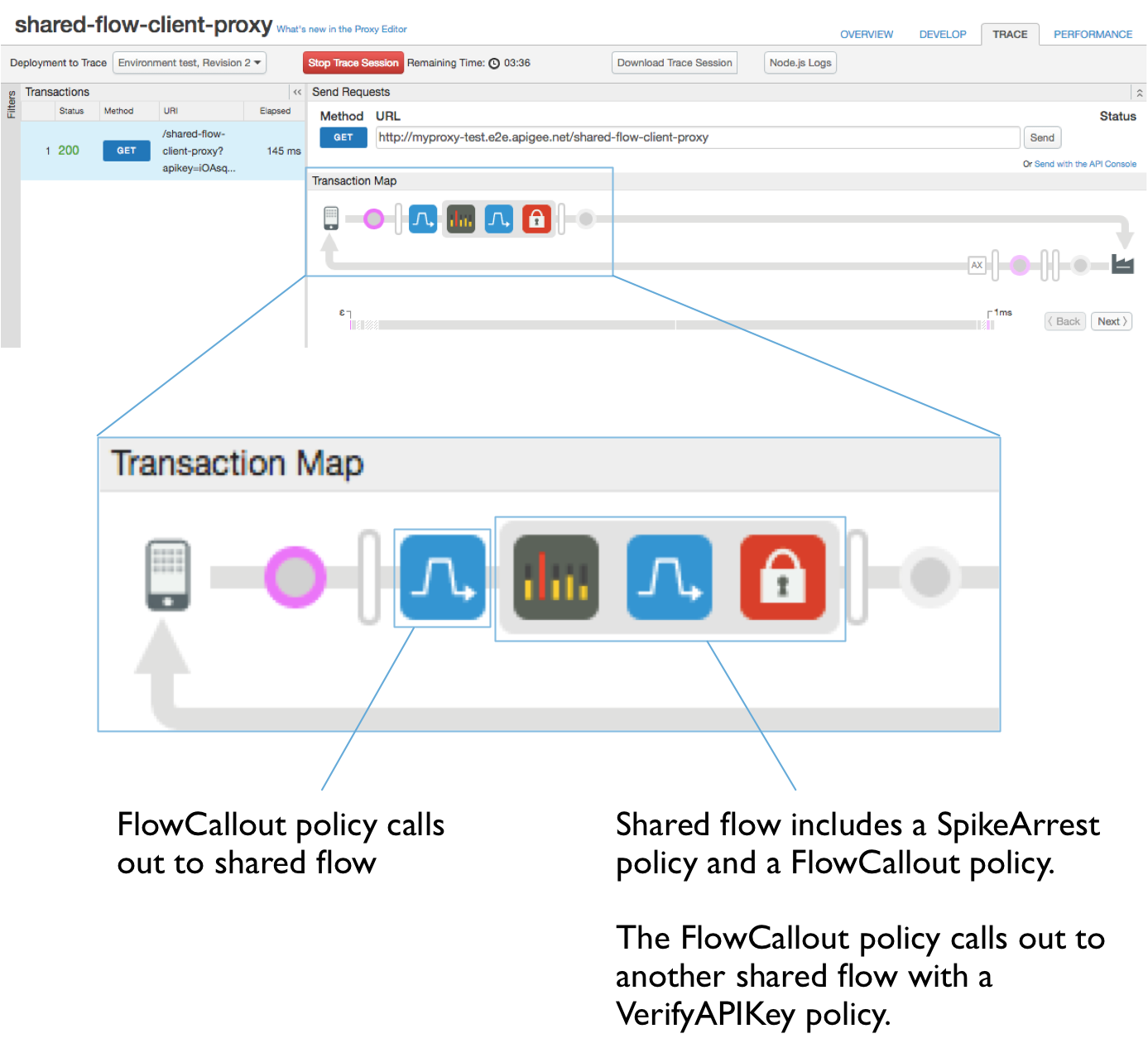
4. On the **Trace** tab, examine the flow from the API proxy to the shared flow.
Notice that in tracing, the shared flow is represented as a set of steps or policies
enclosed in a grey box. Icons representing FlowCallout policies precede shared flows.
(For more on tracing, see [Using the
Trace tool](https://docs.apigee.com/api-platform/debug/using-trace-tool-0).)
## Creating a shared flow in the Edge UI
When you use the Apigee Edge UI to create a shared flow, you can either create one from
scratch or by importing existing flow sources as a flow bundle .zip file.
1. Access the Shared Flows page, as described below. On the Shared Flows page, you can view a list of shared flows in the organization, and edit or delete flows in the list.
### Edge
To access the Shared Flows page using the Edge UI:
1. Sign in to [apigee.com/edge](https://apigee.com/edge).
2. Select the organization containing your shared flow. See [Switching between your organizations](https://docs.apigee.com/api-platform/get-started/switch-org).
The shared flow will be available to any API proxies and shared flows deployed to an
environment from this organization. It won't be available from outside this organization.
3. Select **Develop \> Shared Flows** in the left navigation bar.
### New Edge UI (Private Cloud)
> [!NOTE]
> **Note:** The New Edge UI is available with Edge for Private Cloud only.
To access the Shared Flows page using the New Edge UI:
1. Sign in to the New Edge UI at `http://host:3001/edge`, where host is the IP address or DNS name of the host running the New Edge UI.
2. Select the organization containing your shared flow. See [Switching between your organizations](https://docs.apigee.com/api-platform/get-started/switch-org).
The shared flow will be available to any API proxies and shared flows deployed to an
environment from this organization. It won't be available from outside this organization.
3. Select **Develop \> Shared Flows** in the left navigation bar.
2. Click the **+ Shared Flow** button to begin adding a new shared flow.
3. On the **Build a Shared Flow** page, choose how you want to create the new flow:
- Create a new flow from scratch. You'll be able to configure policies and resources as steps in the flow.
1. Select **Empty Shared Flow**.
2. Enter a name value. This will be the name that API proxies and other shared flows use to reference this shared flow. The name should be descriptive to developers consuming the flow.
3. Enter a description to provide more information about what the flow does.
4. Click **Next**.
5. Optionally, select the environments to which you want the new flow deployed. For example, if you'll be testing the shared flow from API proxies deployed to the
test environment, then deploy the shared flow to **test**.
6. Click **Build and Deploy** to have the new shared flow created and deployed to
the environment(s) you selected. If you selected no environment, the shared flow will
be created, but not deployed.
- Create a shared flow from existing sources by uploading a flow bundle.
1. Select **Shared Flow Bundle** to specify a .zip file containing the artifacts you want in the new flow.
A shared flow bundle contains the source artifacts of a shared flow. For example,
if you were to download a shared flow from the Edge UI, you'd have a .zip
file with the flow bundle.
2. Click **Next**.
3. Click **Choose File** to browse for the .zip file containing the shared flow sources you want to import.
4. In the **Shared Flow Name** box, enter a name for the imported flow. This will be the name that API proxies and other shared flows use to reference this shared flow. The name should be descriptive to developers consuming the flow.
5. Click **Next**.
6. Click **Build** to build the new flow from the sources you're importing.
## Calling a shared flow from an API proxy or shared flow
You can call a shared flow from a proxy or from another shared flow by using the
[FlowCallout policy](https://docs.apigee.com/api-platform/reference/policies/flow-callout-policy).
> [!NOTE]
> **Note:**
> Edge does not validate the dependencies between shared flows and API proxies at deploy time. For example, if the [FlowCallout policy](https://docs.apigee.com/api-platform/reference/policies/flow-callout-policy) in an API proxy references a shared flow that either doesn't exist or isn't deployed, API proxy deployment still succeeds. When Edge checks the dependency at runtime and validation fails, Edge throws an API proxy error with a 500 HTTP status code.
1. In the Edge UI, locate the proxy or shared flow from which you want to call another shared flow.
2. In the **Navigator** , next to **Policies** , click the **+** button.
3. In the list of policies, under **Extension** , click **FlowCallout**.
4. Enter the display name and name (unique identifier), then select the shared flow that this policy will call.
5. Click **Add**.
6. Add the new FlowCallout policy to the proxy where you want the call to be made.
## See also
[Chaining API proxies together](https://docs.apigee.com/api-platform/fundamentals/connecting-proxies-other-proxies)