You're viewing **Apigee Edge** documentation.
[Go to the
**Apigee X** documentation](http://cloud.google.com/apigee/docs). info
Now that you've [tested your new proxy](https://docs.apigee.com/api-platform/get-started/test-proxy), you're almost ready to add a
policy to it. Before you do that, though, you should change your proxy's target endpoint to
one that returns some data.
Recall that in [Step 1: Create an API proxy](https://docs.apigee.com/api-platform/get-started/create-proxy), you set the
target endpoint (in the **Existing API** field) to "https://mocktarget.apigee.net".
Well, that endpoint doesn't return any data, so now you'll change the endpoint to one that returns
some XML.
**To change your proxy's target endpoint:**
1. Sign in to the [Edge UI](https://apigee.com/edge).
2. Select **Develop \> API Proxies**.
3. Select your getstarted proxy from the list to display the API proxy details. If you don't see your proxy in the list, be sure that you selected the right organization, as described in [Switching between organizations](https://docs.apigee.com/api-platform/get-started/switch-org).
4. Click the **Develop** tab:

This takes you to the API Proxy Editor. The Proxy Editor lets you see the structure of your
API proxy and configure its flow. (Don't panic. Other tutorials will cover the concept of
*flows*.)
5. In the **Navigator** pane, select **Target Endpoints \>
default** :
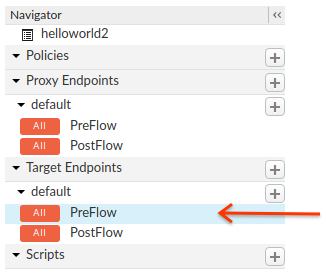
Edge displays the endpoint settings in the **Code** pane:
```
https://mocktarget.apigee.net
```
The target endpoint is defined by the ``
element.
6. Change the URL to "https://mocktarget.apigee.net**/xml**". (Append "/xml"
to the existing URL.)
The new URL returns a small block of XML in the body of the response.
Your endpoint configuration should now look like the following:
```
...
https://mocktarget.apigee.net/xml
...
```
7. To save your changes to the proxy configuration, click the **Save**
button.
Edge saves your changes and automatically deploys them.
If there is an error, Edge will save your changes but not deploy the proxy. In this
case:
1. Fix your proxy configuration. Edge may provide syntax guidance as a pop-up.
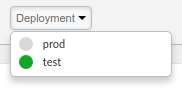
2. Manually deploy your changes to the `test` environment by clicking **Deployment \> test** if Edge does not automatically deploy it.
You can check if your proxy was deployed successfully by selecting the
**Deployment** drop-down above the Flow editor. A green button indicates that
the proxy was deployed to that environment successfully:
8. Test your changes by sending a request to your proxy, just like you did in
[Step 2: Test your new proxy](https://docs.apigee.com/api-platform/get-started/test-proxy). For example:
```
curl https://org_name-test.apigee.net/getstarted
```
> [!IMPORTANT]
> **TIP:** Use an XML prettifier such as `xmllint` (if available) to make your output look better in a terminal. For example:
>
> ```
> curl https://ahamilton-eval-test.apigee.net/getstarted | xmllint --format -
> ```
This time, the mocktarget endpoint returns XML in the body of the response:
```
San Jose
John
Doe
CA
```
> [!TIP]
> **Congratulations!**
>
> You've successfully changed the target endpoint of your API proxy. The new endpoint will return XML. Now you're ready to add a policy that converts XML to JSON.
### Next step
[Step 1](https://docs.apigee.com/api-platform/get-started/create-proxy) [Step 2](https://docs.apigee.com/api-platform/get-started/test-proxy) [Step 3](https://docs.apigee.com/api-platform/get-started/change-endpoint) [Step 4: Add a policy](https://docs.apigee.com/api-platform/get-started/add-policy)