You're viewing **Apigee Edge** documentation.
[Go to the
**Apigee X** documentation](http://cloud.google.com/apigee/docs/api-platform/publish/portal/search-page). info
> [!NOTE]
> **This topic describes the original version of the portal.** All new portals are based on the [new theme, API docs, and developer identity service](https://docs.apigee.com/api-platform/publish/portal/build-integrated-portal). To migrate an existing portal, see [Migrate to the new version of the portal](https://docs.apigee.com/api-platform/publish/portal/migrate).
> [!NOTE]
> **Note:** The integrated portal is available as an Apigee-managed solution for Apigee Edge for Public Cloud customers only. If you are an Apigee Edge for Private Cloud customer, refer to the customer-managed [Drupal portal solution](https://docs.apigee.com/api-platform/publish/drupal/open-source-drupal).
To enable app developers to search the content in your portal, you can create a custom search page and embed a Google custom search engine.
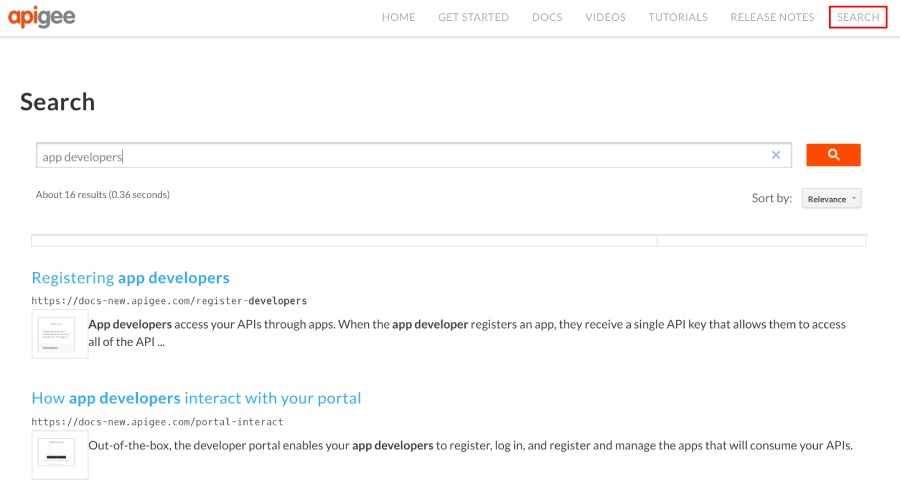
To create a custom search page:
1. Publish your live portal, as described in [Publish your portal content](https://docs.apigee.com/api-platform/publish/portal/original-theme/portal-publish-v1).
2. Create a Google custom search engine:
a. Navigate to the [Google custom search](https://cse.google.com/cse) configuration page.
b. Click **Add** to create a new custom search engine.
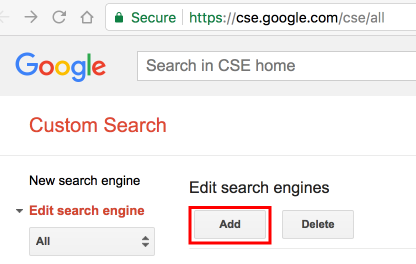
c. Configure your custom search engine and identify the portal site domain. See [Create a search engine](https://support.google.com/customsearch/answer/4513882?hl=en&ref_topic=4513742) in the Google Custom Search Help.
d. Expedite site indexing by verifying and submitting your site using Google WebMaster tools. See [Verify your site in Search Console](https://support.google.com/customsearch/answer/2402989?hl=en&ref_topic=4513742) in the Google Custom Search Help.
3. Create a new search page in your API portal and customize it as desired. See [Manage pages in your portal](https://docs.apigee.com/api-platform/publish/portal/original-theme/portal-pages-v1).
4. Embed the custom search engine code in the new search page. For complete details, see [Add custom search to your site](https://support.google.com/customsearch/answer/4513903?hl=en&ref_topic=4513742) in the Google Custom Search Help.
For example:
5. Add the search page to your portal navigation, as required. See [Set up navigation](https://docs.apigee.com/api-platform/publish/portal/original-theme/portal-menus-v1) for more information.
6. Publish your search page and navigation updates.
**Note**: It takes time for Google to index your site so you may not see search results right away. (It can take a couple of days up to a month to complete full indexing.) You may want to delay publishing the search page until you have tested your portal site search (over time) and are satisfied with the results being returned.