You're viewing **Apigee Edge** documentation.
[Go to the
**Apigee X** documentation](http://cloud.google.com/apigee/docs). info
> [!NOTE]
> **Note:** The integrated portal is available as an Apigee-managed solution for Apigee Edge for Public Cloud customers only. If you are an Apigee Edge for Private Cloud customer, refer to the customer-managed [Drupal portal solution](https://docs.apigee.com/api-platform/publish/drupal/open-source-drupal).
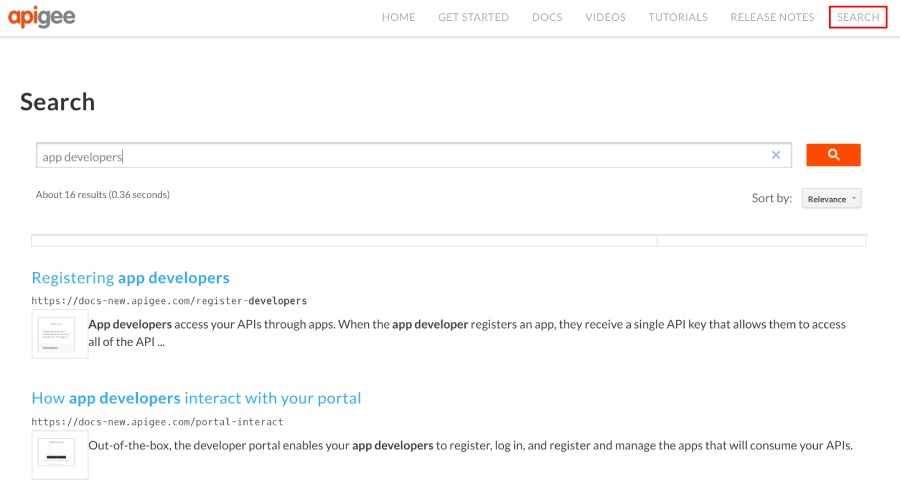
To enable search of the publicly available content in your portal, you can create a dedicated search page where you embed a [Google Custom Search Engine (CSE)](https://cse.google.com). For example, the portal shown in the following figure, embeds a Google CSE that enables searching the content indexed by Google.
> [!NOTE]
> Before embedding a Google custom search engine, note the following:
>
> - Search using a Google CSE can return only results for **publicly available content**. In other words, a portal user must not be required to sign in to the portal to view the content.
> - At this time, you cannot disable ads in search results unless you are an approved non-profit site.
> - Google CSE is not included with an Apigee license. (An out-of-the-box search solution in the integrated portal is planned for a future release.)
> - The [Google Search Console](https://search.google.com/search-console/about) (also not included with an Apigee license) is another tool you may use to remove or manage your portal's presence in Google's search index.
To create a custom search page:
1. [Publish your portal content](https://docs.apigee.com/api-platform/publish/portal/portal-publish).
2. Create a Google custom search engine:
a. Navigate to the [Google custom search](https://cse.google.com/cse) configuration page.
b. Click **Add** to create a new custom search engine.
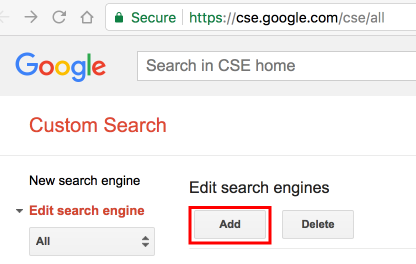
c. Configure your custom search engine and identify the portal site domain. See [Create a search engine](https://support.google.com/customsearch/answer/4513882?hl=en&ref_topic=4513742) in the Google Custom Search Help.
d. Expedite site indexing by verifying and submitting your site using Google WebMaster tools. See [Verify your site in Webmaster tools](https://support.google.com/customsearch/answer/2402989?hl=en&ref_topic=4513742) in the Google Custom Search Help.
3. Add the following custom script to your portal. See [Add custom scripts](https://docs.apigee.com/api-platform/publish/portal/custom-scripts).
Set the `cx` variable to your Google search engine ID and the `path` value to your search page URL.
4. Create a new search page in your portal and customize it as desired. See [Manage pages in your portal](https://docs.apigee.com/api-platform/publish/portal/portal-pages).
5. Add the custom search element ID (`search-box`) defined in your custom script at the location that you want the Google search box to appear.
For example:
6. Add the search page to your portal navigation, as required. See [Set up navigation](https://docs.apigee.com/api-platform/publish/portal/portal-menus) for more information.
7. Publish your search page and navigation updates.
> [!NOTE]
> It takes time for Google to index your site so you may not see search results right away. (It can take a couple of days up to a month to complete full indexing.) You may want to delay publishing the search page until you have tested your portal site search (over time) and are satisfied with the results being returned.