You're viewing **Apigee Edge** documentation.
[Go to the
**Apigee X** documentation](http://cloud.google.com/apigee/docs). info

### What
One of the best ways to track down problems in the API runtime environment is to log messages.
You can attach and configure a MessageLogging policy on your API to log custom messages to a
local disk (Edge for Private Cloud only) or to syslog.
> [!NOTE]
> **Private Cloud:** File logging is supported only in Apigee Edge for Private Cloud deployments. It's not available in Edge cloud. However, Syslog is available in both Edge Cloud and Edge for Private Cloud.
> [!NOTE]
> **Note:** Message logging to a file does not include newline character with each successive message. If you use a third-party logging service, you may need to add a newline character between messages in the log file, or configure your logging service to handle the Apigee format.
### Samples
### Syslog
```
[3f509b58 tag="{organization.name}.{apiproxy.name}.{environment.name}"] Weather request for WOEID {request.queryparam.w}.
logs-01.loggly.com
514
TCP
true
yyyy-MM-dd'T'HH:mm:ss.SSSZ
ALERT
```
A common usage of the MessageLogging policy type is to log to a syslog account. When
configured for syslog, an API proxy will forward log messages from Apigee Edge to a remote
syslog server. You must already have a syslog server available. If not, public log management
services, such a Splunk, Sumo Logic, and Loggly, are available. see [Configuring third-party log management services](https://docs.apigee.com/api-platform/reference/policies/message-logging-policy#thirdparty).
For example, imagine that you need to log information about each request message that your
API receives from consumer apps. The value `3f509b58` represents a key value
specific to the loggly service. If you have a loggly account, substitute your loggly key. The
log message that is generated will be populated with four values: the organization, API
proxy, and environment name associated with the transaction, along with the value for a query
parameter on the request message.
> [!NOTE]
> **Note:** `Host` and `Port` elements cannot refer to variables. They must contain static values.
If you have an Edge for Private Cloud deployment, you can also write log messages to a
file.
### Syslog over TLS/SSL
```
[3f509b58 tag="{organization.name}.{apiproxy.name}.{environment.name}"] Weather request for WOEID {request.queryparam.w}.
logs-01.loggly.com
6514
TCP
true
true
yyMMdd-HH:mm:ss.SSS
WARN
```
You can send messages to third-party message logging providers over TLS/SSL by adding the
`` block.
### File rotation: size
```
This is a test message. Message id : {request.header.messageid}
test.log
SIZE
10
10
ERROR
```
File rotation based on file size.
### File rotation: time
```
This is a test message. Message id : {request.header.messageid}
test.log
TIME
10
10
ERROR
```
File rotation based on time.
### File rotation: time \& size
```
This is a test message. Message id : {request.header.messageid}
test.log
TIME_SIZE
10
10
10
ERROR
```
File rotation based on time and size.
### Stream-enabled
```
....
....
true
```
Stream-enabled message logging
> [!NOTE]
> **Note:** If HTTP streaming is enabled in an API proxy, neither request nor response messages will be buffered by processing pipeline. When you need to log parsed message content, set BufferMessage to `true`.
*** ** * ** ***
## Element reference
Use the following elements to configure the MessageLogging policy type.
> [!NOTE]
> **Note:** The `name` attribute for this policy is restricted to these characters: `A-Z0-9._\-$ %`. However, the Management UI enforces additional restrictions, such as automatically removing characters that are not alphanumeric.
| Field Name || Field Description |
|---|---|---|
| `File` Local file destination. (File logging is only supported in Edge for Private Cloud deployments.) For information on where files are stored, see [Log file location in Edge for Private Cloud](https://docs.apigee.com/api-platform/reference/policies/message-logging-policy#location). | `Message` | Build the message to be sent to the log file, combining text with variables to capture the information you want. See the [Samples](https://docs.apigee.com/api-platform/reference/policies/message-logging-policy#samples). > [!NOTE] > The `` element supports the dynamic string substitution feature called [message templating](https://docs.apigee.com/api-platform/reference/message-template-intro). |
| `File` Local file destination. (File logging is only supported in Edge for Private Cloud deployments.) For information on where files are stored, see [Log file location in Edge for Private Cloud](https://docs.apigee.com/api-platform/reference/policies/message-logging-policy#location). | `FileName` | The base name of the log file. Do not specify a file path. For example, this `FileName` element specifies a file path and is invalid: ``` /opt/apigee/var/log/messages/mylog.log ``` This code specifies a file name only and is valid: ``` mylog.log ``` For information on where the file is stored, see [Log file location in Edge for Private Cloud](https://docs.apigee.com/api-platform/reference/policies/message-logging-policy#location). |
| `File` Local file destination. (File logging is only supported in Edge for Private Cloud deployments.) For information on where files are stored, see [Log file location in Edge for Private Cloud](https://docs.apigee.com/api-platform/reference/policies/message-logging-policy#location). | `FileRotationOptions` ||
| `File` Local file destination. (File logging is only supported in Edge for Private Cloud deployments.) For information on where files are stored, see [Log file location in Edge for Private Cloud](https://docs.apigee.com/api-platform/reference/policies/message-logging-policy#location). | `rotateFileOnStartup` | Attribute. Valid values: `true`/`false` If set to true, then the log file is rotated every time the messaging engine restarts. |
| `File` Local file destination. (File logging is only supported in Edge for Private Cloud deployments.) For information on where files are stored, see [Log file location in Edge for Private Cloud](https://docs.apigee.com/api-platform/reference/policies/message-logging-policy#location). | `FileRotationType` | Specifies the rotation policy (`size` or `time`) of a log file. |
| `File` Local file destination. (File logging is only supported in Edge for Private Cloud deployments.) For information on where files are stored, see [Log file location in Edge for Private Cloud](https://docs.apigee.com/api-platform/reference/policies/message-logging-policy#location). | `MaxFileSizeInMB` | (On selecting `size` as rotation type) Specifies the size of a log file that triggers the server to move log messages to a separate file. After the log file reaches the specified size, the server renames the current log file. |
| `File` Local file destination. (File logging is only supported in Edge for Private Cloud deployments.) For information on where files are stored, see [Log file location in Edge for Private Cloud](https://docs.apigee.com/api-platform/reference/policies/message-logging-policy#location). | `RotationFrequency` | (On selecting `time` as rotation type) Specifies the time in minutes that triggers the server to move log messages to a separate file. After the specified interval elapses, the current log file is renamed. |
| `File` Local file destination. (File logging is only supported in Edge for Private Cloud deployments.) For information on where files are stored, see [Log file location in Edge for Private Cloud](https://docs.apigee.com/api-platform/reference/policies/message-logging-policy#location). | `MaxFilesToRetain` | Specifies the maximum number of files to be retained in the context of your rotation settings. The default value is **8**. If you specify zero (0), log files are retained indefinitely, but subject to your file rotation settings, though none of the files are deleted or renamed. Therefore, to avoid future disk-full errors, set this to a value greater than zero, or implement a regular, automated system of purging or archiving older retained log files. |
| | `BufferMessage` | If [HTTP streaming is enabled](https://docs.apigee.com/api-platform/develop/enabling-streaming) for your proxy, request/response messages are not buffered. If you want to log content that requires the flow message to be parsed, then set BufferMessage to true. See the "Stream-enabled" sample tab for an example. Default: false |
| `Syslog` A syslog destination. To send syslog to Splunk, Sumo Logic, or Loggly, see [Configuring third-party log management services](https://docs.apigee.com/api-platform/reference/policies/message-logging-policy#thirdparty). | `Message` | Build the message to be sent to the syslog, combining text with variables to capture the information you want. See the [Samples](https://docs.apigee.com/api-platform/reference/policies/message-logging-policy#samples). > [!NOTE] > The `` element supports the dynamic string substitution feature called [message templating](https://docs.apigee.com/api-platform/reference/message-template-intro). **Note:** [Response variables](https://docs.apigee.com/api-platform/reference/variables-reference#response) will not be available in PostClientFlow following an Error Flow. Use [message variables](https://docs.apigee.com/api-platform/reference/variables-reference#messagevariables) to log response information for both error and success situations. See also [Usage notes](https://docs.apigee.com/api-platform/reference/policies/message-logging-policy#usagenotes). |
| `Syslog` A syslog destination. To send syslog to Splunk, Sumo Logic, or Loggly, see [Configuring third-party log management services](https://docs.apigee.com/api-platform/reference/policies/message-logging-policy#thirdparty). | `Host` | The hostname or IP address of the server where the syslog should be sent. If you don't include this element, the default is localhost. |
| `Syslog` A syslog destination. To send syslog to Splunk, Sumo Logic, or Loggly, see [Configuring third-party log management services](https://docs.apigee.com/api-platform/reference/policies/message-logging-policy#thirdparty). | `Port` | Port where the syslog is running. If you don't include this element, the default is 514. |
| `Syslog` A syslog destination. To send syslog to Splunk, Sumo Logic, or Loggly, see [Configuring third-party log management services](https://docs.apigee.com/api-platform/reference/policies/message-logging-policy#thirdparty). | `Protocol` | TCP or UDP (default). While UDP is more performant, the TCP protocol guarantees message log delivery to the syslog server. For sending syslog messages over TLS/SSL, only TCP is supported. |
| `Syslog` A syslog destination. To send syslog to Splunk, Sumo Logic, or Loggly, see [Configuring third-party log management services](https://docs.apigee.com/api-platform/reference/policies/message-logging-policy#thirdparty). | `FormatMessage` | `true` or `false` (default) Optional, but `true` is required for use with Loggly. This element lets you control the format of Apigee-generated content prepended to the message. If set to true, the syslog message is prepended by a fixed number of characters, which lets you filter out that information from messages. Here's an example for the fixed format: `<14>1 2023-03-20T09:24:39.039+0000 e49cd3a9-4cf6-48a7-abb9-7ftfe4d97d00 Apigee-Edge - - - Message starts here` The Apigee-generated information includes: - \<14\> - A priority score (see the [Syslog Protocol](https://tools.ietf.org/html/rfc5424)) based on the log level and facility level of the message. - 1 - The current syslog version. - Date with a UTC offset (UTC = +0000). - Message processor UUID. - "Apigee-Edge - - - " If set to false (default), the message is not prepended with those fixed characters. > [!NOTE] > **Note:** Because of [Known Issue 68722102](https://docs.apigee.com/release/notes/18120400-apigee-edge-public-cloud-release-notes-ui#knownissues), if you set `false`, the log message still includes the priority score and the date. To format the log message to only include the message body, set `true`. > See [PayloadOnly](https://docs.apigee.com/api-platform/reference/policies/message-logging-policy#payloadonly). |
| `Syslog` A syslog destination. To send syslog to Splunk, Sumo Logic, or Loggly, see [Configuring third-party log management services](https://docs.apigee.com/api-platform/reference/policies/message-logging-policy#thirdparty). | `PayloadOnly` | `true` or `false` (default) This element sets the format of Apigee-generated messages to contain only the body of the syslog message, without the prepended characters specified by [FormatMessage](https://docs.apigee.com/api-platform/reference/policies/message-logging-policy#formatmessage). If you don't include this element or leave it empty, the default value is `false`. See [FormatMessage](https://docs.apigee.com/api-platform/reference/policies/message-logging-policy#formatmessage). > [!NOTE] > **Note:** setting `true` overrides the setting of FormatMessage. |
| `Syslog` A syslog destination. To send syslog to Splunk, Sumo Logic, or Loggly, see [Configuring third-party log management services](https://docs.apigee.com/api-platform/reference/policies/message-logging-policy#thirdparty). | `DateFormat` | Optional. A formatting template string to use to format the timestamp for each log message. By default, Apigee uses `yyyy-MM-dd'T'HH:mm:ss.SSSZ`. The behavior of this template is described in the documentation for [Java's SimpleDateFormat class](https://docs.oracle.com/javase/8/docs/api/java/text/SimpleDateFormat.html). |
| `Syslog` A syslog destination. To send syslog to Splunk, Sumo Logic, or Loggly, see [Configuring third-party log management services](https://docs.apigee.com/api-platform/reference/policies/message-logging-policy#thirdparty). | `SSLInfo` | Lets you log messages through SSL/TLS. Use with sub-element `true`. If you don't include this element or leave it empty, the default value is false (no TLS/SSL). ``` true ``` You can configure the \ tag the same as you can on a TargetEndpoint, including enabling two-way TLS/SSL, as described in [API proxy configuration reference](https://docs.apigee.com/api-platform/reference/api-proxy-configuration-reference). Only the **TCP** protocol is supported. |
| `logLevel` | Optional. Valid values: `INFO` (default), `ALERT`, `WARN`, `ERROR` Set a specific level of information to be included in the message log. If you're using the `FormatMessage` element (setting it to true), your `logLevel` setting affects the calculated priority score (the number inside the angle brackets) in the Apigee-generated information prepended to the message. ||
### Schemas
> [!NOTE]
> **Sample:** See our [GitHub
> repository](https://github.com/apigee/api-platform-samples/tree/master/schemas/policy) samples for the most recent schemas.
*** ** * ** ***
## Usage notes
When attaching a MessageLogging policy to an API proxy flow, consider placing it in the
ProxyEndpoint response, in a special flow called PostClientFlow. The PostClientFlow executes
after the response is sent to the requesting client, which ensures that all metrics are available
for logging. For details on using PostClientFlow, see [API proxy configuration reference](https://docs.apigee.com/api-platform/reference/api-proxy-configuration-reference).
> [!NOTE]
> **Note:** It's important to note that the **response** flow variable is not available in the PostClientFlow once processing enters the error state. Instead, you can use the **message** variable to set values in the MessageLogging policy in the PostClientFlow, ensuring that they will be set whether or not the error state was the previous context. For more information and examples, see "[Uses
> for message variables](https://docs.apigee.com/api-platform/reference/variables-reference#messagevariables-usesformessagevariables)".
The PostClientFlow is special in two ways:
1. It only executed as part of the response flow.
2. It is the only flow executed after the proxy enters the error state.
Because it is executed regardless of whether the proxy succeeded or failed, you can put
MessageLogging policies in the PostClientFlow and be guaranteed that they always execute.
The following Trace image shows a MessageLogging policy executing as part of the
PostClientFlow, after the DefaultFaultRule executes:
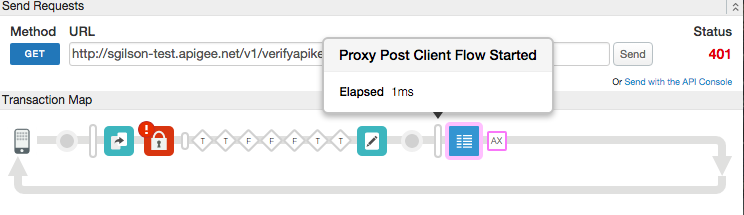
In this example, the Verify API Key policy caused the fault because of an invalid
key.
Shown below is the ProxyEndpoint definition that includes the PostClientFlow:
```
...
Message-Logging-1
...
```
Edge logs messages as simple text, and you can configure logging to include variables, such as
the date and time when the request or response was received, the user identity on the request,
the source IP address from which the request was sent, and so on. Edge logs message
asynchronously, meaning that no latency that might be caused by blocking callouts is introduced
to your API.
The MessageLogging policy writes logged messages in memory to a buffer. The message logger
reads messages from the buffer and then writes to the destination that you configure. Each
destination has its own buffer.
Users may experience delays in receiving log messages sent to a new syslog endpoint. This is
due to an intended "cold start" behavior in the policy. When a new logging destination is
configured, in addition to existing logging destination(s), the Message Processor (MP) may
first queue 1000 log messages in-memory before sending them. This can result in an initial
delay in low-traffic environments. This initial delay is non-observable for typical production
workloads, as messages should accumulate quickly. Once the threshold is met, log messages will
be delivered as expected. Performing a graceful restart of the Message Processor can also trigger
the delivery of queued messages as they drain from the queue.
> [!NOTE]
> **Note:** **Proxy calls succeed when logging fails**
>
> Because message logging is first written to buffer, the API proxy will continue successful
> execution even if message logging ultimately fails (for example, if there's a connection
> failure to the external syslog provider).
If the write rate to the buffer increases beyond the read rate, the buffer overflows and
logging will fail. If this happens, you might find a message containing the following in the log
file:
```
Log message size exceeded. Increase the max message size setting
```
If you encounter this issue in Edge for Private Cloud 4.15.07 and earlier, locate the
`message-logging.properties` file and use this solution:
Increase the `max.log.message.size.in.kb` property (default value = 128 KB) in the
`message-logging.properties` file.
For Edge for Private Cloud 4.16.01 and later, set the `conf/message-logging.properties+max.
log.message.size.in.kb` property in the /opt/apigee/customer/application/message-processor.properties file and restart the Message Processor. Please note that this property is initially commented out by default.
**Note:** The [response message
variables](https://docs.apigee.com/api-platform/reference/variables-reference#response) in Edge are not available from the Error Flow. These variables are also not
available in PostClientFlow if the preceding flow was the Error Flow. If you want to log response
information from the PostClientFlow, use the **message** object. You can
use this object to get at headers and other information from the response whether or not there
was an error. See [Message
variables](https://docs.apigee.com/api-platform/reference/variables-reference#messagevariables) for more information and an example.
### Controlling log message
timestamp in Edge for Private Cloud
By default, the timestamp in all log messages has the format:
```
yyyy-MM-dd'T'HH:mm:ss.SSSZ
```
This system-wide default can be overridden for syslog destinations using the
`DateFormat` element. The behavior of this template is described in the
documentation for [Java's SimpleDateFormat class](https://docs.oracle.com/javase/8/docs/api/java/text/SimpleDateFormat.html). According to that definition, `yyyy` will be replaced
with a 4-digit year, `MM` will be replaced with a 2-digit month number, and so on.
The above format might result in a string of this form:
```
2022-09-28T22:38:11.721+0000
```
You can use the conf_system_apigee.syslogger.dateFormat
property on the Edge Message Processor to control that format. For example, changing the message
format to:
```
yy/MM/dd'T'HH:mm:ss.SSSZ
```
..replacing the dashes with slashes, and shortening to a 2-digit year, records a timestamp in the form:
```
22/09/28T22:38:11.721+0000
```
To change the format:
1. Open the message-processor.properties file in an editor. If the file does not exist, create it:
\> vi /opt/apigee/customer/application/message-processor.properties
2. Set the properties as desired:
conf_system_apigee.syslogger.dateFormat=yy/MM/dd'T'HH:mm:ss.SSSZ
3. Save your changes.
4. Make sure the properties file is owned by the 'apigee' user:
\> chown apigee:apigee /opt/apigee/customer/application/message-processor.properties
5. Restart the Edge Message Processor:
\> /opt/apigee/apigee-service/bin/apigee-service edge-message-processor restart
### Log file location in Edge for Private Cloud
#### Edge for Private Cloud 4.16.01 and later
By default, Private Cloud message logs are located in the following directory on Message
Processor nodes:
```
/opt/apigee/var/log/edge-message-processor/messagelogging/org_name/environment/api_proxy_name/revision/logging_policy_name/
```
You can change the default log location by modifying properties in the
message-logging.properties file on the Message Processors:
- bin_setenv_data_dir - Sets the root path for log file storage. For example, `bin_setenv_data_dir=/opt/apigee/var/log`
- conf_message-logging_log.root.dir - If you set this to a relative path, such as `` `conf/message-logging.properties+log.root.dir=custom/folder/`,
the path is appended to the bin_setenv_data_dir
location. ``
If you set this to an absolute path, such as `conf/message-logging.properties+log.root.dir=/opt/apigee/var/log/messages`, message logs will be stored in `/opt/apigee/var/log/messages/messagelog/`. An absolute path takes precedence over `bin_setenv_data_dir`.
Note that you have to reference the property as conf/message-logging.properties+log.root.dir because it is commented out by default. See [Setting a
token that is currently commented out](https://docs.apigee.com/private-cloud/latest/how-configure-edge#settingatokenthatiscurrentlycommentedout) for more.
If you want to store log files in a flat file structure so that all log files are put in the
same directory, set the conf/message-logging.properties+enable.flat.directory.structure to
true in the message-logging.properties file. Messages are stored in the directory specified by
the properties above, and the file names take the form of
`{org}_{environment}_{api_proxy_name}_{revision}_{logging_policy_name}_{filename}`.
To set these properties:
1. Open the message-processor.properties file in an editor. If the file does not exist, create it:
\> vi /opt/apigee/customer/application/message-processor.properties
2. Set the properties as desired:
conf/message-logging.properties+log.root.dir=/opt/apigee/var/log/messages
3. Save your changes.
4. Make sure the properties file is owned by the 'apigee' user:
\> chown apigee:apigee /opt/apigee/customer/application/message-processor.properties
5. Restart the Edge component:
\> /opt/apigee/apigee-service/bin/apigee-service edge-message-processor restart
#### Edge for Private Cloud 4.15.07 and earlier
By default, message logs are located in the following location on message
processors:
```
/opt/apigee4/var/log/apigee/message-processor/messagelog/{org}/{environment}/{api_proxy_name}/{revision}/{logging_policy_name}/
```
You can change the default log location by modifying the following properties in the
message-logging.properties file on the message processors:
- data.dir - Sets the root path for log file storage. For example, data.dir=/opt/apigee4/var/log
- log.root.dir - If you set this to a relative path, such as log.root.dir=custom/folder/, the path is appended to the data.dir location.
For example, the combination of the two properties would set the logging directory at
/opt/apigee4/var/log/custom/folder/messagelog/ (note that /messagelog is added
automatically).
If you set this to an absolute path, such as log.root.dir=/opt/apigee4/var/log/messages,
message logs will be stored in /opt/apigee4/var/log/messages/messagelog/. An absolute path in
log.root.dir takes precedence over data.dir.
If you want to store log files in a flat file structure so that all log files are put in the
same directory, set the enable.flat.directory.structure property to
true in the message-logging.properties file on Message
Processors. Messages are stored in the directory specified by the properties above, and the file
names take the form of {org}_{environment}_{api_proxy_name}_{revision}_{logging_policy_name}_{filename}.
### Default values for variables in
message template
Default values can be specified for each variable in message template separately. For example,
if the variable `request.header.id` cannot be resolved, then its value is replaced
with the value `unknown`.
```
This is a test message. id = {request.header.id:unknown}
```
A common default value can be specified for all the unresolved variables by setting the
`defaultVariableValue` attribute on the `Message` element:
```
This is a test message. id = {request.header.id}
```
> [!NOTE]
> **Note:** The default variable value cannot contain spaces.
### Configuring third-party log management services
The MessageLogging policy lets you send syslog messages to third-party log management
services, such as Splunk, Sumo Logic, and Loggly. If you want to send syslog to one of those
services, see that service's documentation to configure the service's host, port, and protocol,
then set the Syslog element on this policy accordingly.
See the following documentation for third-party log management configuration:
- [Splunk](https://docs.splunk.com/Documentation/Splunk/6.2.0/Data/SyslogTCP) (select the product version)
Also see this Apigee Community post: [Log messages into Splunk](https://discuss.google.dev/t/log-messages-into-splunk/2431)
- [Sumo
Logic](https://help.sumologic.com/Send_Data/Sources/Syslog_Source)
- Also see this Apigee Community post: [Setting up logging with Sumo Logic, which host should I use?](https://discuss.google.dev/t/setting-up-logging-with-sumo-logic-which-host-should-i-use/9477)
- For a complete example using Sumo Logic as the logging service, see the following Apigee Community post. The solution uses a single JavaScript policy to make HTTP POST requests to Sumo Logic HTTP Source Collector: [Logging to Sumo Logic using JavaScript and HTTP](https://discuss.google.dev/t/logging-to-sumo-logic-using-javascript-and-http/17575)
- [Loggly](https://www.loggly.com/docs/streaming-syslog-without-using-files/)
When using Loggly, `true` is required in the policy as a child of the `` element.
Also see this Apigee Community post for more information about message logging to Loggly: [Log messages into Loggly](https://discuss.google.dev/t/log-messages-into-loggly/17523)
## Error reference
This section describes the fault codes and error messages that are returned and fault variables that are set by Edge when this policy triggers an error.
This information is important to know if you are developing fault rules to
handle faults. To learn more, see [What you need to know
about policy errors](https://docs.apigee.com/api-platform/fundamentals/what-you-need-know-about-policy-errors) and [Handling
faults](https://docs.apigee.com/api-platform/fundamentals/fault-handling).
### Runtime errors
These errors can occur when the policy executes.
> [!IMPORTANT]
> **Tip:** Use [API Monitoring](https://docs.apigee.com/api-monitoring) to investigate fault codes and diagnose issues faster. See [Set up a policy fault code alert](https://docs.apigee.com/api-monitoring/alerts-notifications#fault-code-alert) for an example. See [Fault code reference](https://docs.apigee.com/api-monitoring/fault-codes) for a complete list of all fault codes that you can handle with API Monitoring.
| Fault code | HTTP status | Cause |
|---|---|---|
| `steps.messagelogging.StepDefinitionExecutionFailed` | 500 | See fault string. |
### Deployment errors
These errors can occur when you deploy a proxy containing this policy.
> [!IMPORTANT]
> Need help resolving an error? Click in the Fix column for detailed troubleshooting information.
| Error name | Cause | Fix |
|---|---|---|
| `InvalidProtocol` | The deployment of the MessageLogging policy can fail with this error if the protocol specified within the `` element is not valid. The valid protocols are TCP and UDP. For sending syslog messages over TLS/SSL, only TCP is supported. | [](https://docs.apigee.com/api-platform/troubleshoot/policies/deployment/message-logging-deployment-errors#invalidprotocol) |
| `InvalidPort` | The deployment of the MessageLogging policy can fail with this error if the port number is not specified within the `` element or if it is not valid. The port number must be an integer greater than zero. | [](https://docs.apigee.com/api-platform/troubleshoot/policies/deployment/message-logging-deployment-errors#invalidport) |
### Fault variables
These variables are set when a runtime error occurs. For more information, see [What you need to know
about policy errors](https://docs.apigee.com/api-platform/fundamentals/what-you-need-know-about-policy-errors).
> [!NOTE]
> **Note:** **Proxy calls succeed when logging fails**
>
> There's a difference between policy errors and message logging errors. The flow variables
> here are populated only when the policy itself fails, not when message logging fails. Because
> message logging is first written to buffer, the API proxy will continue successful execution
> even if message logging ultimately fails (for example, if there's a connection failure to the
> external syslog provider). Be sure to check your logs on a regular basis to make sure logging
> is happening as expected.
| Variables | Where | Example |
|---|---|---|
| `fault.name="fault_name"` | fault_name is the name of the fault, as listed in the [Runtime errors](https://docs.apigee.com/api-platform/reference/policies/message-logging-policy#runtime-errors) table above. The fault name is the last part of the fault code. | `fault.name Matches "StepDefinitionExecutionFailed"` |
| `messagelogging.policy_name.failed` | policy_name is the user-specified name of the policy that threw the fault. | `messagelogging.ML-LogMessages.failed = true` |
### Example error response
> [!NOTE]
> **Note:** For error handling, the best practice is to trap the `errorcode` part of the error response. Do not rely on the text in the `faultstring`, because it could change.
```
{
"fault":{
"detail":{
"errorcode":"steps.messagelogging.StepDefinitionExecutionFailed"
},
"faultstring":"Execution failed"
}
}
```
### Example fault rule
```
ML-LogMessages
(fault.name Matches "StepDefinitionExecutionFailed")
(messagelogging.ML-LogMessages.failed = true)
```
*** ** * ** ***
## Flow variables
The following variables are populated on policy failure.
- `messagelogging.failed`
- `messagelogging.{stepdefinition-name}.failed`
> [!NOTE]
> **Note:** **Proxy calls succeed when logging fails**
>
> There's a difference between policy errors and message logging errors. The flow variables
> here are populated only when the policy itself fails, not when message logging fails. Because
> message logging is first written to buffer, the API proxy will continue successful execution
> even if message logging ultimately fails (for example, if there's a connection failure to the
> external syslog provider). Be sure to check your logs on a regular basis to make sure logging
> is happening as expected.
*** ** * ** ***
## Related topics
- Variables exposed by Edge: [Variables reference](https://docs.apigee.com/api-platform/reference/variables-reference)