You're viewing **Apigee Edge** documentation.
[Go to the
**Apigee X** documentation](http://cloud.google.com/apigee/docs/api-platform/errorcatalog/mp-runtime-errorcatalog). info
## Symptom
The client application gets an HTTP status code of `413 Request Entity Too Large`
with error code `protocol.http.TooBigBody `as a response for API calls.
## Error Message
Client application gets the following response code:
```
HTTP/1.1 413 Request Entity Too Large
```
In addition, you may observe the following error message:
```
{
"fault":{
"faultstring":"Body buffer overflow",
"detail":{
"errorcode":"protocol.http.TooBigBody"
}
}
}
```
## Possible causes
This error occurs if the payload size sent by the client application to Apigee Edge as part of
HTTP request is greater than the [allowed limit in Apigee Edge](https://docs.apigee.com/api-platform/troubleshoot/runtime/413-request-entity-too-large-toobigbody#limits) .
Here are the possible causes for this error :
| Cause | Description | Troubleshooting instructions applicable for |
|---|---|---|
| [Request payload size is greater than allowed limit](https://docs.apigee.com/api-platform/troubleshoot/runtime/413-request-entity-too-large-toobigbody#uncompressed-too-big) | The payload size sent by the client application as part of HTTP request to Apigee Edge is more than the allowed limit in Apigee Edge. | Edge Public and Private Cloud users |
| [Request payload size exceeds allowed limit after decompression](https://docs.apigee.com/api-platform/troubleshoot/runtime/413-request-entity-too-large-toobigbody#compressed-too-big) | The payload size sent in compressed format by the client application as part of HTTP request to Apigee Edge is more than the allowed limit when decompressed by Apigee Edge. | Edge Public and Private Cloud users |
## Common diagnosis steps
Use one of the following tools/techniques to diagnose this error:
### API Monitoring
> [!NOTE]
> **Note:** The instructions in this section are applicable only for Public Cloud users.
To diagnose the error using API Monitoring:
1. [Sign in to Apigee Edge UI](https://docs.apigee.com/api-platform/get-started/sign-in-manage-account#sign_in_to_your_apigee_edge_account) as a user with an [appropriate role](https://docs.apigee.com/api-monitoring/access#roles).
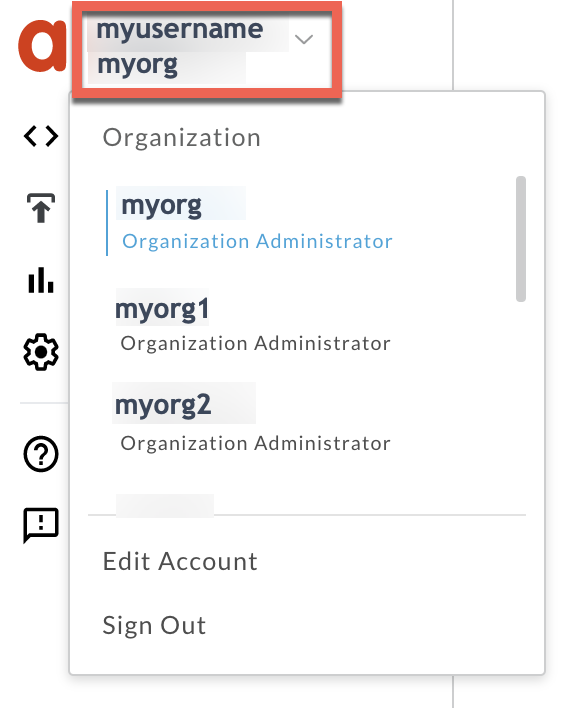
2. Switch to the organization in which you want to investigate the issue
3. Navigate to the **Analyze \> API Monitoring \> Investigate** page.
4. Select the specific timeframe in which you observed the errors.
5. You may select the **Proxy** filter to narrow down the fault code.
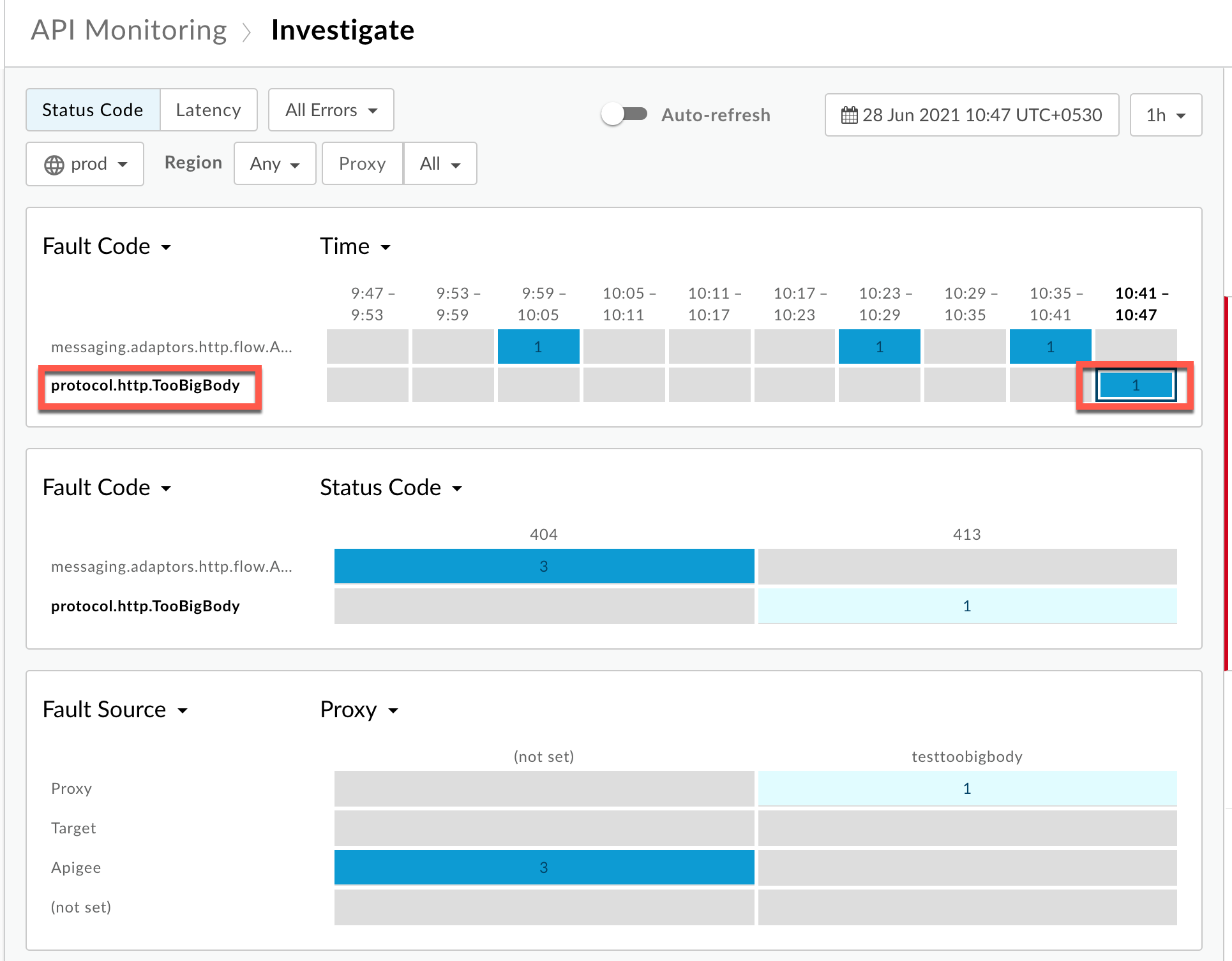
6. Plot **Fault Code** against **Time**.
7. Select a cell which has the **Fault Code** `protocol.http.TooBigBody` and
**Status Code** `413`as shown below:
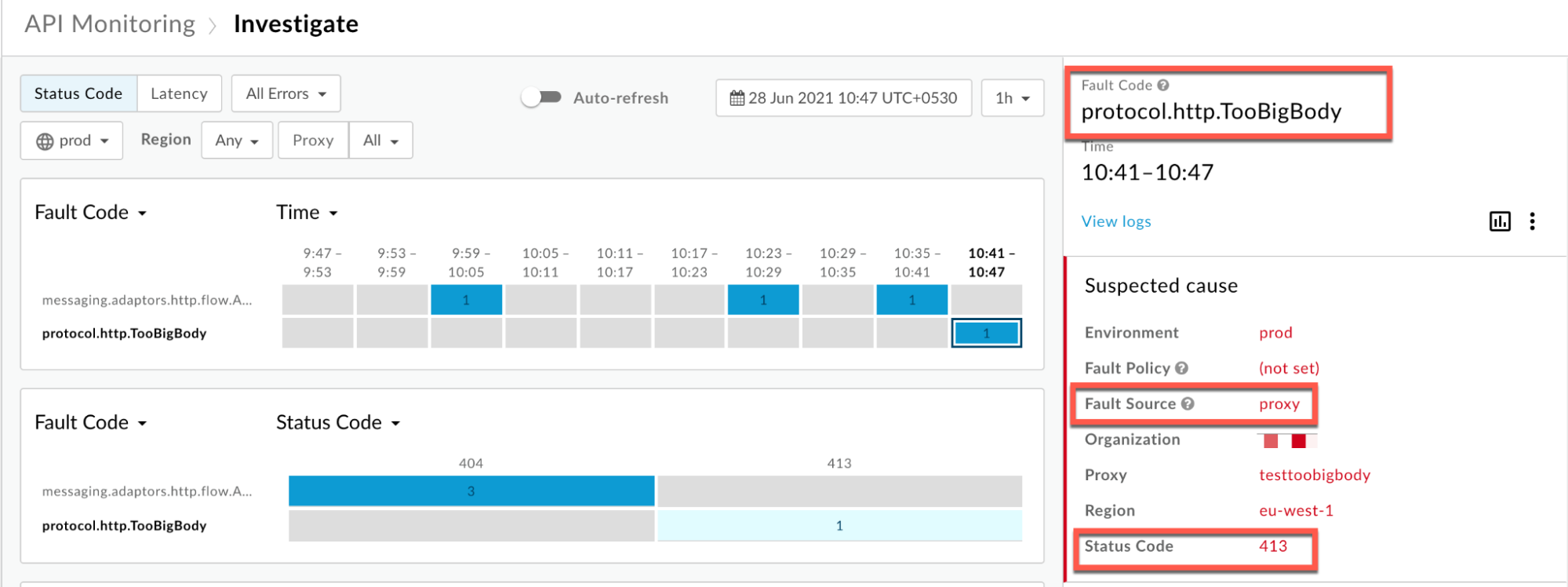
8. Information about the fault code `protocol.http.TooBigBody` is displayed as
shown below:
9. Click **View logs** and expand the row for the failed request. Then from the **Logs** window, note the details as shown below :
### Uncompressed
**Scenario #1: Request Payload sent in uncompressed form**
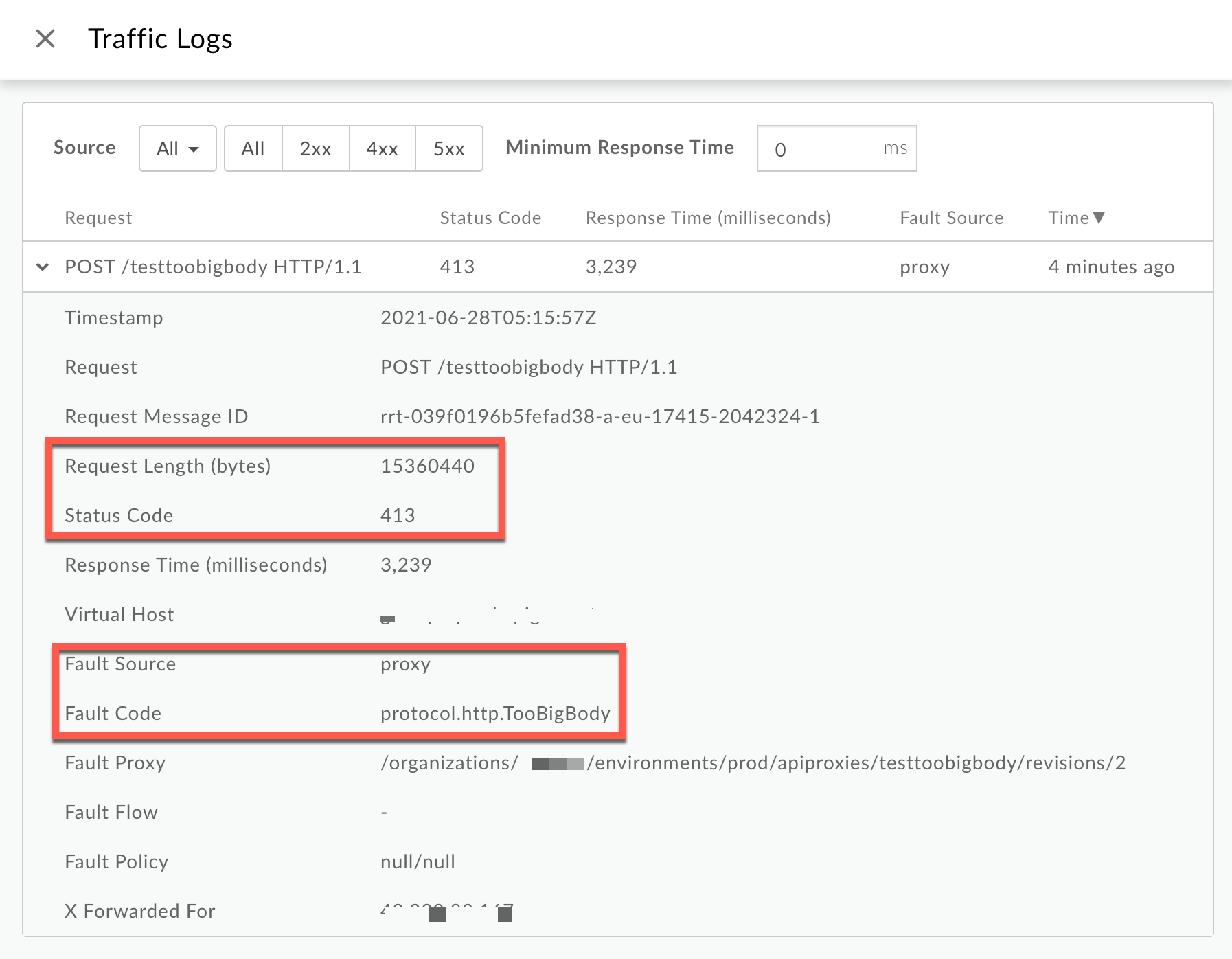
From the Logs window, note the following details:
- **Status Code:** `413`
- **Fault Source:** `proxy`
- **Fault Code:** `protocol.http.TooBigBody`.
- **Request Length(bytes):** `15360440` (\~15 MB)
If the **Fault Source** has the value `proxy` , the **Fault Code**
has the value `protocol.http.TooBigBody`, and **Request Length**
is more than 10 MB, then it indicates that the HTTP request from the client has a
request payload size greater than the [allowed limit in Apigee](https://docs.apigee.com/api-platform/troubleshoot/runtime/413-request-entity-too-large-toobigbody#limits).
### Compressed
**Scenario #2: Request Payload sent in compressed form**
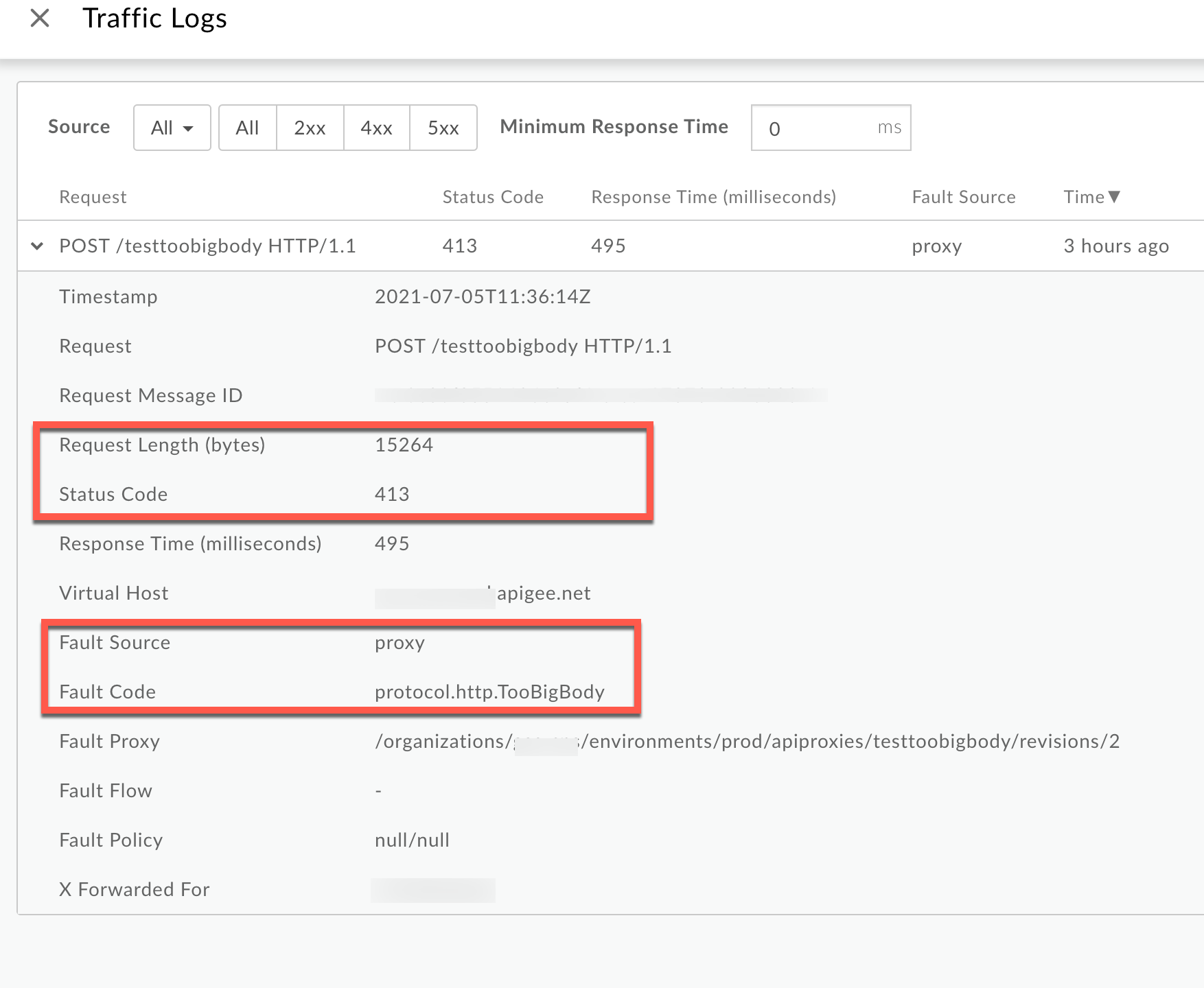
From the **Logs** window, note the following details:
- **Status Code:** `413`
- **Fault Source:** `proxy`
- **Fault Code:** `protocol.http.TooBigBody`.
- **Request Length(bytes):** `15264` (\~15kB)
If the **Fault Source** has the value `proxy` , the **Fault Code**
has the value `protocol.http.TooBigBody`, and the **Request Length** is
less than 10 MB, then it indicates that the HTTP request from the client has a
request payload size lower than the allowed limit in its compressed format, but the
payload size is greater than the allowed limit when uncompressed by Apigee.
### Trace
> [!NOTE]
> **Note:** The instructions in this section are applicable for Public and Private Cloud users.
To diagnose the error using the Trace tool:
1. Enable the [trace session](https://docs.apigee.com/api-platform/debug/using-trace-tool-0) and either
- Wait for the `413 Request Entity Too Large` error to occur or
- If you can reproduce the issue, make the API call and reproduce `413 Request Entity Too Large` error
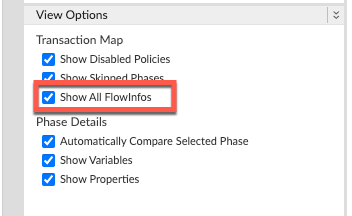
2. Ensure **Show all Flow Infos** is enabled.
3. Select one of the failing requests and examine the trace.
4. Navigate to the phase **Request Received from Client.**
### Uncompressed
**Scenario #1: Request Payload sent in uncompressed form**
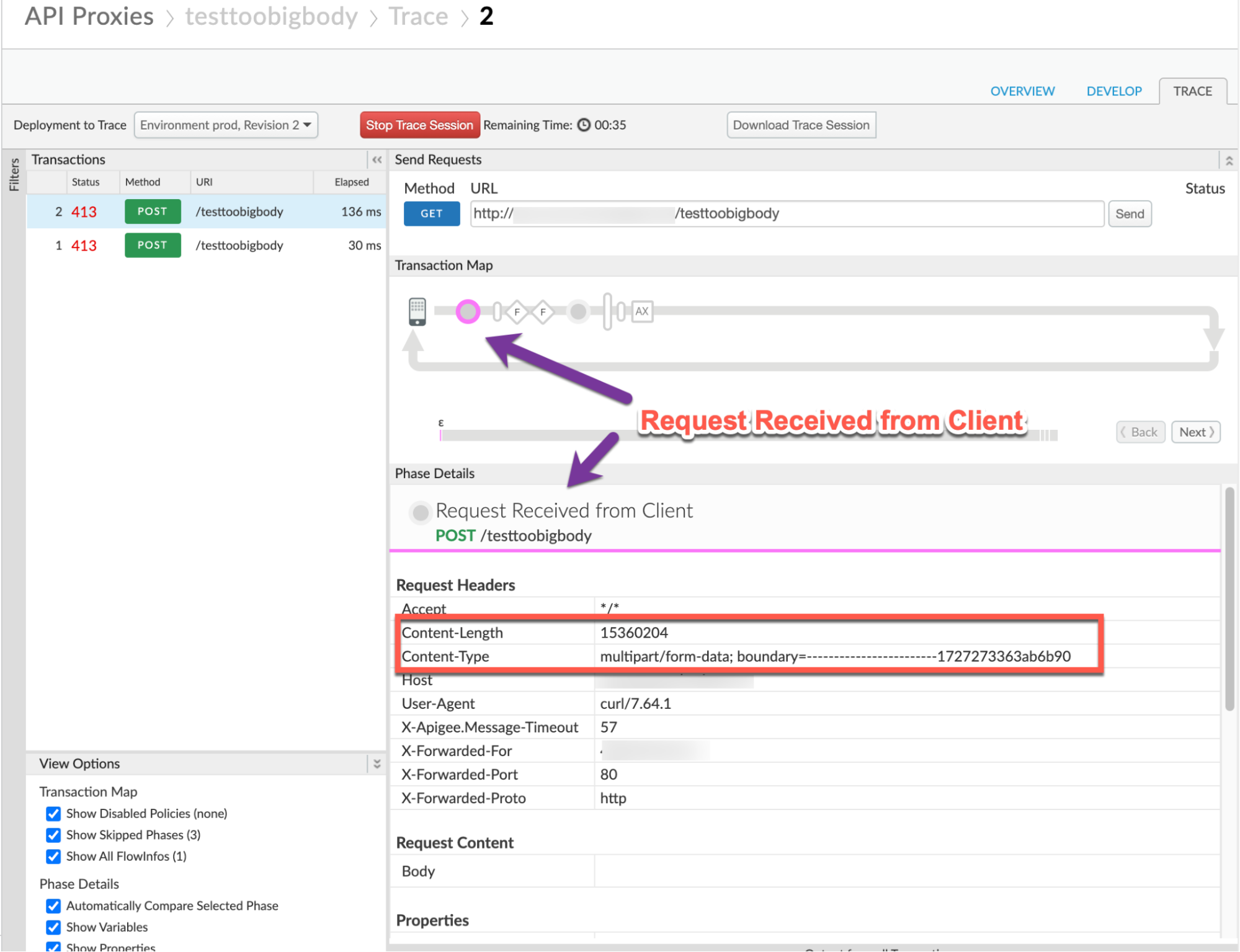
Note the following information:
- **Content-Encoding:** not present
- **Content-Length:** `15360204`
### Compressed
**Scenario #2: Request Payload sent in compressed form**
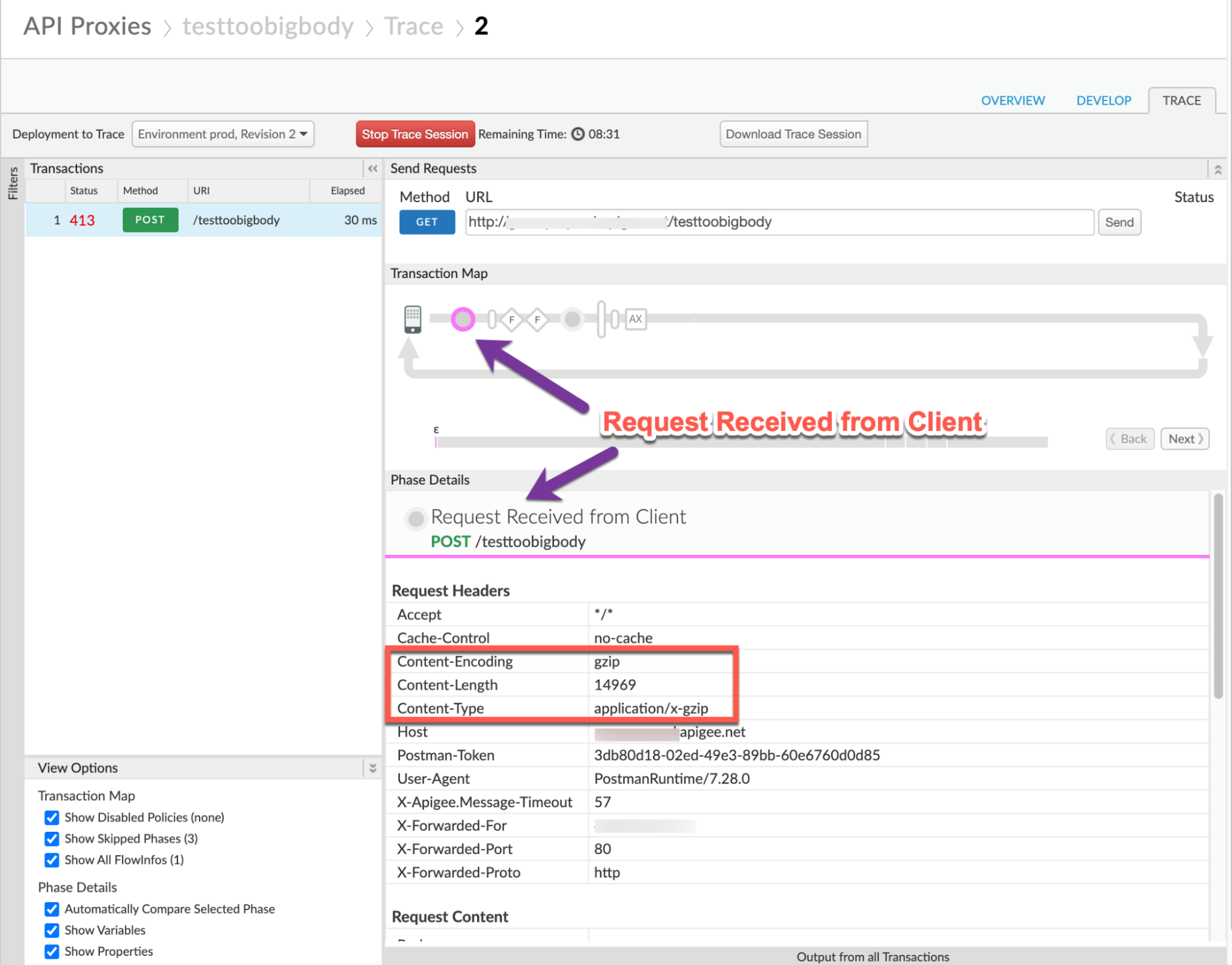
Note the following information:
- **Content-Encoding:** `gzip`
- **Content-Length:** `14969`
- **Content-Type:** `application/x-gzip`
5. Navigate through different phases of the trace and locate where the failure occurred.
6. You will find the error typically in a flow after the **Request Received from
Client** phase as shown below:
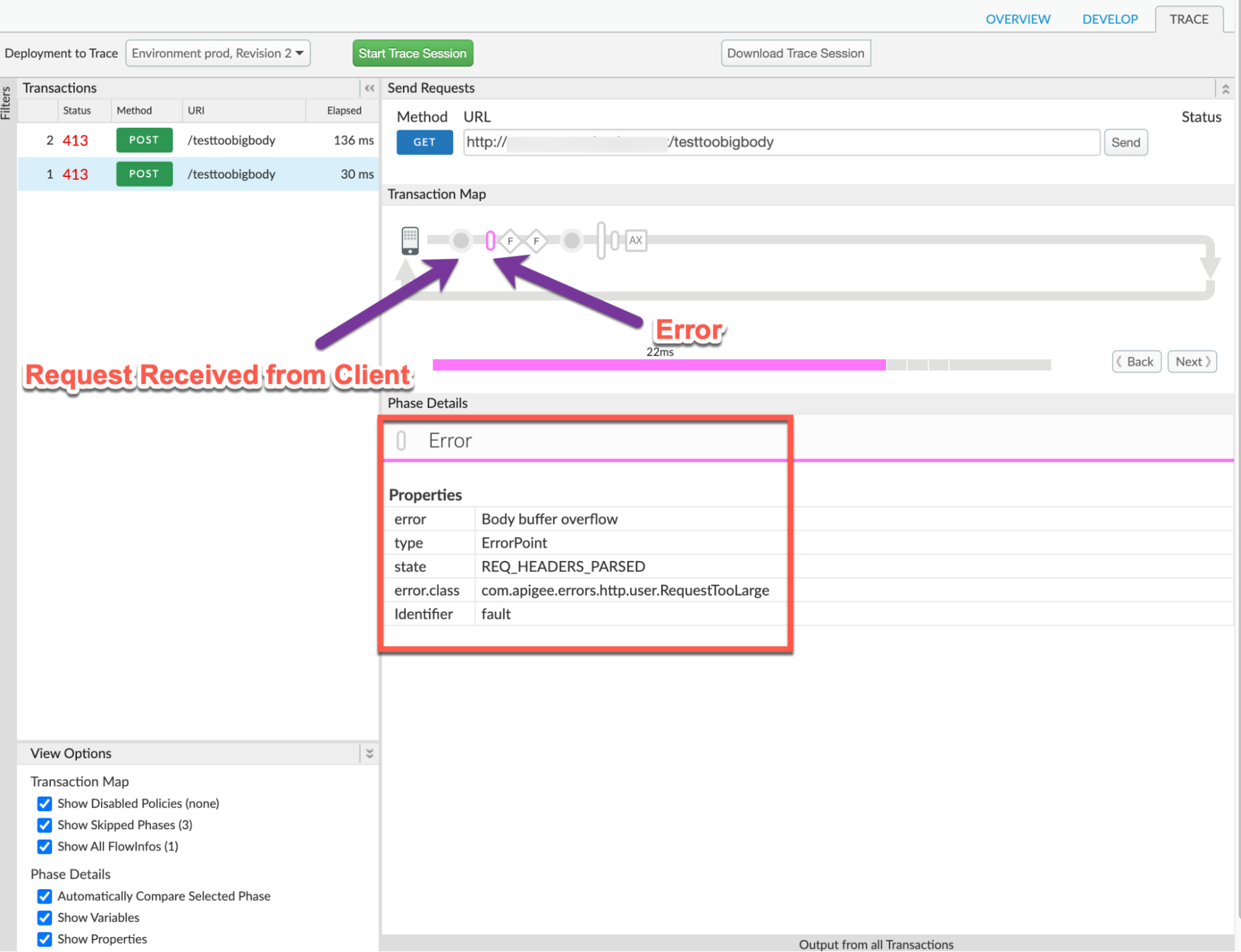
7. Note the value of the error from the trace. The above sample trace shows:
- **error:** `Body buffer overflow`
- **error.class:** `com.apigee.errors.http.user.RequestTooLarge`
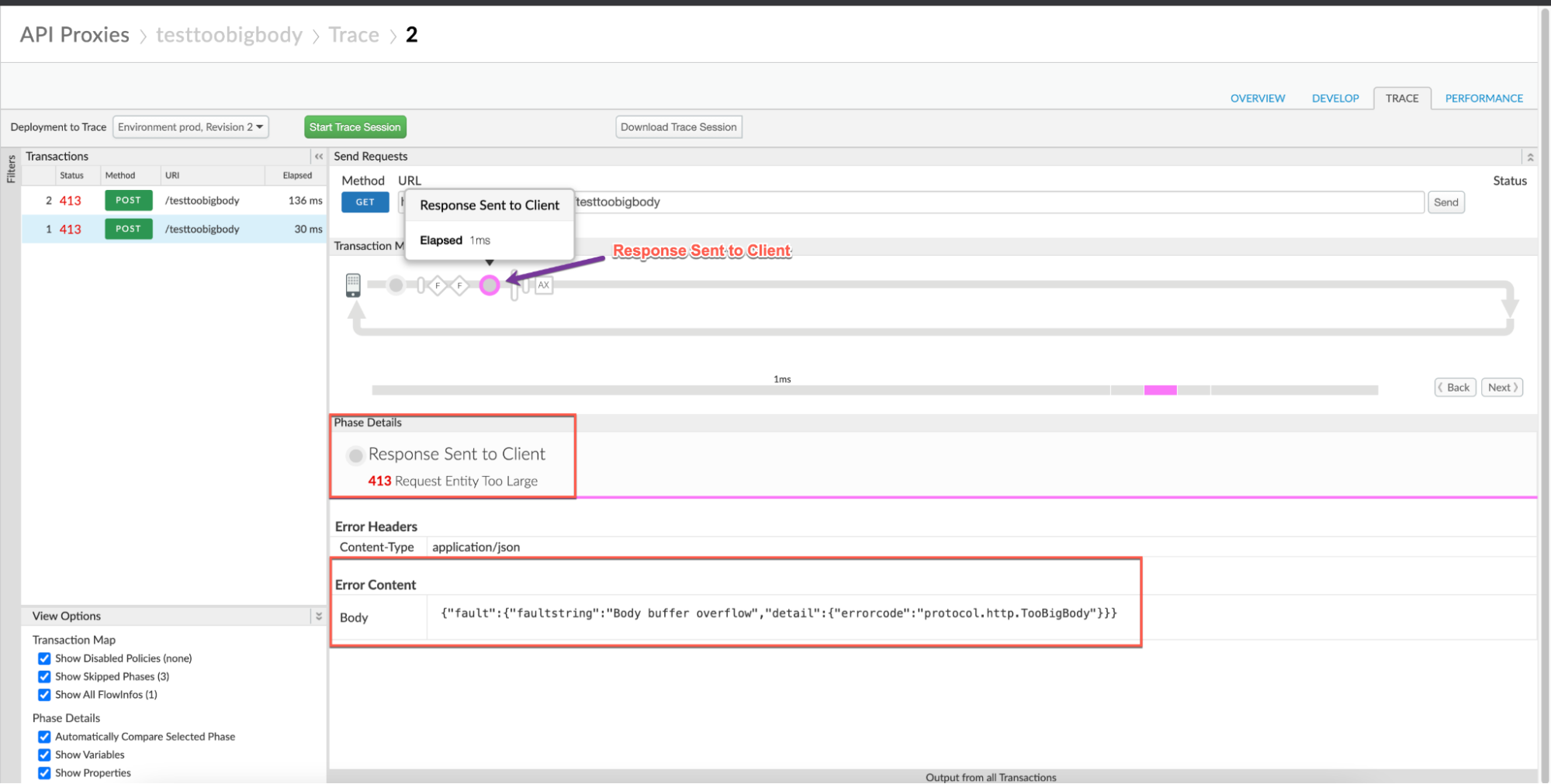
8. Navigate to **Response Sent to Client** and note the values of the error from the
trace. The sample trace below shows:
- **error:** `413 Request Entity Too Large`
- **Error Content:** `{"fault":{"faultstring":"Body buffer overflow","detail":{"errorcode":"protocol.http.TooBigBody"}}}`
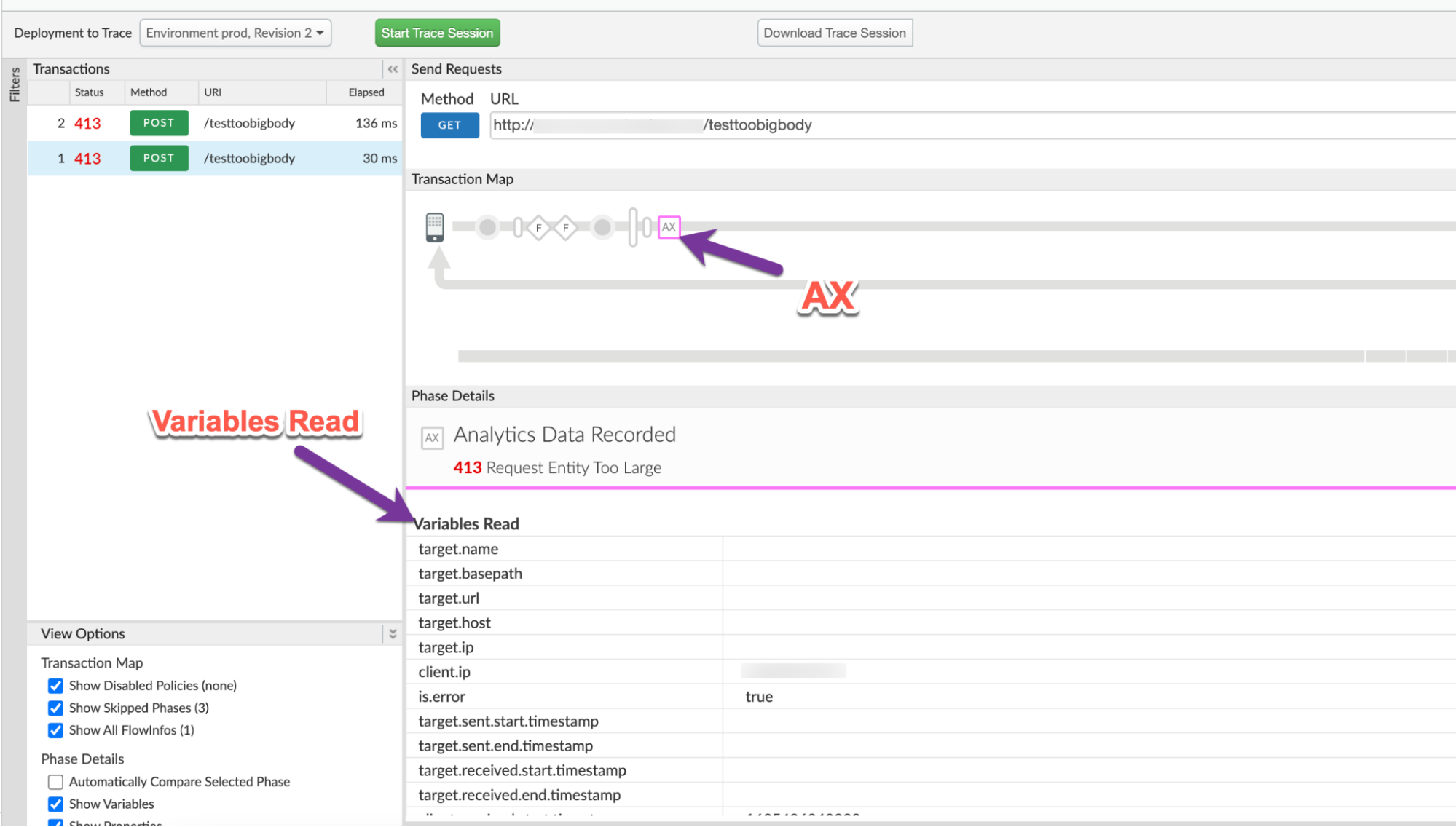
9. Navigate to the **AX** (Analytics Data Recorded) Phase in the trace and click on it.
10. In the **Phase Details** section, scroll down to **Variables Read**.
11. Determine the value of the variable **client.received.content.length,** which indicates:
- The actual size of the request payload when it is sent in uncompressed format and
- The size of the request payload upon decompression by Apigee, when the payload is sent in compressed format. It will always be the same as the value of the allowed limit (10 MB) in this scenario.
> [!NOTE]
> **Note:** There may be **Content-Length** Error Header which indicates the size of error payload and not the request payload. For this error we need to consider the value specified in the **client.received.content.length**variable.
### Uncompressed
**Scenario #1: Request payload in uncompressed form**
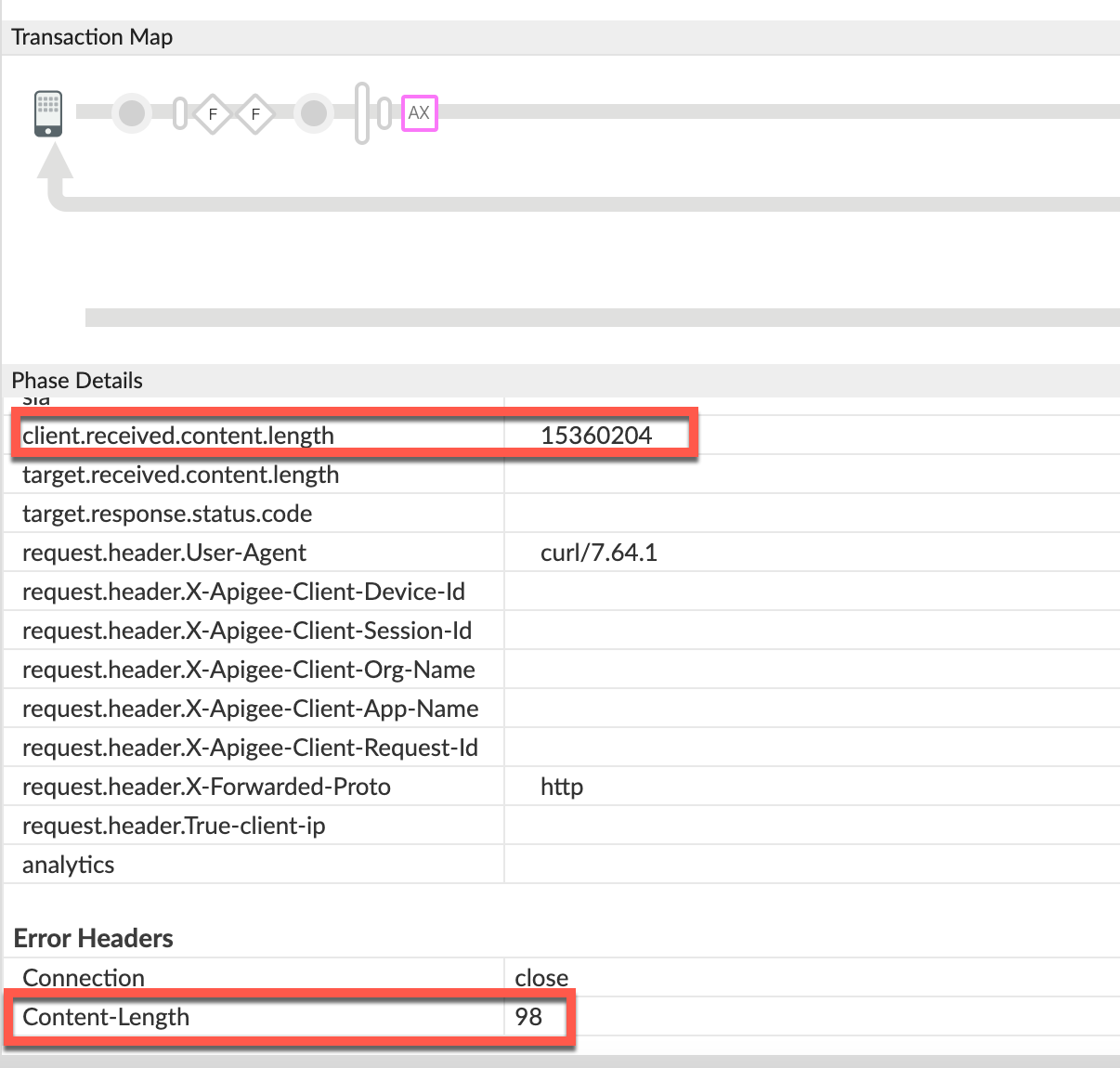
**client.received.content.length variable: `15360204`**
### Compressed
**Scenario #2: Request payload in compressed format**
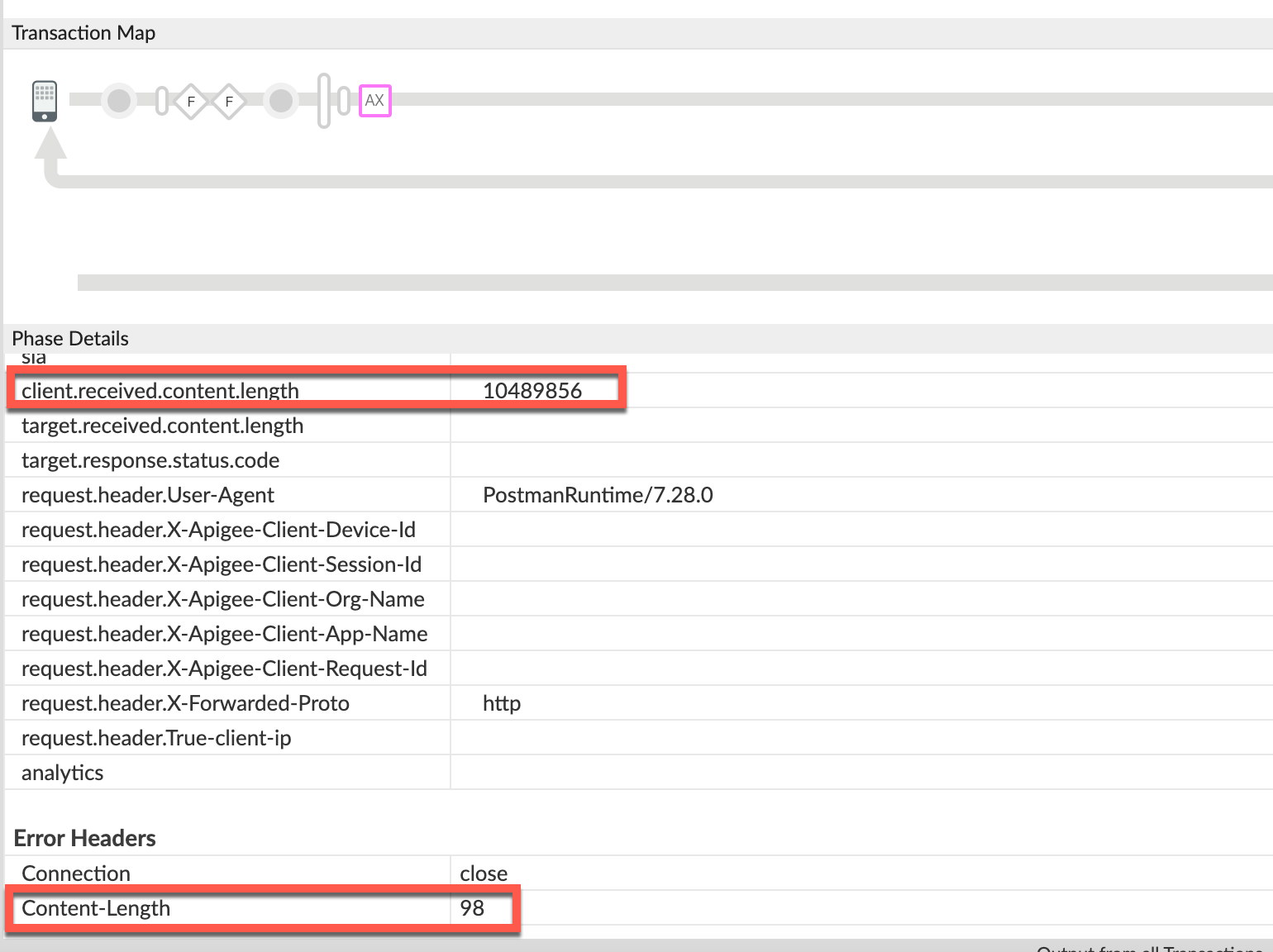
**client.received.content.length variable: `10489856`**
12. The following table explains why the `413` error is returned by Apigee under the two scenarios based on the value of **client.received.content.length variable** :
| Scenario | Value of client.received.content.length | Reason for failure |
|---|---|---|
| Request Payload in uncompressed format | \~15 MB | Size \> allowed limit of 10 MB. |
| Request Payload in compressed format | \~10 MB | Size limit exceeded upon decompression > [!NOTE] > **Note:** The actual size of payload upon decompression could be much more than 10 MB. However, Apigee stops decompressing as soon as the size of the uncompressed data exceeds the limit of 10 MB (default limit) and responds with the error. |
### NGINX
> [!NOTE]
> **Note:** The instructions in this section are for Edge Private Cloud users only.
To diagnose the error using NGINX access logs:
1. If you are a **Private Cloud user** , then you can use NGINX access logs to determine the key information about HTTP `413` errors.
2. Check the NGINX access logs:
`/opt/apigee/var/log/edge-router/nginx/ORG~ENV.PORT#_access_log`
> [!NOTE]
> **Note:** Replace ORG, ENV, and PORT# with actual values.
3. Search to see if there are any `413` errors during a specific duration (if the problem happened in the past) or if there are any requests still failing with `413`.
4. If you do find any `413` errors with the **X-Apigee-fault-code** matching the value of**`protocol.http.TooBigBody`** , then determine the value of the **X-Apigee-fault-source.**
### Uncompressed
**Scenario #1 : Request payload size in uncompressed format**
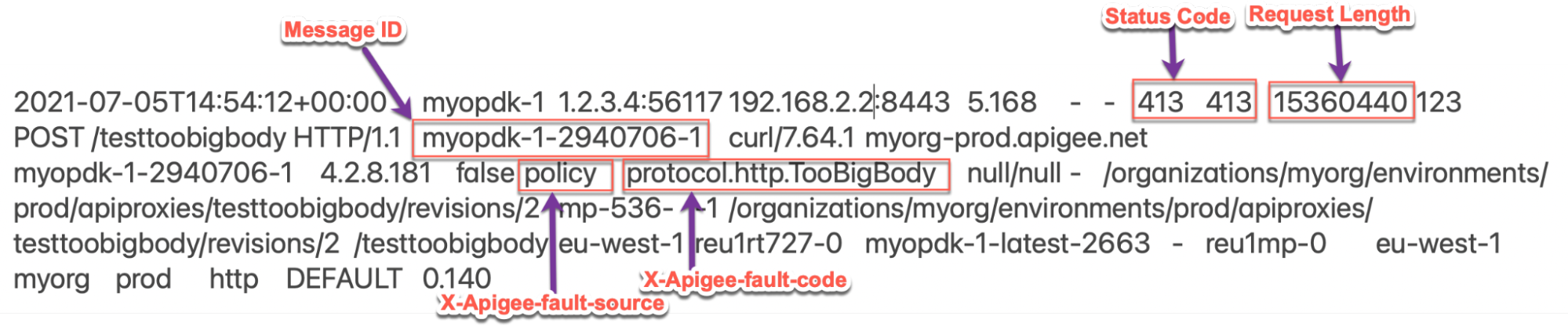
The above sample entry from the NGINX access log has the following values for **X-Apigee-fault-code** and **X-Apigee-fault-source:**
| Response headers | Value |
|---|---|
| X-Apigee-fault-code | `protocol.http.TooBigBody` |
| X-Apigee-fault-sourc | `policy` |
Note the **Request Length:** `15360440` (14.6 MB \> allowed limit)
### Compressed
**Scenario #2 : Request payload size in compressed format**
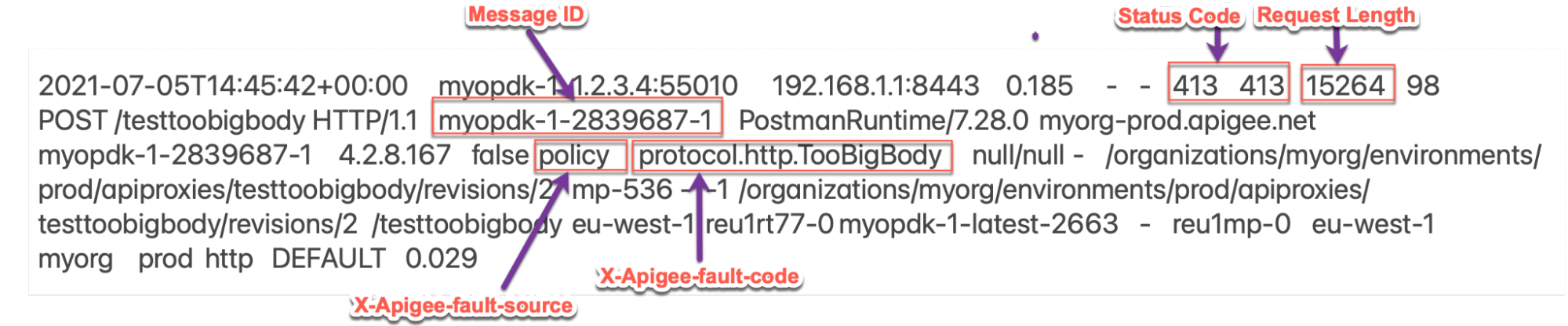
The above sample entry from the NGINX access log has the following values for
**X-Apigee-fault-code** and **X-Apigee-fault-source:**
| Response Headers | Value |
|---|---|
| X-Apigee-fault-code | `protocol.http.TooBigBody` |
| X-Apigee-fault-source | `policy` |
Note the **Request Length:** `15264` (14.9 K \< allowed limit)
In this scenario, Apigee Edge returns `413` even though the
**Request Length** is lower than the allowed limit because the request may
have been sent in compressed format and the size of the payload exceeds the
limit upon decompression by Apigee Edge.
## Cause: Request Payload Size is greater than allowed limit
### Diagnosis
1. Determine the **Fault Code** , **Fault Source** and **Request Payload Size** for the error observed using API Monitoring, Trace Tool, or NGINX access logs as explained in [Common diagnosis steps](https://docs.apigee.com/api-platform/troubleshoot/runtime/413-request-entity-too-large-toobigbody#common) with Scenario #1 (uncompressed).
2. If the **Fault Source** has the value `policy` or `proxy`, then this indicates that the request payload size sent by the client application to Apigee is greater than the [allowed limit in Apigee Edge](https://docs.apigee.com/api-platform/troubleshoot/runtime/413-request-entity-too-large-toobigbody#limits).
3. Verify the **Request Payload Size** as determined from step #1.
- If the payload size \> 10 MB allowed limit, then that's the cause for the error.
- If the payload size \< 10 MB allowed limit, then it's possible that the request payload is passed in compressed format. Go to[Cause: Request payload size exceeds allowed limit after decompression](https://docs.apigee.com/api-platform/troubleshoot/runtime/413-request-entity-too-large-toobigbody#compressed-too-big)
4. You can also validate if the request payload size is indeed \> 10 MB allowed limit by checking the actual request using the following steps:
1. If you don't have access to the actual request made by the client application, then go to [Resolution](https://docs.apigee.com/api-platform/troubleshoot/runtime/413-request-entity-too-large-toobigbody#resolution).
2. If you have access to the actual request made by the client application, then perform the following steps:
1. Verify the size of the payload passed in the request.
2. If you find that the size of the payload is more than the [allowed limit in Apigee Edge](https://docs.apigee.com/api-platform/troubleshoot/runtime/413-request-entity-too-large-toobigbody#limits), then that is the cause of the issue.
3. **Sample Request:**
```
curl http:///testtoobigbody -k -X POST -F file=@test15mbfile -v
```
4. In the above case, the file `test15mbfile` is \~15 MB. If you are using some other client, get the client logs to find out the payload size being sent.
### Resolution
Go to [Resolution](https://docs.apigee.com/api-platform/troubleshoot/runtime/413-request-entity-too-large-toobigbody#resolution).
## Cause: Request Payload Size exceeds allowed limit after decompression
If the request payload is sent in *compressed format* and the request header
`Content-Encoding` is set to `gzip,`Apigee decompresses the request
payload. During the decompression process, if Apigee finds the size of the payload to be greater
than 10 MB,
[the allowed limit](https://docs.apigee.com/api-platform/troubleshoot/runtime/413-request-entity-too-large-toobigbody#limits), then it stops further decompression, and responds back
immediately with `413 Request Entity Too Large` with error code
`protocol.http.TooBigBody`.
### Diagnosis
1. Determine the **Fault Code,** **Fault Source** ,and**Request Payload size** for the error observed using API Monitoring, Trace Tool, or NGINX Access logs as explained in [Common diagnosis steps](https://docs.apigee.com/api-platform/troubleshoot/runtime/413-request-entity-too-large-toobigbody#common) with Scenario #2 (compressed).
2. If the **Fault Source** has the value `policy` or `proxy`, then this indicates that the request payload size sent by the client application to Apigee is greater than the [allowed limit in Apigee Edge.](https://docs.apigee.com/api-platform/troubleshoot/runtime/413-request-entity-too-large-toobigbody#limits)
3. Verify the **Request Payload Size** as determined from [step 1](https://docs.apigee.com/api-platform/troubleshoot/runtime/413-request-entity-too-large-toobigbody#step1).
- If the payload size \> 10 MB allowed limit, then that's the cause for the error.
- If the payload size \< 10 MB allowed limit, then it's possible that the request payload is passed in compressed format. In this case, check for the uncompressed size of the compressed request payload.
4. You can validate if the request from the client was sent in compressed format and the uncompressed size was greater than the allowed limit using one of the following methods:
### Trace
To validate using the Trace tool:
1. If you have captured a trace for the failing request, refer to the steps detailed in [Trace](https://docs.apigee.com/api-platform/troubleshoot/runtime/413-request-entity-too-large-toobigbody#trace) and
1. Determine the value of **client.received.content.length**variable
2. Verify if the request from the client contained the **Content-Encoding:
`gzip`**header
2. If the value of **client.received.content.length** variable is greater than the 10 MB, [the allowed limit](https://docs.apigee.com/api-platform/troubleshoot/runtime/413-request-entity-too-large-toobigbody#limits), and the request header **Content-Encoding: `gzip`,**then that's the cause for this error.
### Actual request
To validate using the actual request:
1. If you don't have access to the actual request made by the client application, then go to [Resolution](https://docs.apigee.com/api-platform/troubleshoot/runtime/413-request-entity-too-large-toobigbody#resolution).
2. If you have access to the actual request made by the client application, then perform the following steps:
1. Verify the size of the payload passed in the request along with the `Content-Encoding` header sent in the request.
2. Check to see if the uncompressed size of the payload is more than the
[allowed limit in Apigee Edge](https://docs.apigee.com/api-platform/troubleshoot/runtime/413-request-entity-too-large-toobigbody#limits)
**Sample request:**
```
curl https:///testtoobigbody -k -X POST -F file=@test15mbfile.gz -H "Content-Encoding: gzip" -v
```
In the above case, the file `test15mbfile.gz `is less than the size limit;
however, the size of the uncompressed file `test15mbfile` is \~15 MB and
the `Content-Encoding` header is `gzip`.
If you are using some other client, get the client logs to find out the payload size
being sent and if the `Content-Encoding` header is set to `gzip`.
### Message Processor logs
To validate using Message Processor logs:
> [!NOTE]
> **Note:** The instructions in this section are for Edge Private Cloud users only.
1. If you are a **Private Cloud user** , then you can use Message Processor logs to determine the key information about HTTP `413` errors.
2. Check the Message Processor logs:
`/opt/apigee/var/log/edge-message-processor/logs/system.log`
3. Search to see if there are any `413` errors during a specific duration (if the
problem happened in the past) or if there are any requests still failing with `413`.
You may use the following search strings:
```
grep -ri "chunkCount"
```
```
grep -ri "RequestTooLarge"
```
4. You will find lines from `system.log` similar to the following (`TotalRead` and `chunkCount` may vary in your case):
```
2021-07-06 13:29:57,544 NIOThread@1 ERROR HTTP.SERVICE -
TrackingInputChannel.checkMessageBodyTooLarge()
: Message is too large. TotalRead 10489856 chunkCount 2570
2021-07-06 13:29:57,545 NIOThread@1 INFO HTTP.SERVICE -
ExceptionHandler.handleException()
: Exception trace: com.apigee.errors.http.user.RequestTooLarge
: Body buffer overflow
```
5. During the process of decompression, as soon as the Message Processor determines the total read bytes is \> 10 MB, it stops and prints the following line:
```
Message is too large. TotalRead 10489856 chunkCount 2570
```
It implies that the **Request Payload Size** is more than 10 MB and Apigee throws
the error `RequestTooLarge` when the size starts to exceed the limit 10 MB
with fault code as `protocol.http.TooBigBody`
> [!NOTE]
> **Note:** You will see the above line in the Message Processor logs, even if you send the request payload in uncompressed format. The only difference is that `TotalRead` will contain the actual size of the request payload in that scenario.
### Resolution
> [!WARNING]
> **Warning:** Sending payload size \> 10 MB, the allowed limit in Apigee, can lead to an increase in latency, performance issues, and timeouts. It is always recommended to send payload size \< 10 MB through Apigee. Refer to the solutions listed below and use the recommended options only.
#### Fix size
**Option #1 \[Recommended\]: Fix the client application not to send payload size greater than the
allowed limit**
> [!NOTE]
> **Note:** This is one of the recommended options to fix this issue
1. Analyze the reason for the specific client to send request / payload size more than allowed limit as defined in [Limits](https://docs.apigee.com/api-platform/troubleshoot/runtime/413-request-entity-too-large-toobigbody#limits).
2. If it is not desirable, modify your client application so that it sends request / payload
size less than the allowed limit.
In the example discussed above, you can fix the issue by passing a smaller sized file,
let's say **`test5mbfile`** (with size as 5 MB) payload as shown below:
```
curl https:///testtoobigbody -k -X POST -F file=@test5mbfile -v
```
3. If it is desirable and you want to send a request/payload more than the allowed limit, go to the next options.
#### Signed URL Pattern
**Option #2 \[Recommended\]: Use signed URLs pattern within an Apigee JavaCallout**
> [!NOTE]
> **Note:** This is the recommended solution to send payload larger than 10 MB.
For payloads larger than 10 MB, Apigee recommends using a signed URLs pattern within an
Apigee JavaCallout, illustrated by the
[Edge Callout: Signed URL Generator](https://github.com/DinoChiesa/ApigeeEdge-Java-GoogleUrlSigner) example on GitHub.
#### Streaming
**Option #3 : Use streaming**
If your API proxy needs to handle very large requests and/or responses, then you can enable
[streaming](https://docs.apigee.com/api-platform/develop/enabling-streaming) in Apigee.
> [!WARNING]
> **Warning:** While streaming can help you work around the 10 MB request/response size limit enforced by the product, Apigee doesn't recommend exceeding that limit when streaming and can't support issues such as performance issues, timeouts, and so on, that arise as a result of exceeding that limit.
#### CwC
**Option #4 : Use CwC property to increase the buffer limit**
> [!NOTE]
> **Note:** This is applicable for Private Cloud customers only.
This option should be used only when you cannot use any of the recommended options as there might
be performance issues if the default size is increased.
Apigee provides a
[CwC](https://docs.apigee.com/private-cloud/latest/how-configure-edge) property which allows it to increase
the request and response payload size limit. For details, refer
[Set the message size limit on the Router or Message Processor](https://docs.apigee.com/private-cloud/latest/set-message-size-limit-router-or-message-processor)
> [!WARNING]
> **Warning:** While this option can help you work around the 10 MB request/response size limit enforced by the product, Apigee doesn't recommend you increase the limit and can't support issues such as performance issues, timeouts, and so on, that arise due to exceeding that limit.
## Limits
Apigee expects the client application and backend server to not send payload sizes greater than
the allowed limit as documented for **`Request/response size`** in
[Apigee Edge Limits](https://docs.apigee.com/api-platform/reference/limits#system).
1. If you are a **Public Cloud user** , then the maximum limit for request and response payload size is as documented for **`Request/response size`** in [Apigee Edge Limits](https://docs.apigee.com/api-platform/reference/limits#system).
2. If you are a **Private Cloud user,** then you may have modified the default limit for request and response payload size (even though it is not a recommended practice). You can determine the maximum request payload size limit by following instructions in [How to check the current limit](https://docs.apigee.com/api-platform/troubleshoot/runtime/413-request-entity-too-large-toobigbody#check-current-limit).
### How to check the current limit?
> [!NOTE]
> **Note:** The instructions in this section are for Edge Private Cloud users only.
This section explains how to verify that the property `HTTPRequest.body.buffer.limit`
has been updated with a new value on the Message Processors.
1. On the Message Processor machine, search for the property `HTTPRequest.body.buffer.limit` in the `/opt/apigee/edge-message-
processor/conf` directory and check to see what value has been set using the following command:
```
grep -ri "HTTPRequest.body.buffer.limit" /opt/apigee/edge-message-processor/conf
```
2. The sample result from the above command is as follows:
```
/opt/apigee/edge-message-processor/conf/http.properties:HTTPRequest.body.buffer.limit=10m
```
3. In the example output above, notice that the property
`HTTPRequest.body.buffer.limit` has been set with the value `10m` in
`http.properties`.
This indicates that the limit for the request payload size configured in Apigee for Private
Cloud is **10 MB.**
If you still need any assistance from Apigee Support, go to
[Must gather diagnostic information](https://docs.apigee.com/api-platform/troubleshoot/runtime/413-request-entity-too-large-toobigbody#must-gatherj).
## Must gather diagnostic information
Gather the following diagnostic information, and then contact [Apigee Edge Support](https://docs.apigee.com/api-platform/troubleshoot/support):
If you are a **Public Cloud user**, provide the following information:
- Organization name
- Environment name
- API Proxy name
- Complete curl command used to reproduce the `413` error
- Trace file for the API requests
If you are a **Private Cloud user**, provide the following information:
- Complete error message observed for the failing requests
- Organization name
- Environment name
- API Proxy bundle
- Trace file for the failing API requests
- Complete curl command used to reproduce the `413` error
- NGINX access logs `/opt/apigee/var/log/edge-router/nginx/ORG~ENV.PORT#_access_log`
**Where:** ORG, ENV and PORT# are replaced with
actual values.
- Message Processor system logs `/opt/apigee/var/log/edge-message-processor/logs/system.log`