You're viewing **Apigee Edge** documentation.
[Go to the
**Apigee X** documentation](http://cloud.google.com/apigee/docs/api-platform/errorcatalog/mp-runtime-errorcatalog). info
## Symptom
The client application gets an HTTP status code of `502 Bad Gateway` with the error
code `protocol.http.Response405WithoutAllowHeader` as a response for API calls.
## Error message
Client application gets the following response code:
```
HTTP/1.1 502 Bad Gateway
```
In addition, you may observe the following error message:
```
{
"fault":{
"faultstring":"Received 405 Response without Allow Header",
"detail":{
"errorcode":"protocol.http.Response405WithoutAllowHeader"
}
}
}
```
## Possible causes
This error occurs if the backend server responds with `405 Method Not Allowed` status
code without the `Allow` header.
As per the specification
[RFC 7231, section 6.5.5: 405 Method Not Allowed](https://datatracker.ietf.org/doc/html/rfc7231#section-6.5.5), it is expected that the origin server
MUST generate and send an `Allow` header field in a `405` response containing a
list of the target resource's currently supported methods. If not, then Apigee responds with
`502 Bad Gateway` and error code `protocol.http.Response405WithoutAllowHeader`.
| Cause | Description | Troubleshooting instructions applicable for |
|---|---|---|
| [405 response without Allow header from backend server](https://docs.apigee.com/api-platform/troubleshoot/runtime/502-bad-gateway-response-405-without-allow-header#405-response) | The backend server that is processing the API request responds with `405` status code without `Allow` header. | Edge Public and Private Cloud users |
## Common diagnosis steps
Use one of the following tools/techniques to diagnose this error:
### API Monitoring
> [!NOTE]
> **Note:** The instructions in this section are applicable for Public Cloud users only.
To diagnose the error using API Monitoring:
1. Log in to the [Edge UI](https://apigee.com/edge) as a user with an [appropriate role](https://docs.apigee.com/api-monitoring/access#roles).
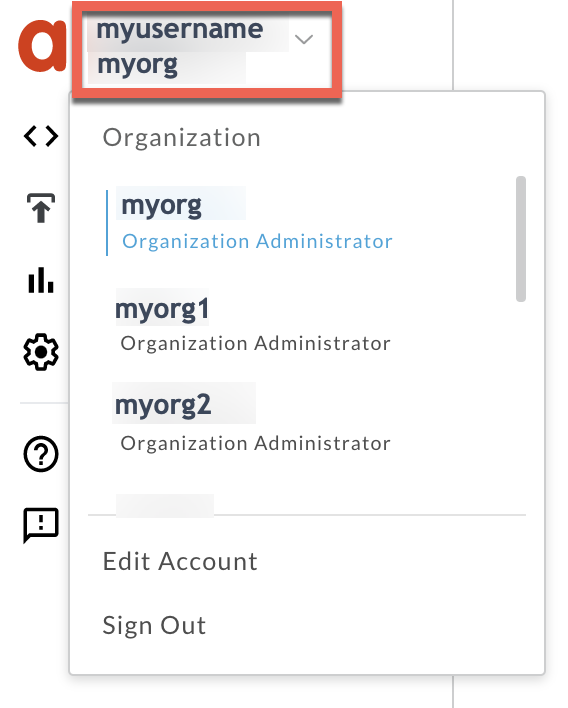
2. Switch to the organization in which you want to investigate the issue.
3. Navigate to the **Analyze \> API Monitoring \> Investigate** page.
4. Select the specific timeframe in which you observed the errors.
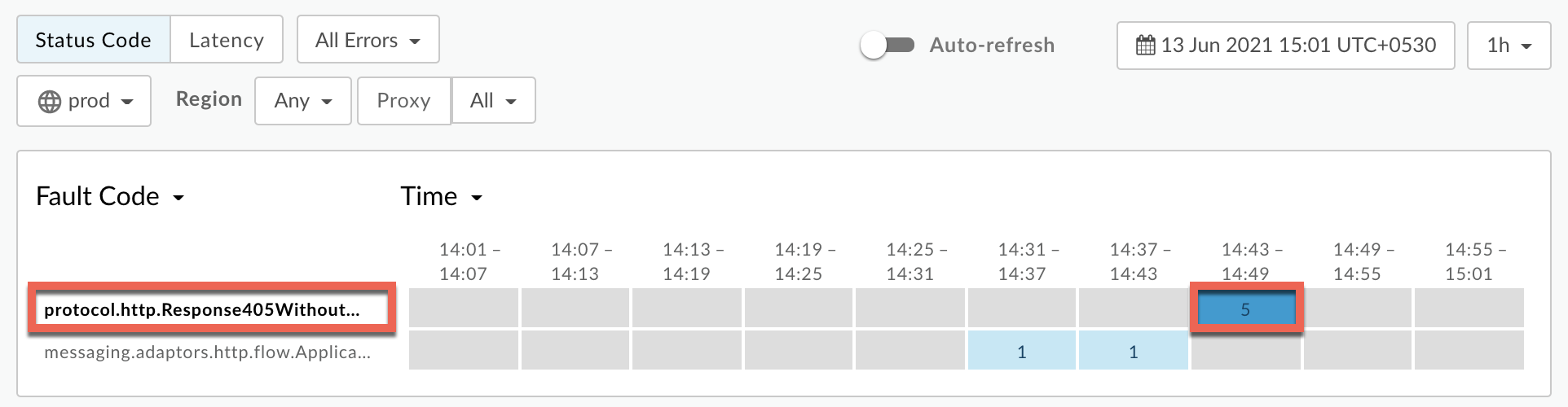
5. Plot **Fault Code** against **Time**.
> [!NOTE]
> **Note:** You can also plot **Status Code** against **Time**.
6. Select a cell which has the fault code
`protocol.http.Response405WithoutAllowHeader` as shown below:
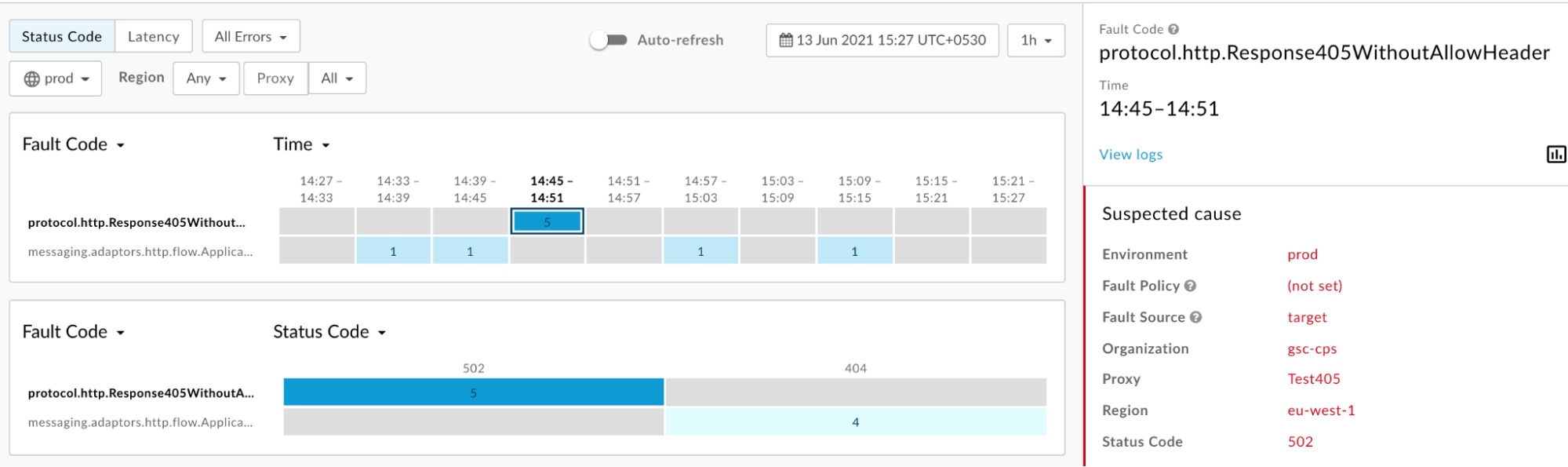
7. Information about the fault code `protocol.http.Response405WithoutAllowHeader`
is displayed as shown below:
8. Click **View logs**and expand one of the failed requests to view more information.
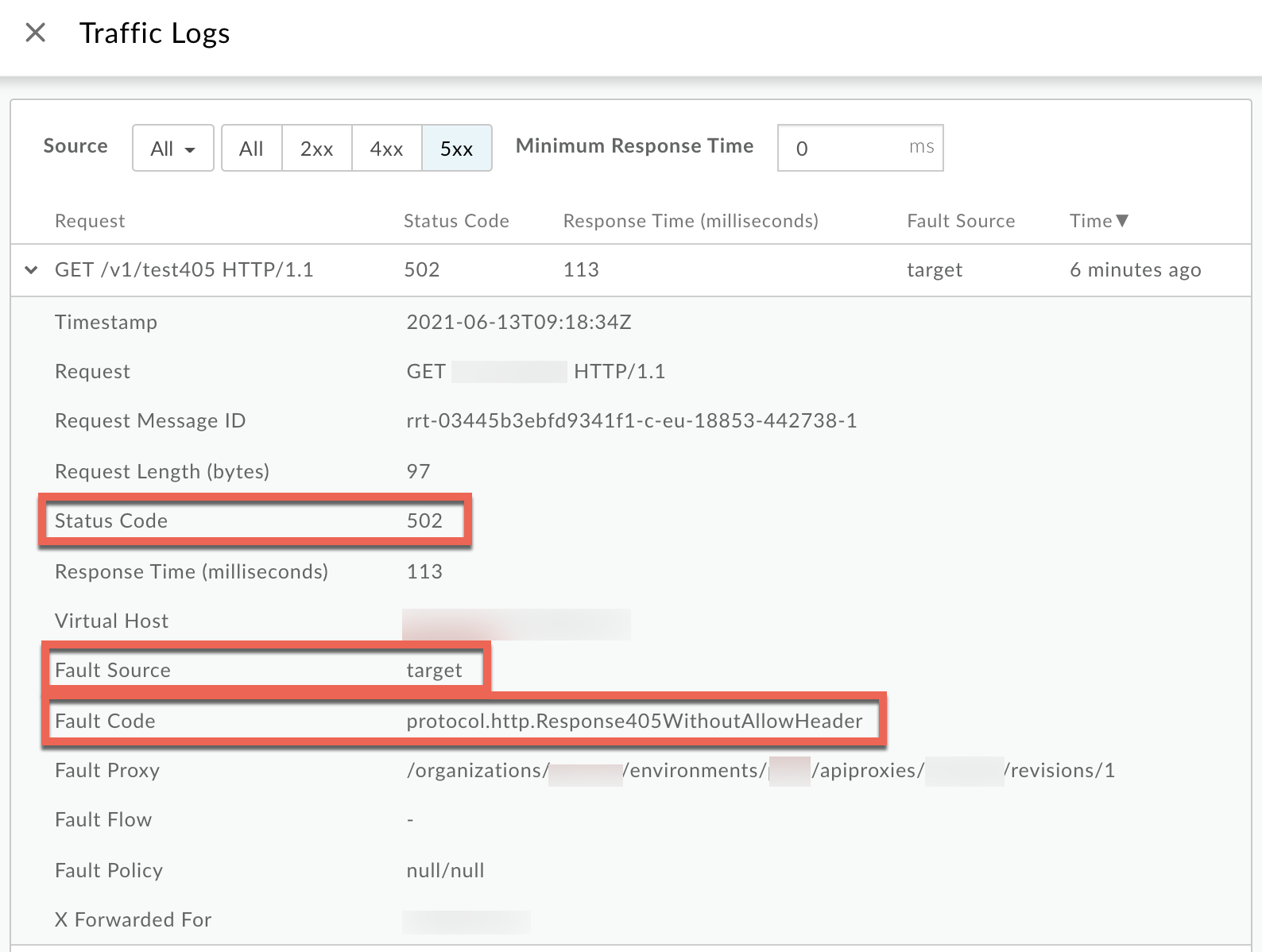
9. From the **Logs** window, note the following details:
- **Status Code:** `502`
- **Fault Source:** `target`
- **Fault Code:** `protocol.http.Response405WithoutAllowHeader`.
10. If the **Fault Source** is `target` and the **Fault Code** is `protocol.http.Response405WithoutAllowHeader`, then that indicates that the backend server responded with `405 Method Not Allowed` status code without the `Allow` header.
### Trace tool
> [!NOTE]
> **Note:** The instructions in this section are applicable for Public and Private Cloud users.
To diagnose the error using the Trace tool:
1. Enable the [trace session](https://docs.apigee.com/api-platform/debug/using-trace-tool-0) and either
- Wait for the `502 Bad Gateway` error to occur, or
- If you can reproduce the issue, make the API call to reproduce the issue - `502 Bad Gateway` error
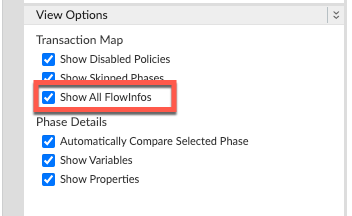
2. Ensure **Show all FlowInfos** is enabled:
3. Select one of the failing requests and examine the trace.
4. Navigate through different phases of the trace and locate where the failure occurred.
5. You will find the error typically in a flow after the **Request sent to target server**
phase as shown below:
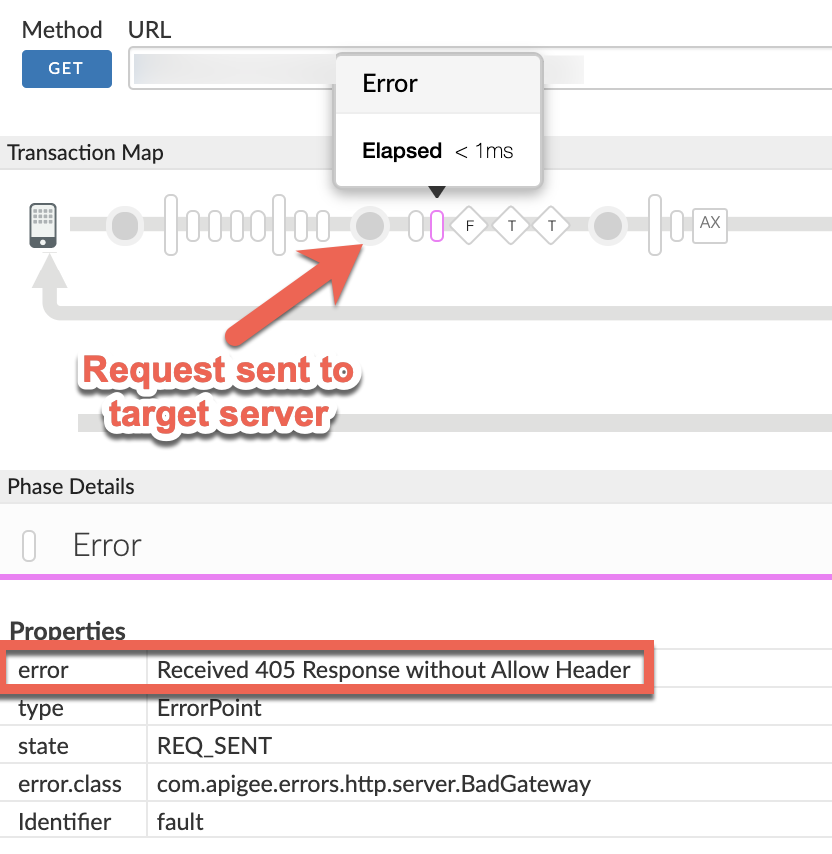
6. Note the value of the error from the trace.
The above sample trace shows the error as `Received 405 Response without Allow
Header`. Since the error is raised by Apigee after the request was sent to the backend
server, it indicates that the backend server sent the `405` response status code
without the `Allow` header.
7. Navigate to the **AX** (Analytics Data Recorded) Phase in the trace and click it.
8. Scroll down to the **Error / Response Headers** section in the **Phase Details**
panel and determine the
values of **X-Apigee-fault-code** and **X-Apigee-fault-source** as shown below:
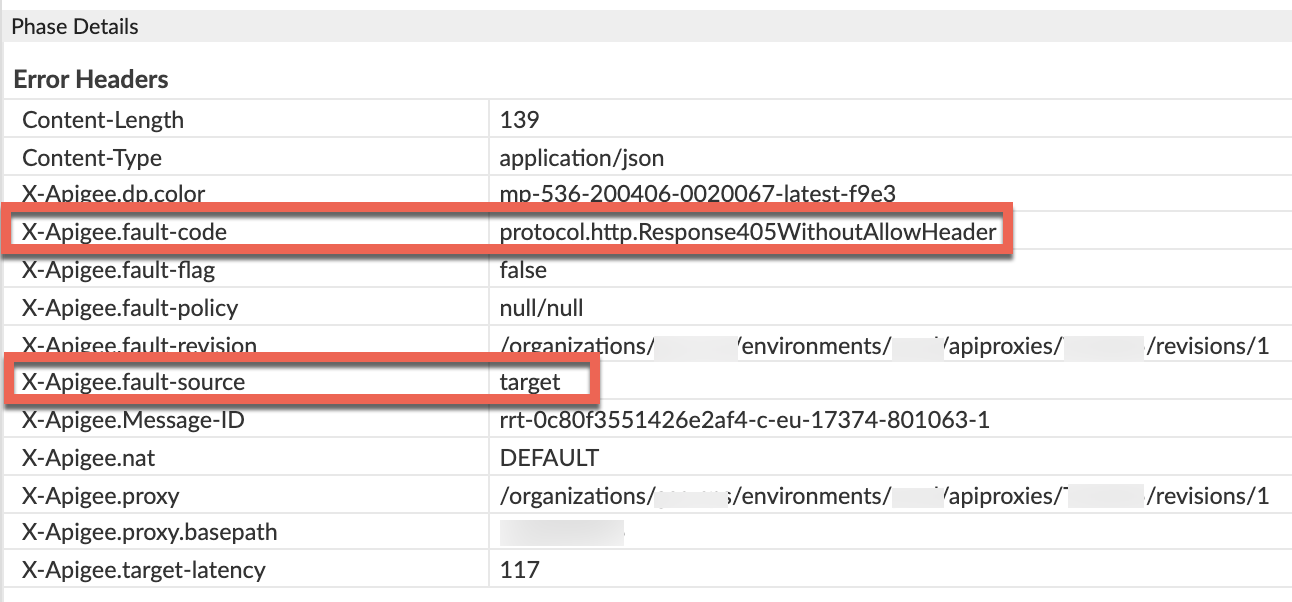
9. You will see the values of **X-Apigee-fault-code** and **X-Apigee-fault-source** as `protocol.http.Response405WithoutAllowHeader` and `target`respectively, indicating that this error is caused because the backend sent the `405` response status code without the `Allow` header.
| Response Headers | Value |
|---|---|
| X-Apigee-fault-code | `protocol.http.Response405WithoutAllowHeader` |
| X-Apigee-fault-source | `target` |
### NGINX
> [!NOTE]
> **Note:** The instructions in this section are for Edge Private Cloud users only.
To diagnose the error using NGINX access logs:
1. If you are a **Private Cloud user** , then you can use NGINX access logs to determine the key information about HTTP `502` errors.
2. Check the NGINX access logs:
```nginx
/opt/apigee/var/log/edge-router/nginx/ORG~ORG.PORT#_access_log
```
**Where:** ORG, ORG and, PORT# are replaced with actual values.
3. Search to see if there are any `502` errors with error code `protocol.http.Response405WithoutAllowHeader` during a specific duration (if the problem happened in the past) or if there are any requests still failing with `502`.
4. If you do find any `502` errors with the **X-Apigee-fault-code** matching the
value of `protocol.http.Response405WithoutAllowHeader`, then determine the
value of the **X-Apigee-fault-source.**
**Sample 502 error from the NGINX access log:**
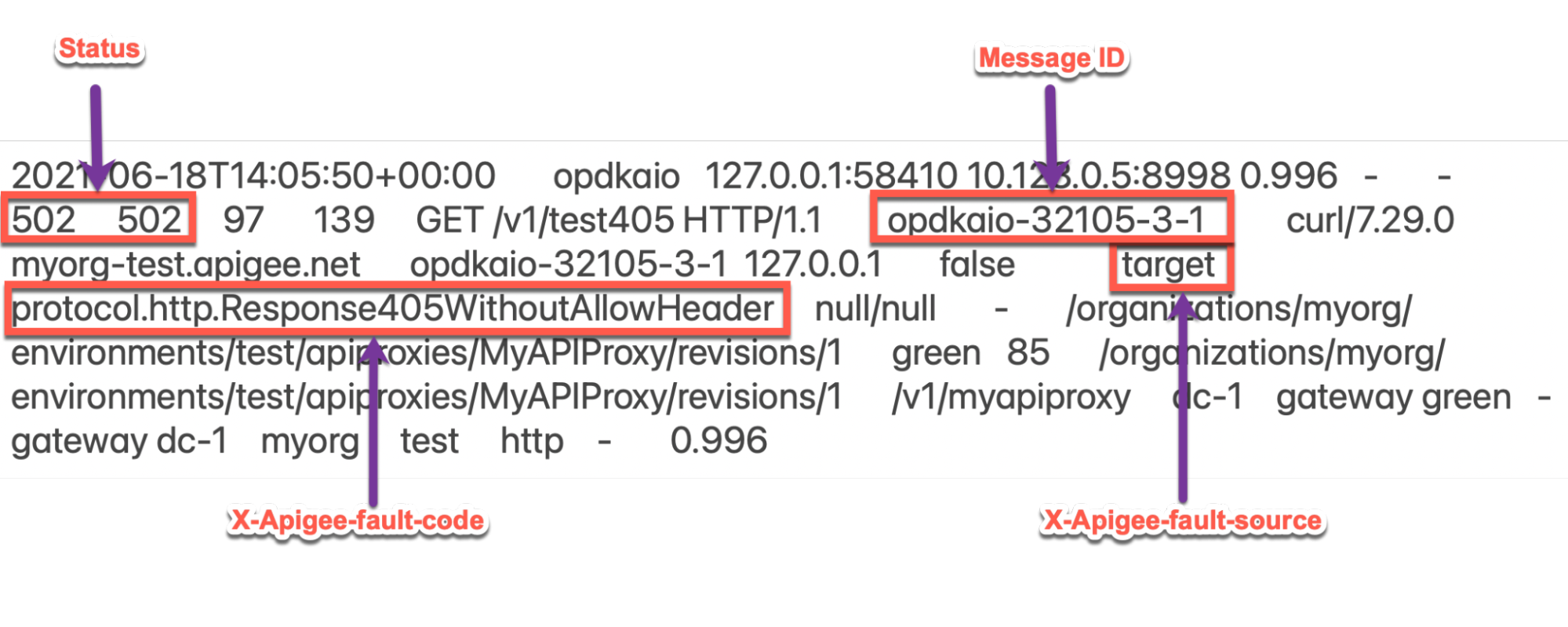
The above sample entry from NGINX access log has the following values for **X-Apigee-
fault-code** and **X-Apigee-fault-source:**
| Response Headers | Value |
|---|---|
| X-Apigee-fault-code | `protocol.http.Response405WithoutAllowHeader` |
| X-Apigee-fault-source | `target` |
## Cause: 405 response without Allow header from backend server
### Diagnosis
1. Determine the **Fault Code** and **Fault Source** for `502 Bad Gateway` using API Monitoring, Trace Tool or NGINX access logs as explained in [Common diagnosis steps](https://docs.apigee.com/api-platform/troubleshoot/runtime/502-bad-gateway-response-405-without-allow-header#common-diagnosis).
2. If the **Fault Code** is `protocol.http.Response405WithoutAllowHeader` and Fault Source has the value `target`, then this indicates that the backend server has responded with a `405` status code without the `Allow` header. Therefore, Apigee responds back with `502 Bad Gateway` with error code `protocol.http.Response405WithoutAllowHeader`.
### Resolution
Use one of the following methods to resolve the issue:
### Backend server
**Option #1: Fix the Backend Server to send 405 status code with the Allow header:**
> [!NOTE]
> **Note:** This is the recommended option to fix this issue.
1. Ensure that the backend server always adheres to the specification
[RFC 7231, section 6.5.5: 405 Method Not Allowed](https://datatracker.ietf.org/doc/html/rfc7231#section-6.5.5) and sends with the `405` status
code by including the list of methods that are allowed as part of a `Allow` header
as shown below:
```
Allow: HTTP_METHODS
```
2. For example, if your backend server allows `GET`, `POST` and `HEAD` methods, then you need to ensure that the `Allow` header contains them as follows:
```
Allow: GET, POST, HEAD
```
### Fault handling
**Option #2: Use Fault Handling to send 405 status code with the Allow header from your API
proxy:**
> [!NOTE]
> **Note:** This option should be considered only if you cannot fix the backend server to send `405` status code with the `Allow` header.
If the backend server returns the `405` status code without the `Allow`
header, you can use fault handling to respond back with the `405` status code and the
`Allow` header from your API proxy as follows:
1. Create a policy such as
[AssignMessage policy](https://docs.apigee.com/api-platform/reference/policies/assign-message-policy)
or [RaiseFault policy](https://docs.apigee.com/api-platform/reference/policies/raise-fault-policy)
and set the status code to `405` with `Allow` header and a custom
message.
**Sample AssignMessage policy to send 405 with Allow header:**
```
AM-405WithAllowHeader
{"Specified method is not allowed. Please use one of the methods mentioned in the Allow header."}
405
Method Not Allowed
true
```
2. Create a `FaultRule` in the `TargetEndpoint`, that invokes the policy
upon getting the `502` error with the error code
`protocol.http.Response405WithoutAllowHeader`.
**Sample TargetEndpoint configuration showing FaultRule:**
```
...
AM-405WithAllowHeader
(fault.name = "Response405WithoutAllowHeader")
```
3. Save these changes in a new revision of your API proxy and deploy the revision.
4. Make the API calls and verify that you are getting the `405` status code with the `Allow` header.
### Configure property
**Option #3: Configure the property in the Message Processor to prevent Apigee Edge from
returning 502 error**
> [!NOTE]
> **Note:**
>
> 1. Setting the property on the Message Processor will affect all API Proxies.
> 2. Consider this option only if you cannot use the other two options mentioned in this section to resolve this issue.
1. If you are a**Private Cloud user** , you can update the property `HTTP.ignore.allow_header.for.405` to `true` to prevent Apigee Edge from raising a `502` error, even if the backend server responds with `405` status code without the `Allow` header using the How-to guide: [Configuring ignore allow header for 405 property in Message Processors](https://docs.apigee.com/how-to-guides/configuring-ignore-allow-header-for-405-property-in-message-processors).
2. If you are a**Public Cloud user,** please contact [Apigee Edge Support](https://docs.apigee.com/api-platform/troubleshoot/support)
## Specification
Apigee expects the `405 Method Not Allowed` response from the backend server along
with the `Allow` header as per the following specifications:
| Specification | |
|---|---|
| [RFC 7231, section 6.5.5: 405 Method Not Allowed](https://datatracker.ietf.org/doc/html/rfc7231#section-6.5.5) |
| [RFC 7231, section 7.4.1: Allow](https://tools.ietf.org/html/rfc7231#section-7.4.1) |
## Key points to note
The recommended solution is to fix the backend server to send the `405` status code
with `Allow` header and adhere to the specification
[RFC 7231, section 6.5.5: 405 Method Not Allowed](https://datatracker.ietf.org/doc/html/rfc7231#section-6.5.5).
If you still need any assistance from Apigee Support, go to [Must gather diagnostic information](https://docs.apigee.com/api-platform/troubleshoot/runtime/502-bad-gateway-response-405-without-allow-header#must-gather).
## Must gather diagnostic information
If the problem persists even after following the above instructions, gather the following
diagnostic information, and then contact [Apigee Edge Support](https://docs.apigee.com/api-platform/troubleshoot/support).
If you are a **Public Cloud user**, provide the following information:
- Organization name
- Environment name
- API Proxy name
- Complete `curl` command used to reproduce the `502 Bad Gateway` with the error code `protocol.http.Response405WithoutAllowHeader`
- Trace file for the API requests
If you are a **Private Cloud user**, provide the following information:
- Complete error message observed for the failing requests
- Environment name
- API proxy bundle
- Trace file for the API requests
- NGINX access logs
```
/opt/apigee/var/log/edge-router/nginx/ORG~ORG.PORT#_access_log
```
**Where:** ORG, ORG and, PORT# are replaced with actual values.
- Message Processor system logs
```
/opt/apigee/var/log/edge-message-processor/logs/system.log
```
## References
[Fault handling in Apigee](https://docs.apigee.com/api-platform/fundamentals/fault-handling#example)