You're viewing **Apigee Edge** documentation.
[Go to the
**Apigee X** documentation](http://cloud.google.com/apigee/docs/api-platform/errorcatalog/mp-runtime-errorcatalog). info
## Symptom
The client application gets an HTTP status code of `503 Service Unavailable` with the
error code `protocol.http.ProxyTunnelCreationFailed` as a response for API calls.
## Error message
Client application gets the following response code:
```
HTTP/1.1 503 Service Unavailable
```
In addition, you may observe the following error message:
```
{
"fault":{
"faultstring":"Proxy refused to create tunnel with response status 403",
"detail":{
"errorcode":"protocol.http.ProxyTunnelCreationFailed"
}
}
}
```
## Forward proxy and tunnelling
Apigee Edge allows your API proxies to communicate with your backend server through a proxy
server as explained in
[Configure forward proxy](https://docs.apigee.com/private-cloud/latest/configure-forward-proxying-edge-backend-server). The proxy server opens a secure (HTTPS) or non-secure
(HTTP) connection to the backend server depending on the **proxy type (** indicated
by the property**`HTTPClient.proxy.type`)** used and transfers the data
in both directions. This is known as ***tunneling***.
By default, Apigee Edge uses tunneling for all traffic. To disable tunneling, the property
`HTTPClient.use.tunneling` needs to be set to `false`.
> [!NOTE]
> **Note:** If you want to set this at Message Processor level, then you will need to use token syntax: `conf_http_HTTPClient.use.tunneling`
### Error Code: protocol.http.ProxyTunnelCreationFailed
Apigee Edge returns the error code `protocol.http.ProxyTunnelCreationFailed` if the
proxy server is unable to create a tunnel between Apigee Edge and the backend server due to any
issues such as firewall, ACL (Access Control List) restrictions, DNS issues, backend server
unavailability, timeouts, etc.
The status code in the `faultstring` of the response from Apigee Edge typically
indicates a possible high level cause that has led to this error.
**Faultstring template:**
```
Proxy refused to create tunnel with response status STATUS_CODE
```
**Possible causes for some of the status code observed in faultstring:**
The following table describes possible causes depending on the status code indicated in the
`faultstring`:
| Faultstring | Description |
|---|---|
| Proxy refused to create tunnel with response status `403` | `403 - Forbidden` This can happen possibly due to firewall or ACL restrictions configured on the backend server that prevents creation of tunnel. |
| Proxy refused to create tunnel with response status `503` | `503 - Service Unavailable` This can happen due to DNS issues, firewall restrictions, backend server's unavailability that prevents creation of tunnel |
| Proxy refused to create tunnel with response status 504 | `504 - Gateway Timeout` This can happen if there are timeouts during creation of tunnel |
> [!NOTE]
> **Note:** You may observe other status codes such as `500 `or `502` as part of the `faultstring`.
Depending on the status code observed in the `faultstring`, you need to use
appropriate techniques to troubleshoot the issue. This playbook explains how to troubleshoot
the issue if you observe the **status code `403`** in the `faultstring`
for the error code `protocol.http.ProxyTunnelCreationFailed`.
## Possible causes
This error (status code `403`) occurs if there are any firewall or ACL (Access
Control List) restrictions configured on the backend serverthat prevent the tunnel from being
created between Apigee Edge and the backend server by the proxy server.
> [!NOTE]
> **Note:** The firewall or ACL restrictions can be configured differently on different systems. This playbook provides instructions to troubleshoot this issue based on a specific set of firewall restrictions configured. In general, you can use these instructions to troubleshoot this type of issue in any setup. However, the resolution may vary depending on the type of firewall or ACL restrictions configured.
| Cause | Description | Troubleshooting instructions applicable for |
|---|---|---|
| [Proxy refused to create tunnel with response status 403](https://docs.apigee.com/api-platform/troubleshoot/runtime/503-proxytunnelcreationfailed#proxy-refused) | Proxy server refuses to create the tunnel as it receives the Proxy server host name instead of the Backend server host name in the `Host` header. | Edge Private Cloud users only |
## Common diagnosis steps
Use one of the following tools/techniques to diagnose this error:
### Trace tool
To diagnose the error using the Trace tool:
1. Enable the [trace session](https://docs.apigee.com/api-platform/debug/using-trace-tool-0) and either:
- Wait for the error to occur, or
- If you can reproduce the issue, make the API call to reproduce the issue `503 Service Unavailable`with**`Proxy refused to create
tunnel with response status 403`.**
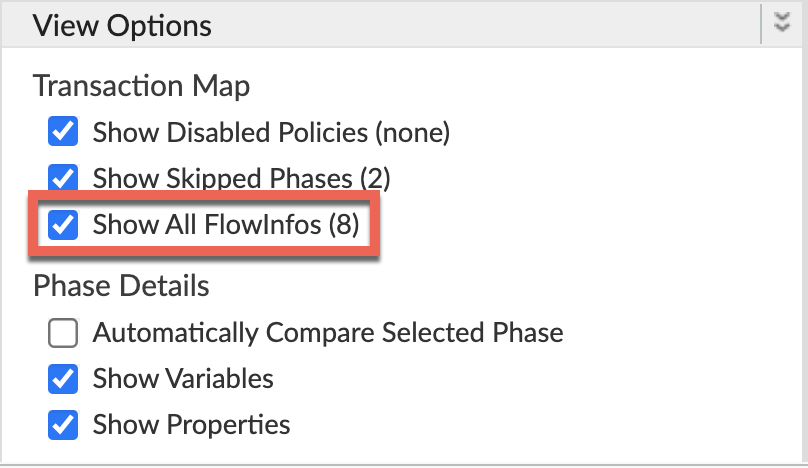
2. Ensure **Show all FlowInfos** is enabled:
3. Select one of the failing requests and examine the trace.
4. Navigate through different phases of the trace and locate where the failure occurred.
5. You will see the error typically after the phase **Target Request Flow Started**
as shown below:
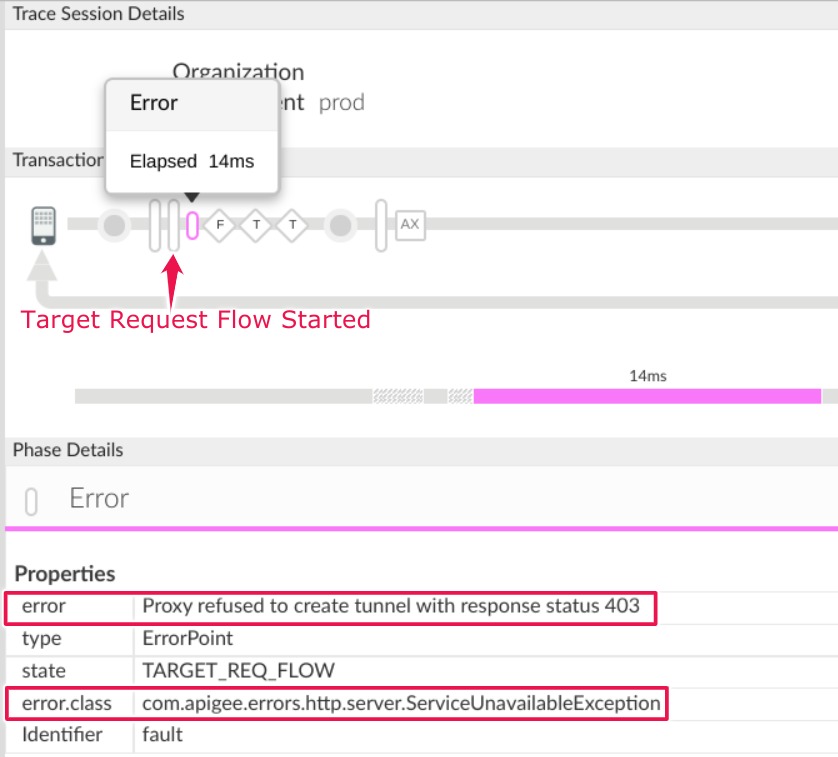
Note the following information:
**error:** `Proxy refused to create tunnel with response status 403`
6. Navigate to the **AX** (Analytics Data Recorded) Phase in the trace and click it.
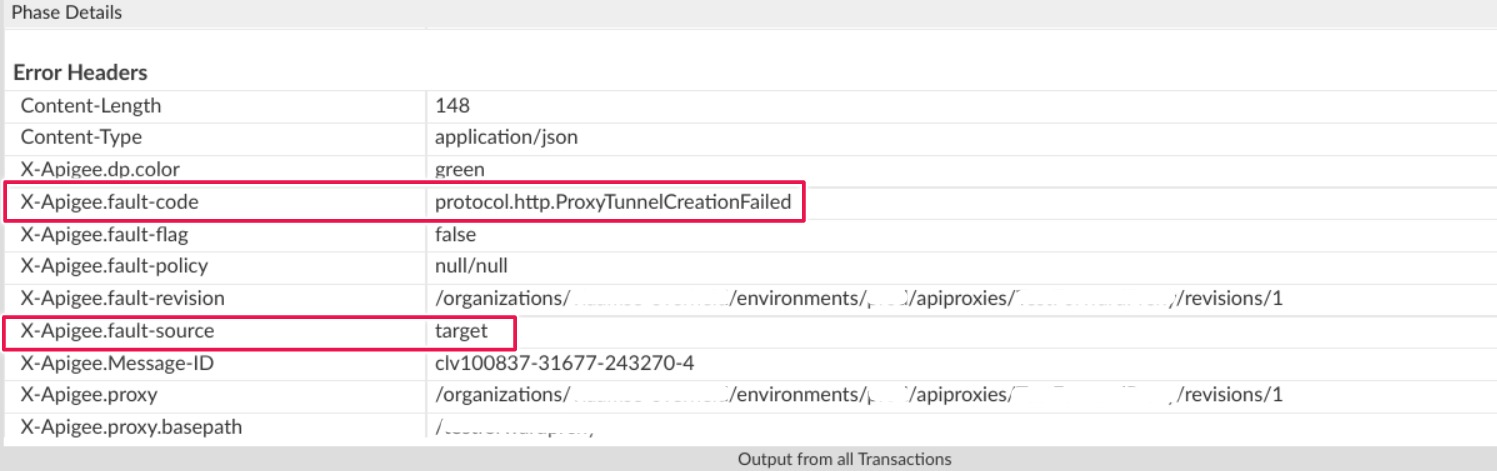
7. Scroll down to the **Phase Details** **Response Headers** section and
determine the values of **X-Apigee-fault-code** and **X-Apigee-fault-source** as
shown below:
([view larger image](https://docs.apigee.com/static/api-platform/images/ts-503-proxytunnelcreationfailed-ax-1.jpg))
([view larger image](https://docs.apigee.com/static/api-platform/images/ts-503-proxytunnelcreationfailed-ax-2.jpg))
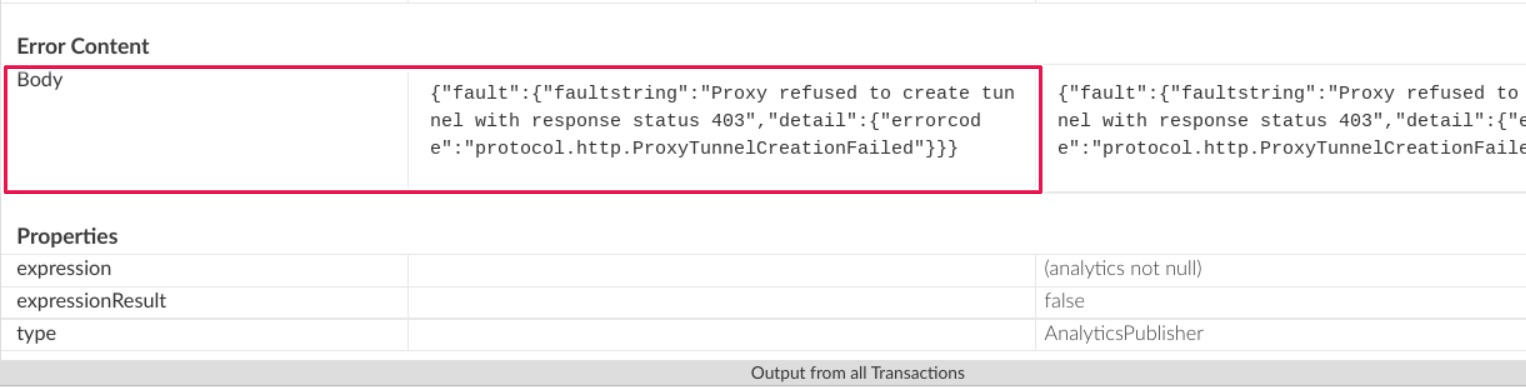
8. You will see the values of **X-Apigee-fault-code** and **X-Apigee-fault-source** as `protocol.http.ProxyTunnelCreationFailed` and `target`respectively, indicating that this error is caused because the proxy tunnel
creation failed as the expected host header is not received.
| Response Headers | Value |
|---|---|
| X-Apigee-fault-code | `protocol.http.ProxyTunnelCreationFailed` |
| X-Apigee-fault-source | `target` |
### NGINX
> [!NOTE]
> **Note:** The instructions in this section are for Edge Private Cloud users only.
To diagnose the error using NGINX access logs:
1. If you are a **Private Cloud user** , then you can use NGINX access logs to determine the key information about HTTP `503 Service Unavailable` errors.
2. Check the NGINX access logs:
`/opt/apigee/var/log/edge-router/nginx/ORG~ORG.PORT#_access_log`
**Where:** ORG, ORG, and PORT# are replaced with actual values.
3. Search to see if there are any `503` errors with error code `protocol.http.ProxyTunnelCreationFailed` during a specific duration (if the problem happened in the past) or if there are any requests still failing with `503`.
4. If you do find any `503 `errors with the **X-Apigee-fault-code** matching the value of**`protocol.http.ProxyTunnelCreationFailed`** ,
then determine the value of the **X-Apigee-fault-source.**
**Sample 503 error from NGINX access log:**
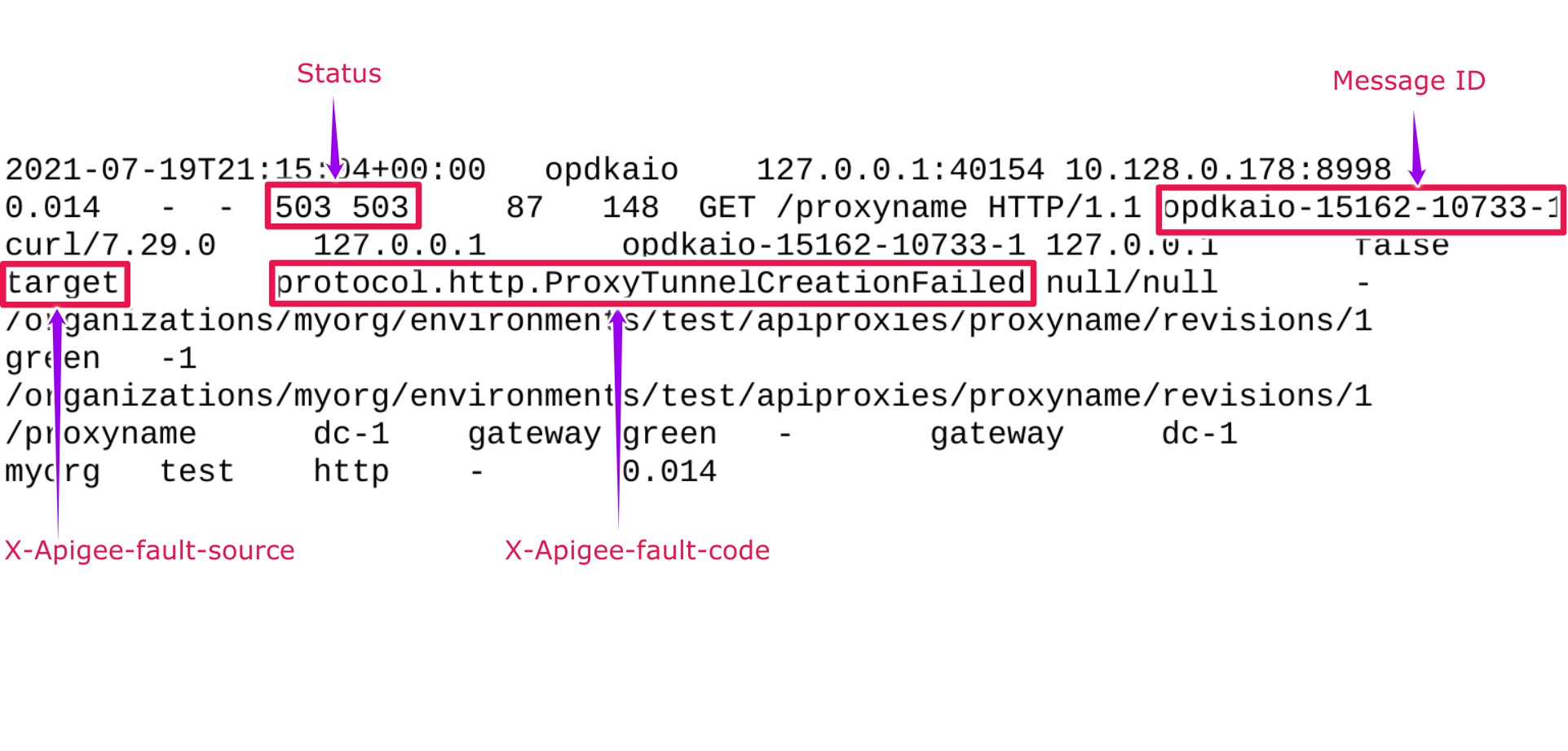
The above sample entry from NGINX access log has the following values for **X-
Apigee-fault-code** and **X-Apigee-fault-source:**
| Response Headers | Value |
|---|---|
| X-Apigee-fault-code | `protocol.http.ProxyTunnelCreationFailed` |
| X-Apigee-fault-source | `target` |
## Cause: Proxy refused to create tunnel with response status 403
> [!NOTE]
> **Note:** Even though the client application gets the status code as `503`, you need to investigate the cause for status code `403` returned during the creation of the tunnel by the proxy server.
### Diagnosis
1. Determine the **Fault Code** and **Fault Source** for `503 Service
Unavailable` using Trace Tool or NGINX access logs as explained in [Common diagnosis steps](https://docs.apigee.com/api-platform/troubleshoot/runtime/503-proxytunnelcreationfailed#common).
2. Review the [Error Message](https://docs.apigee.com/api-platform/troubleshoot/runtime/503-proxytunnelcreationfailed#error-message) and determine the **status code** indicated in the `faultstring` for failure in creation of the tunnel.
3. In this scenario, the status code is `403`, which means **Forbidden**.
4. This means that there are insufficient rights or privileges to create the tunnel. This could typically happen if there are any firewall or ACL (Access Control List) restrictions that prevent creation of the tunnel.
5. Review any firewall and/or ACL restrictions that are configured on your backend server that can prevent creation of the tunnel.
6. Depending on the type of firewall and/or ACL restrictions, you need to fix the issue appropriately.
7. Let's take an example firewall restriction to explain how to troubleshoot and resolve this
issue:
**Scenario: Firewall restriction on backend server expects Host Header should always
contain backend server host name**
You can use one of the following ways to determine the Host Header passed by Apigee Edge:
### Trace
To determine the Host Header using Trace:
1. Ascertain that the `faultstring` contains `Proxy refused to
create tunnel with response status 403` using trace as explained in [Common diagnosis steps](https://docs.apigee.com/api-platform/troubleshoot/runtime/503-proxytunnelcreationfailed#common).
2. Navigate to the phase **Target Request Flow Started** and review the **Request Headers**
3. Verify the value of the host name specified in the **Host header** in the **Request Headers** section.
4. If the **Host** header contains the **proxy host name**, then that's the cause for this error.
5. This is because the firewall is configured on the backend server to accept the requests only if the **Host Header** contains the *backend server's* name.
6. So when the proxy server tries to create the tunnel with the backend server, it fails with the error `Proxy refused to create tunnel with response status 403`.
**Sample trace showing Host Header having proxy host name**
([view larger image](https://docs.apigee.com/static/api-platform/images/ts-503-proxytunnelcreationfailed-proxy-host-1.jpg))

In the sample trace shown above, it shows that the **Host Header** contains
the name of the proxy host `www.proxyserver.com.`Since there is
a firewall restriction configured on the backend server which expects only the
backend server host name to be contained in the**Host Header** , you get the
error **`Proxy refused to create tunnel with response status 403`.**
### tcpdump
To determine the Host Header using tcpdump
1. Capture a `tcpdump` on the proxy server for the requests coming from
Apigee Edge's Message Processor component with the following command:
```
tcpdump -i any -s 0 host MP_IP_ADDRESS -w FILE_NAME
```
For more information on using the `tcpdump` command, see
[tcpdump](https://docs.apigee.com/api-platform/troubleshoot/diagnostic-tools-and-logs#tcpippacketsniffertcpdumputility).
2. Analyze the `tcpdump` data using the [Wireshark tool](https://www.wireshark.org/) or a similar tool.
3. Here's a sample analysis of the
[tcpdump](https://docs.apigee.com/api-platform/troubleshoot/diagnostic-tools-and-logs#tcpippacketsniffertcpdumputility) using Wireshark:
([view larger image](https://docs.apigee.com/static/api-platform/images/ts-503-proxytunnelcreationfailed-tcpdump.jpg))

4. Packet numbers **13** , **14** , and **15** show that the Message Processor is establishing connection to the proxy server through a three-way TCP handshake process.
5. In packet **16** , the Message Processor has connected to the proxy host `httpbin.org` (shown in the example above).
6. Select packet **16** and examine the content of the packet in detail and
specifically the **Host Header** being passed to the proxy server by the Message
Processor.

7. The sample above shows **Host Header** `httpin.org`, which is the hostname of the proxy server. Therefore, when the proxy server tries to create the tunnel with the backend server by passing the above **Host Header** `httpin.org`, it fails with the error `Proxy refused to create
tunnel with response status 403`.
### Resolution
**Scenario: Firewall restriction on proxy server expects Host Header should
always contain backend server hostname**
If you have ascertained that this error is caused because the firewall on the backend server is
configured such that it expects **Host Header** should always contain *backend* server
host name, while the Message Processor is sending the *proxy server* hostname, then perform
the following steps to resolve the issue:
1. Set the property `use.proxy.host.header.with.target.uri `to true in the
TargetEndpoint as shown in the following example:
**Sample TargetEndpoint configuration:**
```
https://mocktarget.apigee.net/json
true
```
> [!NOTE]
> **Note:** The property `use.proxy.host.header.with.target.uri` is available from Apigee Edge for Private Cloud version 4.50.00 and later only.
2. Ensure that the other properties related to
[forward proxy](https://docs.apigee.com/private-cloud/latest/configure-forward-proxying-edge-backend-server) are configured on the Message Processor as follows:
1. Review the file `/opt/apigee/customer/application/message-processor.properties
` on each of the Message Processors.
2. Ensure that the following properties are set as per your use case or requirements:
**Sample values for properties:**
```
conf_http_HTTPClient.use.proxy=true
conf/http.properties+HTTPClient.proxy.type=HTTP
conf/http.properties+HTTPClient.proxy.host=PROXY_SERVER_HOST_NAME
conf/http.properties+HTTPClient.proxy.port=PORT_#
conf/http.properties+HTTPClient.proxy.user=USERNAME
conf/http.properties+HTTPClient.proxy.password=PASSWORD
```
> [!NOTE]
> **Note:** You can set the `HTTPClient.proxy.type` to **HTTPS** if you want to use secure connection with Proxy server.
## Must gather diagnostic information
If the problem persists even after following the above instructions, gather the following
diagnostic information, and then contact [Apigee Edge Support](https://docs.apigee.com/api-platform/troubleshoot/support):
If you are a **Private Cloud user**, provide the following information:
- Complete error message observed for the failing requests
- Environment name
- API proxy bundle
- Trace file for the API requests
- NGINX access logs
`/opt/apigee/var/log/edge-router/nginx/ORG~ENV.PORT#_access_log`
**Where:** ORG, ENV and PORT# are replaced with actual values.
- Message Processor system logs
```
/opt/apigee/var/log/edge-message-processor/logs/system.log
```
## References
- [Configure forward proxy](https://docs.apigee.com/private-cloud/latest/configure-forward-proxying-edge-backend-server)
- [SSL Tunneling](https://docs.oracle.com/cd/E19575-01/821-0053/adyef/index.html)