You're viewing **Apigee Edge** documentation.
[Go to the
**Apigee X** documentation](http://cloud.google.com/apigee/docs/api-platform/errorcatalog/mp-runtime-errorcatalog). info
## Symptom
The client application gets an HTTP status code of `503 Service Unavailable` with the
error code `messaging.adaptors.http.flow.SslHandshakeFailed` as a response for API
calls.
## Error message
Client application gets the following response code:
```
HTTP/1.1 503 Service Unavailable
```
In addition, you may observe the following error message:
```
{
"fault":{
"faultstring":"SSL Handshake failed sun.security.validator.ValidatorException: PKIX path building failed: sun.security.provider.certpath.SunCertPathBuilderException: unable to find valid certification path to requested target",
"detail":{
"errorcode":"messaging.adaptors.http.flow.SslHandshakeFailed"
}
}
}
```
## Possible causes
You may get the status code `503 Service Unavailable` with the error code
`messaging.adaptors.http.flow.SslHandshakeFailed` due to a failure during the SSL
handshake process between Apigee Edge's Message Processor and the backend server for a number of
reasons. The error message in the `faultstring`typically indicates
a possible high level cause that has led to this error.
Depending on the error message observed in the `faultstring`, you need to use
appropriate techniques to troubleshoot the issue. This playbook explains how to troubleshoot
this error if you observe the error message `SSL Handshake failed
sun.security.validator.ValidatorException: PKIX path building failed:
sun.security.provider.certpath.SunCertPathBuilderException: unable to find valid certification
path to requested target `in the `faultstring`.
This error occurs during the SSL handshake process between Apigee Edge's Message Processor and
the backend server:
- If the **truststore** of Apigee Edge's Message Processor:
- Contains a certificate chain that does not match the backend server's complete certificate chain, OR
- Does not contain the backend server's complete certificate chain
- If the certificate chain presented by the backend server:
- Contains [Fully Qualified Domain Name](https://en.wikipedia.org/wiki/Fully_qualified_domain_name)(FQDN) that does not match the host name specified in the target endpoint
- Contains an incorrect or incomplete certificate chain
> [!NOTE]
> **Note:** The FQDN, also referred to as Common Name (CN), is a part of the Distinguished Name (DN) and is present in the subject of the leaf or entity certificate in the [certificate chain](https://en.wikipedia.org/wiki/Chain_of_trust).
The possible causes for this issue are as follows:
| Cause | Description | Troubleshooting instructions applicable for |
|---|---|---|
| [Incorrect/incomplete certificate or certificate chain in the Message Processor's truststore](https://docs.apigee.com/api-platform/troubleshoot/runtime/503-sslhandshakefailed.md.txt#incorrect-cert-trustore) | The certificate and/or its chain stored in the truststore of Apigee Edge's Message Processor does not match the backend server's certificate chain or does not contain the backend server's complete certificate chain. | Edge Private and Public Cloud users |
| [Mismatch of FQDN in the backend server's certificate and the host name in target endpoint](https://docs.apigee.com/api-platform/troubleshoot/runtime/503-sslhandshakefailed.md.txt#mismatch-cert) | The certificate presented by the backend server contains a FQDN that does not match the host name specified in the target endpoint. | Edge Private and Public Cloud users |
| [Incorrect/incomplete certificate or certificate chain presented by backend server](https://docs.apigee.com/api-platform/troubleshoot/runtime/503-sslhandshakefailed.md.txt#incorrect-cert-backend) | The certificate chain presented by the backend server is either incorrect or incomplete. | Edge Private and Public Cloud users |
## Common diagnosis steps
Use one of the following tools/techniques to diagnose this error:
### API Monitoring
**Procedure #1: Using API Monitoring**
> [!NOTE]
> **Note:** The instructions in this section are applicable for Public Cloud users only.
To diagnose the error using API Monitoring:
1. [Sign in to Apigee Edge UI](https://docs.apigee.com/api-platform/get-started/sign-in-manage-account.md.txt#sign_in_to_your_apigee_edge_account) as a user with an [appropriate role](https://docs.apigee.com/api-monitoring/access.md.txt#roles).
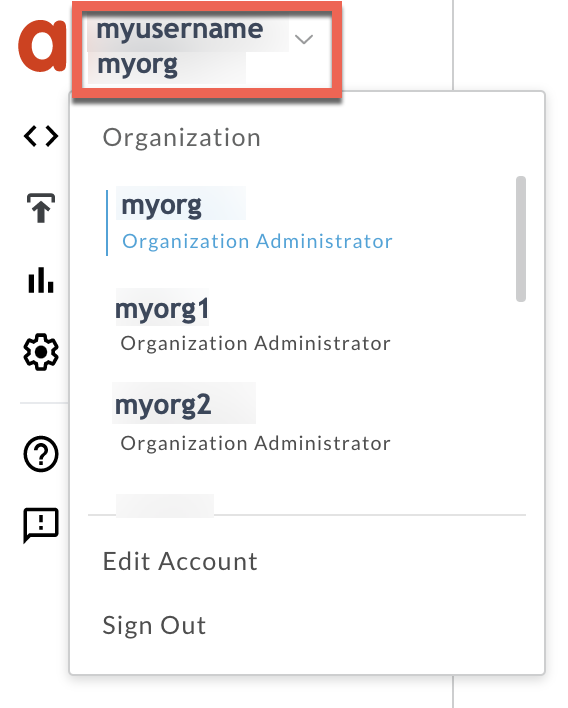
2. Switch to the organization in which you want to investigate the issue.
3. Navigate to the **Analyze \> API Monitoring \> Investigate** page.
4. Select the specific timeframe in which you observed the errors.
5. Plot **Fault Code** against **Time**.
> [!NOTE]
> **Note:** You can also plot **Status Code** against **Time**.
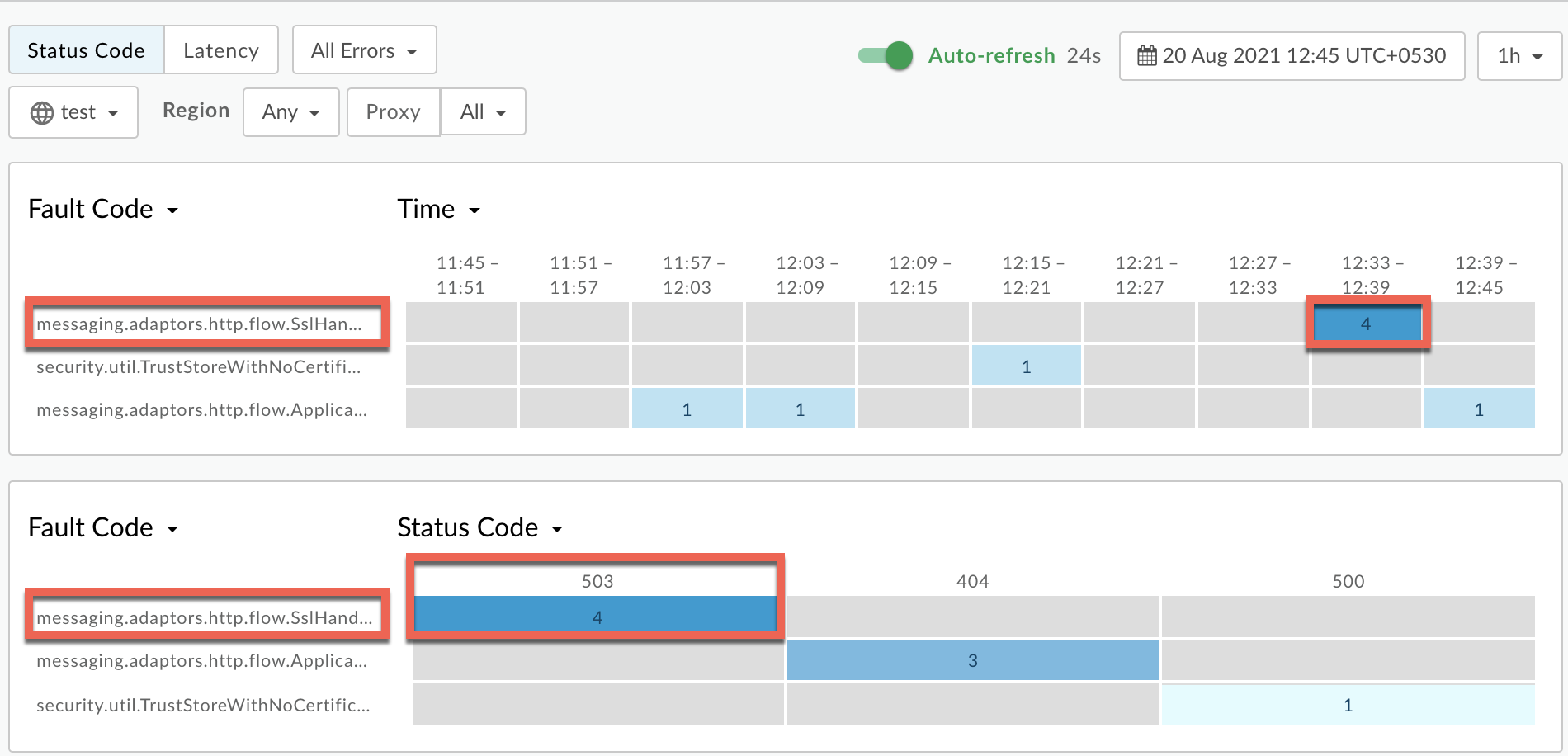
6. Select a cell which has the fault code
`messaging.adaptors.http.flow.SslHandshakeFailed` as shown
below:
([view larger image](https://docs.apigee.com/static/api-platform/images/ts-503-sslhandshakefailed-fault-code-cell.png))
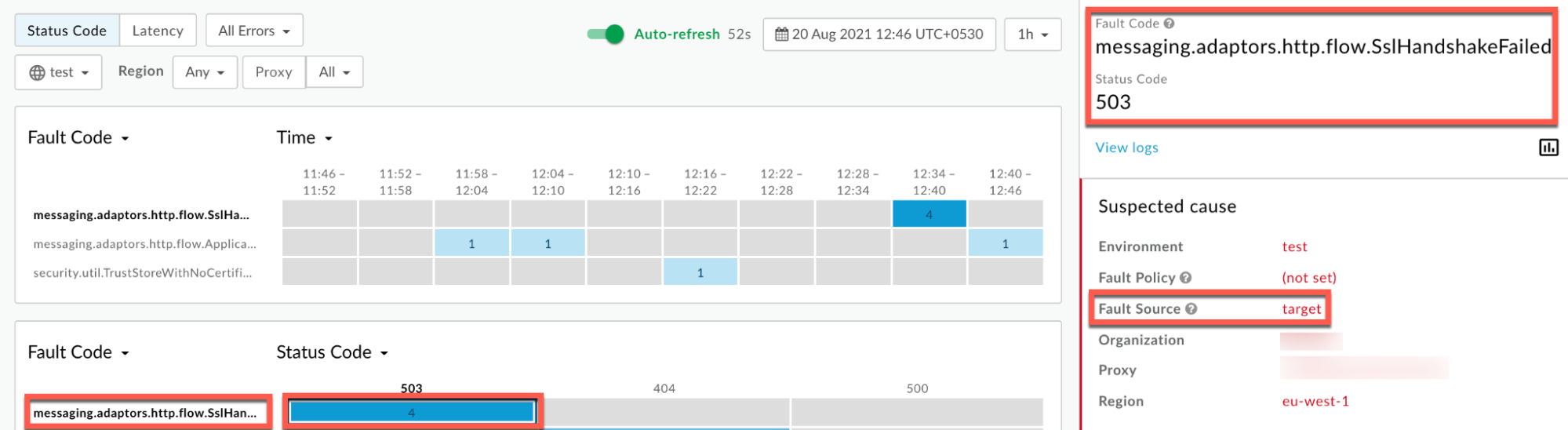
7. Information about the fault code
`messaging.adaptors.http.flow.SslHandshakeFailed` is displayed as
shown below:
([view larger image](https://docs.apigee.com/static/api-platform/images/ts-503-sslhandshakefailed-fault-code-info.png))
8. Click **View logs**and expand the row for the failed request.
([view larger image](https://docs.apigee.com/static/api-platform/images/ts-503-sslhandshakefailed-logs.png))
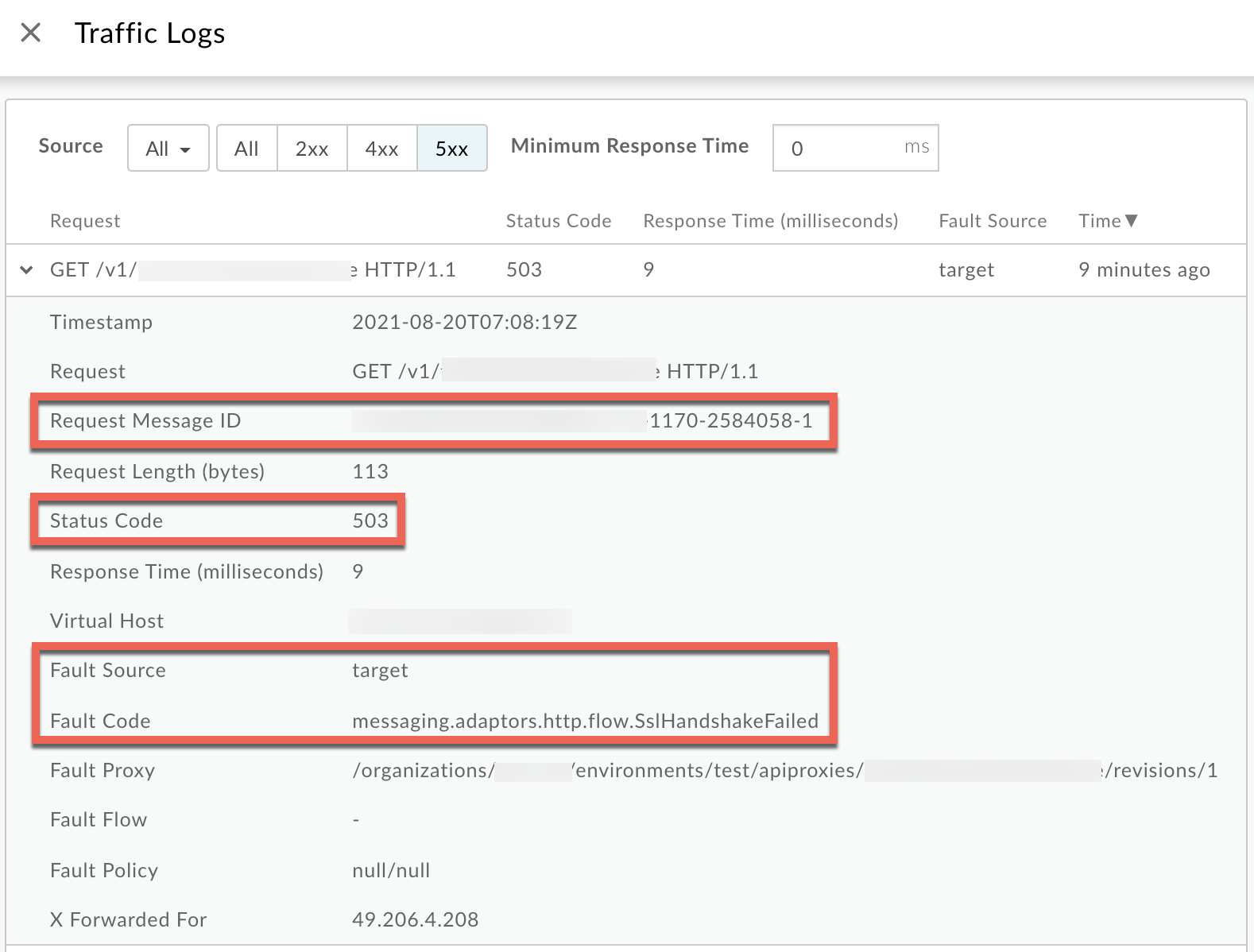
9. From the **Logs** window, note the following details:
- **Request Message ID**
- **Status Code:** `503`
- **Fault Source:** `target`
- **Fault Code:** `messaging.adaptors.http.flow.SslHandshakeFailed`
### Trace
**Procedure #2: Using Trace tool**
> [!NOTE]
> **Note:** The instructions in this section are applicable for Public and Private Cloud users.
To diagnose the error using the Trace tool:
1. Enable the [trace session](https://docs.apigee.com/api-platform/debug/using-trace-tool-0.md.txt) and either
- Wait for the `503 Service Unavailable` error with error code `messaging.adaptors.http.flow.SslHandshakeFailed` to occur, or
- If you can reproduce the issue, make the API call to reproduce the issue `503 Service Unavailable`
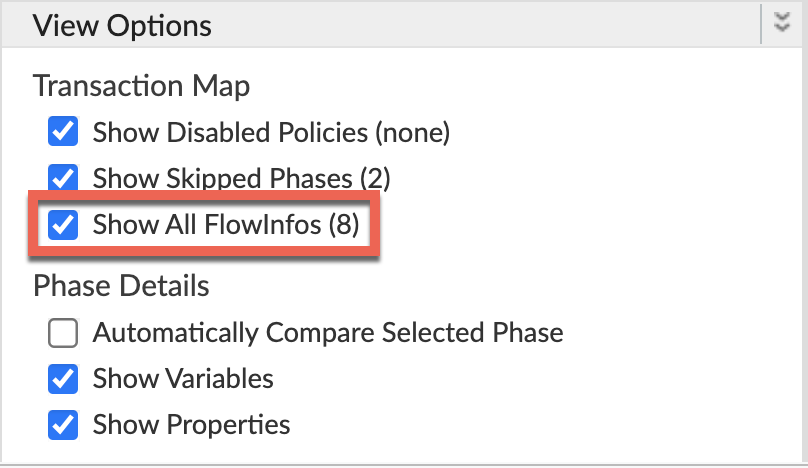
2. Ensure **Show all FlowInfos** is enabled:
3. Select one of the failing requests and examine the trace.
4. Navigate through different phases of the trace and locate where the failure occurred.
5. You will find the error typically after the phase **Target Request Flow Started**
as shown below:
([view larger image](https://docs.apigee.com/static/api-platform/images/ts-503-sslhandshakefailed-target-request-flow.png))
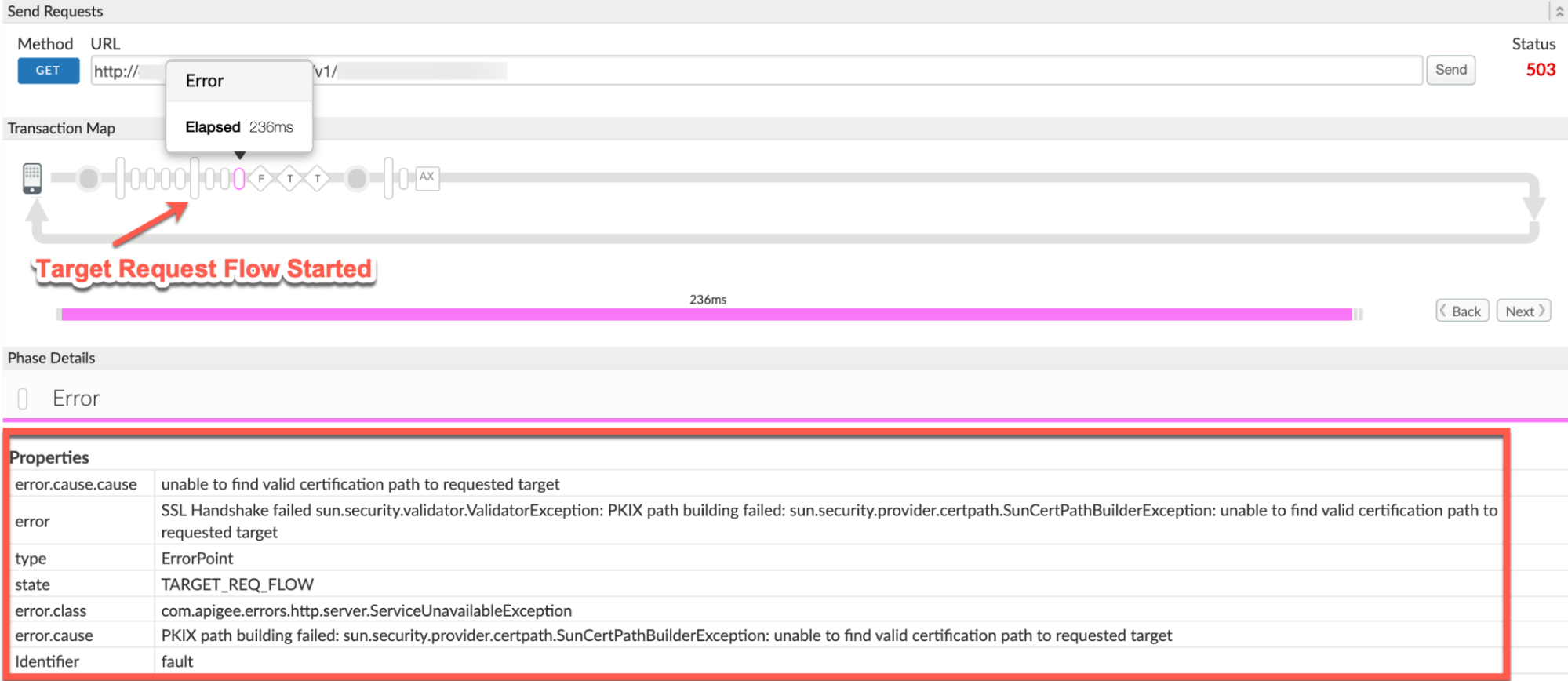
6. Note the values of the following from the trace:
- **error:** `SSL Handshake failed sun.security.validator.ValidatorException:
PKIX path building failed: sun.security.provider.certpath.SunCertPathBuilderException:
unable to find valid certification path to requested target`
- **error.cause:** `PKIX path building failed:
sun.security.provider.certpath.SunCertPathBuilderException: unable to find valid
certification path to requested target`
- **error.class:** `com.apigee.errors.http.server.ServiceUnavailableException`
- The value of the error `SSL Handshake failed
sun.security.validator.ValidatorException: PKIX path building failed:
sun.security.provider.certpath.SunCertPathBuilderException: unable to find valid
certification path to requested target` indicates that the SSL Handshake failed, as Apigee Edge's Message Processor was unable to validate the backend server's certificate.
7. Navigate to the **AX** (Analytics Data Recorded) Phase in the trace and click it.
8. Scroll down to the **Phase Details Error Headers** section and determine the
values of **X-Apigee-fault-code** and **X-Apigee-fault-source** , and
**X-Apigee-Message-ID** as shown below:
([view larger image](https://docs.apigee.com/static/api-platform/images/ts-503-sslhandshakefailed-ax.png))
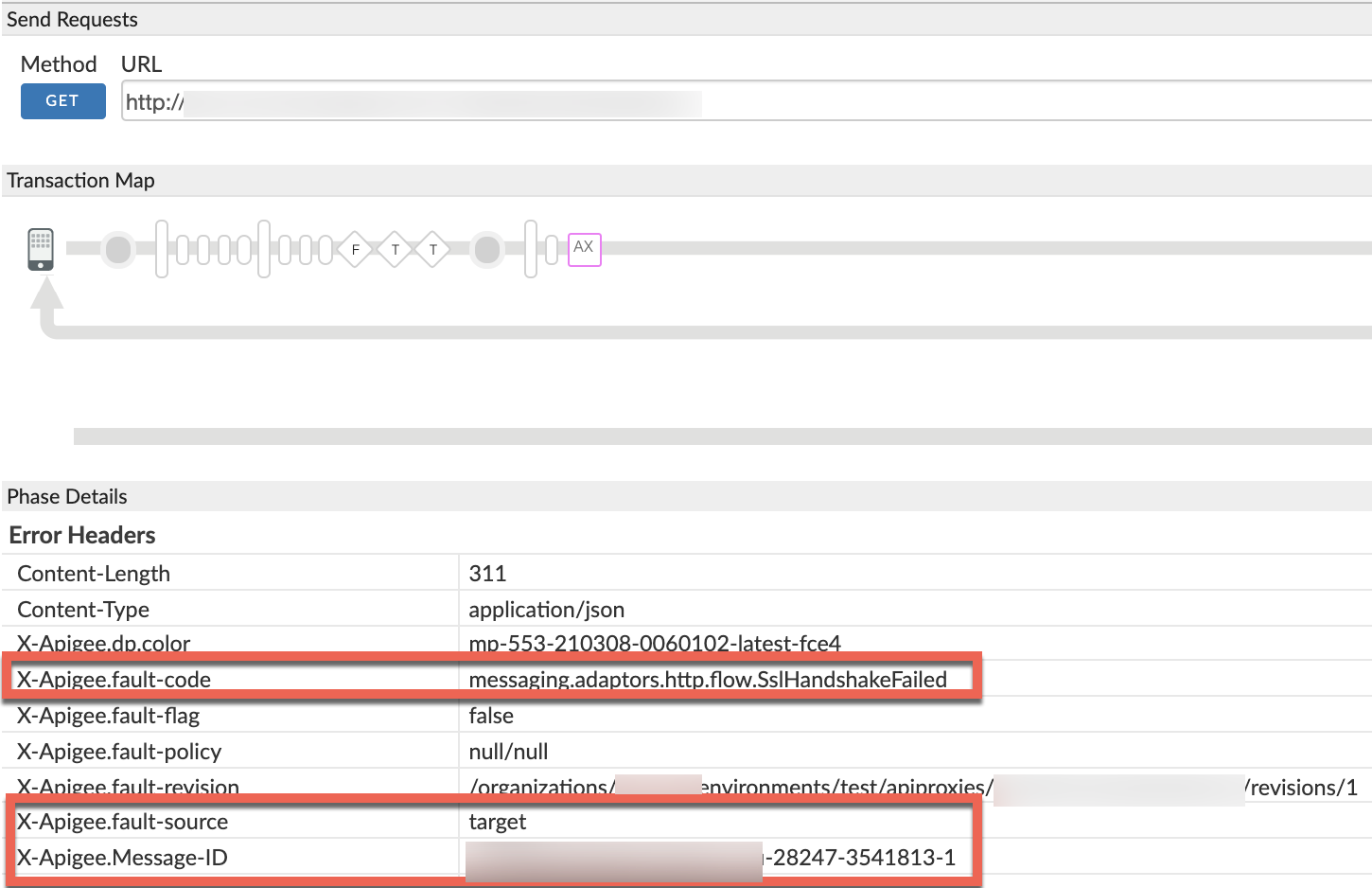
9. Note the values of **X-Apigee-fault-code** , **X-Apigee-fault-source** , and **X-Apigee-Message-ID**:
| Error headers | Value |
|---|---|
| X-Apigee-fault-code | `messaging.adaptors.http.flow.SslHandshakeFailed` |
| X-Apigee-fault-source | `target` |
| X-Apigee-Message-ID | MESSAGE_ID |
### NGINX
**Procedure #3: Using NGINX access logs**
> [!NOTE]
> **Note:** The instructions in this section are for Edge Private Cloud users only.
To diagnose the error using NGINX access logs:
1. If you are a **Private Cloud user** , then you can use NGINX access logs to determine the key information about HTTP `503 Service Unavailable`.
2. Check the NGINX access logs:
`/opt/apigee/var/log/edge-router/nginx/ORG~ENV.PORT#_access_log`
> [!NOTE]
> **Note:** Replace ORG, ENV and, PORT# with actual values.
3. Search to see if there are any `503` errors with error code `messaging.adaptors.http.flow.SslHandshakeFailed` during a specific duration (if the problem happened in the past) or if there are any requests still failing with `503`.
4. If you do find any `503` errors with the **X-Apigee-fault-code** matching
the value of**`messaging.adaptors.http.flow.SslHandshakeFailed`** , then
determine the value of the **X-Apigee-fault-source.**
**Sample 503 error from NGINX access log:**
([view larger image](https://docs.apigee.com/static/api-platform/images/ts-503-sslhandshakefailed-nginx.png))
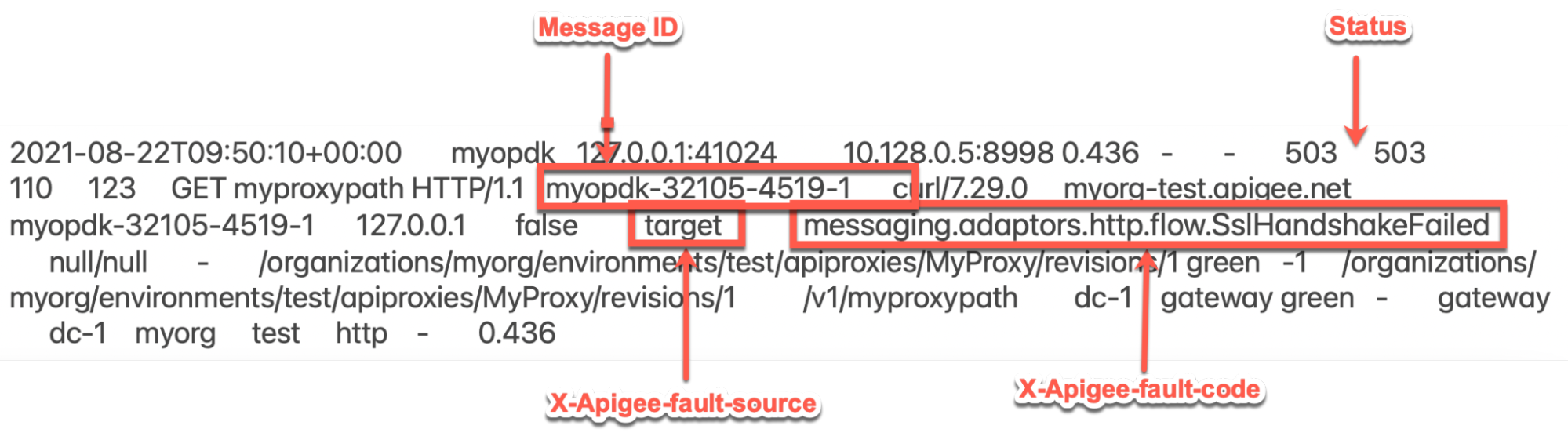
The above sample entry from NGINX access log has the following values for
**X-Apigee-fault-code** and **X-Apigee-fault-source:**
| Headers | Value |
|---|---|
| X-Apigee-fault-code | `messaging.adaptors.http.flow.SslHandshakeFailed` |
| X-Apigee-fault-source | `target` |
### Message Processor logs
**Procedure #4: Using Message Processor Logs**
> [!NOTE]
> **Note:** The instructions in this section are applicable only for Private Cloud users.
1. Determine the message ID of one of the failing requests using API Monitoring, Trace tool, or NGINX Access Logs as explained in [Common diagnosis steps](https://docs.apigee.com/api-platform/troubleshoot/runtime/503-sslhandshakefailed.md.txt#common-diagnosis).
2. Search for the specific request message ID in the Message Processor log
(`/opt/apigee/var/log/edge-message-processor/logs/system.log`). You may observe
the following error:
org:myorg env:test api:MyProxy rev:1
messageid:myorg-28247-3541813-1
NIOThread@1 ERROR HTTP.CLIENT - HTTPClient$Context.handshakeFailed() :
SSLClientChannel[Connected: Remote:X.X.X.X:443
Local:192.168.194.140:55102]@64596 useCount=1
bytesRead=0 bytesWritten=0 age=233ms lastIO=233ms
isOpen=true handshake failed, message: General SSLEngine problem
The above error indicates that the SSL handshake failed between the Message Processor
and the backend server.
This will be followed by an exception with detailed stack trace as shown below:
org:myorg env:test api:MyProxy rev:1
messageid:myorg-28247-3541813-1
NIOThread@1 ERROR ADAPTORS.HTTP.FLOW - RequestWriteListener.onException() :
RequestWriteListener.onException(HTTPRequest@1522922c)
javax.net.ssl.SSLHandshakeException: General SSLEngine problem
at sun.security.ssl.Handshaker.checkThrown(Handshaker.java:1478)
at sun.security.ssl.SSLEngineImpl.checkTaskThrown(SSLEngineImpl.java:535)
...
Caused by: javax.net.ssl.SSLHandshakeException: General SSLEngine problem
at sun.security.ssl.Alerts.getSSLException(Alerts.java:203)
at sun.security.ssl.SSLEngineImpl.fatal(SSLEngineImpl.java:1728)
...
Caused by: sun.security.validator.ValidatorException: PKIX path building failed:
sun.security.provider.certpath.SunCertPathBuilderException: unable to find valid
certification path to requested target
at sun.security.validator.PKIXValidator.doBuild(PKIXValidator.java:397)
at sun.security.validator.PKIXValidator.engineValidate(PKIXValidator.java:302)
...
Note the handshake failure is due to:
`Caused by: sun.security.validator.ValidatorException: PKIX
path building failed: sun.security.provider.certpath.SunCertPathBuilderException: unable to
find valid certification path to requested target`
This indicates that the SSL Handshake failed as Apigee Edge's Message Processor was
unable to validate the backend server's certificate.
## Cause: Incorrect/incomplete certificate or certificate chain in the Message Processor's truststore
### Diagnosis
1. Determine the **Fault Code** , **Fault Source** for the error observed using API Monitoring, Trace tool, or NGINX access logs as explained in [Common
diagnosis steps](https://docs.apigee.com/api-platform/troubleshoot/runtime/503-sslhandshakefailed#common-diagnosis).
2. If the **Fault Code** is `messaging.adaptors.http.flow.SslHandshakeFailed`, then determine the error message using one of the following methods:
- Find the **error.cause** using the Trace tool as explained in [Common diagnosis steps](https://docs.apigee.com/api-platform/troubleshoot/runtime/503-sslhandshakefailed.md.txt#trace)
- Find the exception using Message Processor Logs as explained in [Common diagnosis steps](https://docs.apigee.com/api-platform/troubleshoot/runtime/503-sslhandshakefailed.md.txt#mp-logs)
- Find the `faultstring` from the error response to your API call as seen in [Error message](https://docs.apigee.com/api-platform/troubleshoot/runtime/503-sslhandshakefailed.md.txt#error-message)
3. If the error message is `sun.security.validator.ValidatorException: PKIX path building
failed: sun.security.provider.certpath.SunCertPathBuilderException: unable to find valid
certification path to requested target"`, then it indicates that the SSL Handshake failed, as Apigee Edge's Message Processor was unable to validate the backend server's certificate.
You can debug this issue in two phases:
1. **Phase 1:** Determine the backend server's certificate chain
2. **Phase 2:** Compare the certificate chain stored in the Message Processor's truststore
### Phase 1
**Phase 1: Determine the backend server's certificate chain**
Use one of the following methods to determine the backend server's certificate chain:
### openssl
> [!NOTE]
> **Note:** The instructions in this section are applicable for Public and Private Cloud users.
Execute the `openssl` command against the backend server's host
name as follows:
```
openssl s_client -connect BACKEND_SERVER_HOST_NAME:PORT#
```
Note the Certificate chain from the output of the above command:
**Sample backend server Certificate chain from the openssl command output:**
```
Certificate chain
0 s:/CN=mocktarget.apigee.net
i:/C=US/O=Google Trust Services LLC/CN=GTS CA 1D4
1 s:/C=US/O=Google Trust Services LLC/CN=GTS CA 1D4
i:/C=US/O=Google Trust Services LLC/CN=GTS Root R1
2 s:/C=US/O=Google Trust Services LLC/CN=GTS Root R1
i:/C=US/O=Google Trust Services LLC/CN=GTS Root R1
```
### tcpdump
> [!NOTE]
> **Note:** The instructions in this section are applicable for Public and Private Cloud users.
1. If you are a **Public Cloud user**, then capture the TCP/IP packets on the backend server.
2. If you are a **Private Cloud user**, then you can capture the TCP/IP packets on the backend server or Message Processor. Preferably, capture them on the backend server as the packets are decrypted on the backend server.
3. Use the following
[tcpdump](https://docs.apigee.com/api-platform/troubleshoot/diagnostic-tools-and-logs.md.txt#tcpippacketsniffertcpdumputility) command to capture TCP/IP packets:
```
tcpdump -i any -s 0 host IP_ADDRESS -w FILE_NAME
```
> [!NOTE]
> **Note:**
> - If you are capturing the TCP/IP packets on the backend server, then use the public IP address of the Message Processor in the `tcpdump` command.
> - If you are capturing the TCP/IP packets on the Message Processor, then use the public IP address of the backend server in the `tcpdump` command.
> - If there are multiple IP addresses for the backend server/Message Processor, then you need to use a different `tcpdump` command. For more information about this tool and for other variants of this command, see [tcpdump](https://docs.apigee.com/api-platform/troubleshoot/diagnostic-tools-and-logs.md.txt#tcpippacketsniffertcpdumputility).
4. Analyze the TCP/IP packets using the
[Wireshark tool](https://www.wireshark.org/) or
similar tool with which you are familiar.
**Sample Analysis of Tcpdump**
([view larger image](https://docs.apigee.com/static/api-platform/images/ts-503-sslhandshakefailed-tcpdump.png))

- **Packet #43:** The Message Processor (Source) sent a `Client Hello` message to the backend server (Destination).
- **Packet #44:** The backend server acknowledges the receipt of the `Client Hello` message from the Message Processor.
- **Packet #45:** The backend server sends the `Server Hello` message along with its certificate.
- **Packet #46:** The Message Processor acknowledges the receipt of the `Server Hello` message and the certificate.
- **Packet #47:** The Message Processor sends a `FIN, ACK`
message followed by `RST, ACK` in **Packet #48**.
This indicates that the backend server certificate validation by the
Message Processor failed. It is because the Message Processor does not have
any certificate that matches the backend server's certificate or can't trust
the backend server's certificate with the certificates available in its
(Message Processor's) truststore.
- You can go back and review **Packet #45** and determine the certificate
chain sent by the backend server
([view larger image](https://docs.apigee.com/static/api-platform/images/ts-503-sslhandshakefailed-cert.png))
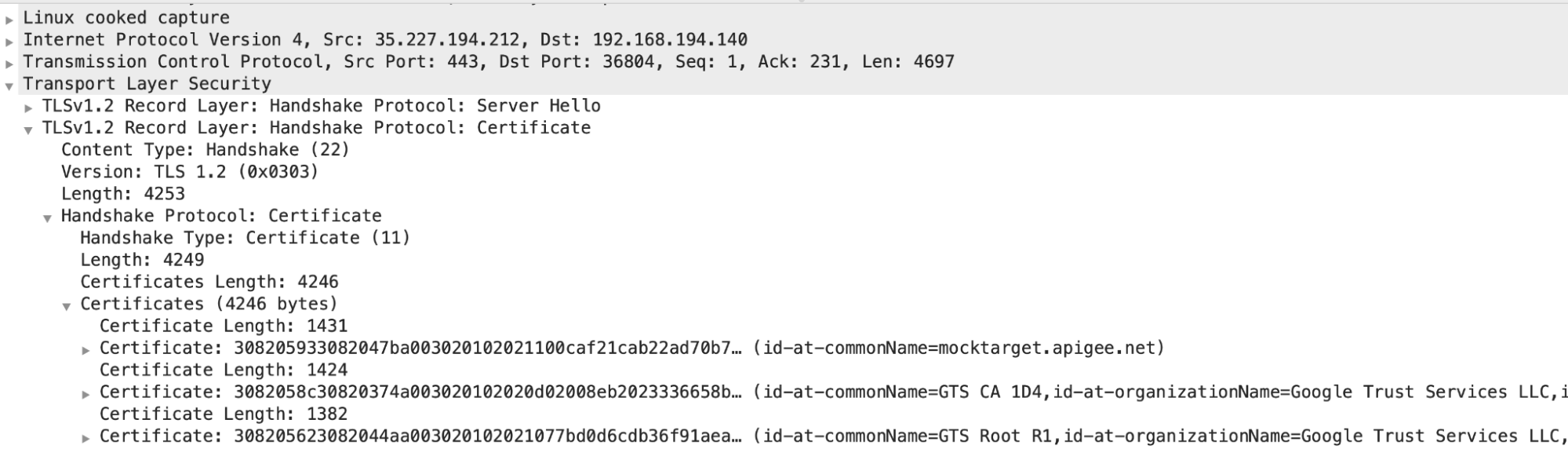
- In this example, you can see that the server has sent a leaf certificate with the `common name (CN) = mocktarget.apigee.net`, followed by an intermediate certificate with `CN= GTS CA 1D4` and root certificate with `CN = GTX Root R1`.
If you've ascertained that the server's certification validation failed, then
go to [Phase 2: Compare the backend server's certificate
and certificates stored in the Message Processor's truststore](https://docs.apigee.com/api-platform/troubleshoot/runtime/503-sslhandshakefailed#phase-2).
### Phase 2
**Phase 2: Compare the backend server's certificate and certificates stored in the
Message Processor's truststore**
1. [Determine the backend server's certificate chain](https://docs.apigee.com/api-platform/troubleshoot/runtime/503-sslhandshakefailed.md.txt#phase-1).
2. Determine the certificate stored in the Message Processor's truststore using the following steps:
1. Get the truststore reference name from the `TrustStore` element
in the `SSLInfo` section in the `TargetEndpoint`.
Let's look at a sample `SSLInfo` section in a `TargetEndpoint`
configuration:
```
...
true
true
ref://myKeystoreRef
myKey
ref://myCompanyTrustStoreRef
...
```
2. In the above example, the `TrustStore` reference name is `myCompanyTruststoreRef`.
3. In the Edge UI, select **Environments \> References** . Note the name in the
**Reference** column for the specific truststore reference. This will be your
truststore name.
([view larger image](https://docs.apigee.com/static/api-platform/images/ts-503-sslhandshakefailed-trust.png))
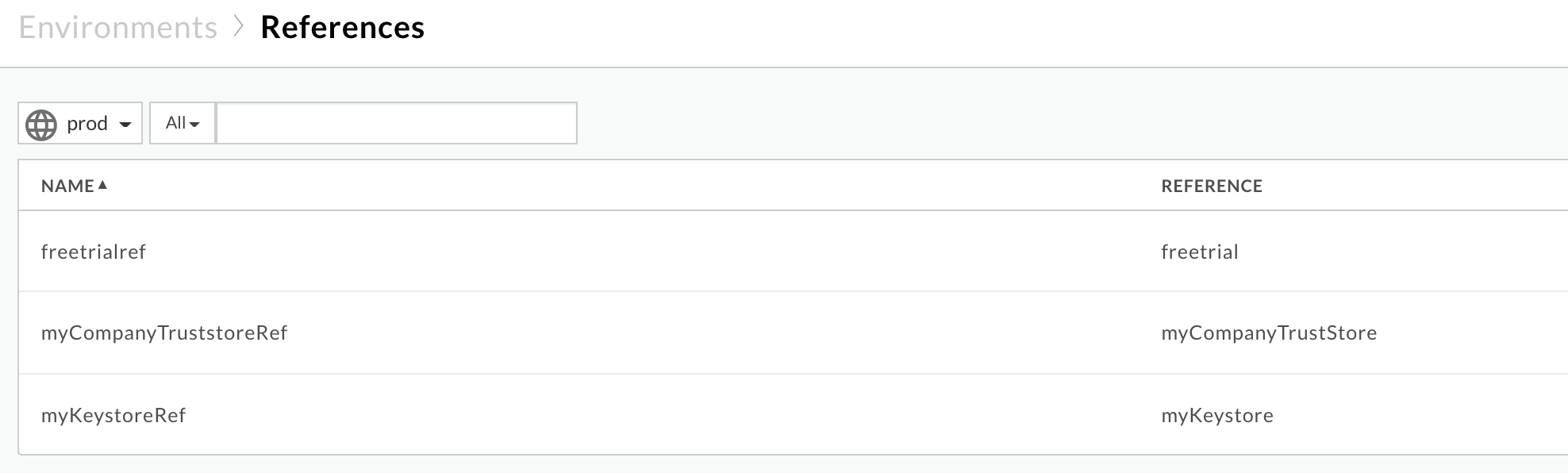
4. In the above example the truststore name is:
**myCompanyTruststoreRef** : `myCompanyTruststore`
3. Get the certificates stored in the truststore (determined in the previous step)
using the following APIs:
1. [Get all certificates for a keystore or truststore](https://apidocs.apigee.com/docs/keystores-and-truststores/1/routes/organizations/%7Borg_name%7D/environments/%7Benv_name%7D/keystores/%7Bkeystore_name%7D/certs/get). This API lists all the
certificates in the specific truststore.
**Public Cloud user:**
```
curl -v -X GET https//api.enterprise.apigee.com/v1/organizations/ORGANIZATION_NAME/environments/ENVIRONMENT_NAME/keystores/KEYSTORE_NAME/certs -H "Authorization: Bearer $TOKEN"
```
**Private Cloud user:**
```
curl -v -X GET http://MANAGEMENT_HOST:PORT_#/v1/organizations/ORGANIZATION_NAME/environments/ENVIRONMENT_NAME/keystores/KEYSTORE_NAME/certs -H "Authorization: Bearer $TOKEN"
```
**Where:**
- ORGANIZATION_NAME is the name of the organization
- ENVIRONMENT_NAME is the name of the environment
- KEYSTORE_NAME is the name of the keystore
- $TOKEN is set to your OAuth 2.0 access token as described in [Obtain an OAuth 2.0 access token](https://docs.apigee.com/api-monitoring/api.md.txt#oauth2)
- `curl` options used in this example are described in [Use curl](https://docs.apigee.com/api-monitoring/api.md.txt#curl)
**Sample output:**
The certificates from the example truststore `myCompanyTruststore` are:
```
[
"serverCert"
]
```
2. [Get Cert Details for the specific certificate from a Keystore or Truststore](https://apidocs.apigee.com/docs/keystores-and-truststores/1/routes/organizations/%7Borg_name%7D/environments/%7Benv_name%7D/keystores/%7Bkeystore_name%7D/certs/%7Bcert_name%7D/get). This API returns the information about a specific certificate in the specific truststore.
**Public Cloud user:**
```
curl -v -X GET https//api.enterprise.apigee.com/v1/organizations/ORGANIZATION_NAME/environments/ENVIRONMENT_NAME/keystores/KEYSTORE_NAME/certs/CERT_NAME -H "Authorization: Bearer $TOKEN"
```
**Private Cloud user**
```
curl -v -X GET http://MANAGEMENT_HOST:PORT_#>/v1/organizations/ORGANIZATION_NAME/environments/ENVIRONMENT_NAME/keystores/KEYSTORE_NAME/certs/CERT_NAME -H "Authorization: Bearer $TOKEN"
```
**Where:**
- ORGANIZATION_NAME is the name of the organization
- ENVIRONMENT_NAME is the name of the environment
- KEYSTORE_NAME is the name of the keystore
- CERT_NAME is the name of the certificate
- $TOKEN is set to your OAuth 2.0 access token as described in [Obtain an OAuth 2.0 access token](https://docs.apigee.com/api-monitoring/api.md.txt#oauth2)
- `curl` options used in this example are described in [Use curl](https://docs.apigee.com/api-monitoring/api.md.txt#curl)
**Sample Output**
Details of `serverCert` shows the subject and issuer as follows:
**Leaf/Entity Certificate:**
```
"subject": "CN=mocktarget.apigee.net",
"issuer": "CN=GTS CA 1D4, O=Google Trust Services LLC, C=US",
```
**Intermediate Certificate:**
```
"subject" : "CN=GTS CA 1D4, O=Google Trust Services LLC, C=US",
"issuer" : "CN=GTS Root R1, O=Google Trust Services LLC, C=US",
```
4. Verify that the actual server certificate obtained in step 1 and the certificate
stored in truststore obtained in step 3 match. If they do not match, then that's the
cause for the issue.
From the example shown above, let's look at one certificate at a time:
1. **Leaf certificate:**
**From the backend server:**
```
s:/CN=mocktarget.apigee.net
i:/C=US/O=Google Trust Services LLC/CN=GTS CA 1D4
```
**From Message Processor's (client) truststore:**
```
"subject": "CN=mocktarget.apigee.net",
"issuer": "CN=GTS CA 1D4, O=Google Trust Services LLC, C=US",
```
The leaf certificate stored in the truststore matches that of the backend
server.
2. **Intermediate certificate:**
**From the backend server:**
```
s:/C=US/O=Google Trust Services LLC/CN=GTS CA 1D4
i:/C=US/O=Google Trust Services LLC/CN=GTS Root R1
```
**From Message Processor's (client) truststore:**
```
"subject" : "CN=GTS CA 1D4, O=Google Trust Services LLC, C=US",
"issuer" : "CN=GTS Root R1, O=Google Trust Services LLC, C=US",
```
The intermediate certificate stored in the truststore matches that of the
backend server.
3. **Root certificate:**
**From the backend server:**
```
s:/C=US/O=Google Trust Services LLC/CN=GTS Root R1
i:/C=US/O=Google Trust Services LLC/CN=GTS Root R1
```
The root certificate is completely missing in the Message Processor's
truststore.
4. Since the root certificate is missing in the truststore, the
Message Processor throws the following exception:
```
sun.security.validator.ValidatorException: PKIX path building failed: sun.security.provider.certpath.SunCertPathBuilderException: unable to find valid certification path to requested target
```
and returns `503 Service Unavailable` with the error code
`messaging.adaptors.http.flow.SslHandshakeFailed` to the client
applications.
> [!NOTE]
> **Note:** In the example discussed above, the root certificate of the backend server is missing in the Message Processor's truststore. This issue can also happen if the truststore of Apigee Edge's Message Processor:
>
> - Contains a certificate chain that does not match the backend server's complete certificate chain, OR
> - Does not contain the backend server's complete certificate chain
### Resolution
1. Ensure that you have the proper and complete certificate chain of the backend server.
2. If you are a **Public Cloud user** , follow the instructions in [Update a TLS certificate for the Cloud](https://docs.apigee.com/api-platform/system-administration/update-tls-certificate-cloud.md.txt) to update the certificate to Apigee Edge's Message Processor truststore.
3. If you are a **Private Cloud user** , follow the instructions in [Update a TLS certificate for the Private Cloud](https://docs.apigee.com/api-platform/system-administration/update-tls-certificate-private-cloud.md.txt) to update the certificate to Apigee Edge's Message Processor truststore.
## Cause: Mismatch of FQDN in the backend server's certificate and the host name in target endpoint
If the backend server presents a certificate chain that contains FQDN, which does not match the
host name specified in the target endpoint, then Apigee Edge's Message Process returns the error
`SSL Handshake failed sun.security.validator.ValidatorException: PKIX path building failed:
sun.security.provider.certpath.SunCertPathBuilderException: unable to find valid certification
path to requested target`.
### Diagnosis
1. Examine the specific target endpoint in the API proxy in which you are observing this error and note the backend server's host name: **Sample TargetEndpoint:**
```
…
true
ref://myTrustStoreRef
https://backend.company.com/resource
```
In the above example, the backend server's host name is `backend.company.com`.
2. Determine the FQDN in the backend server's certificate using the `openssl`
command as shown below:
```
openssl s_client -connect BACKEND_SERVER_HOST_NAME>:PORT_#>
```
For example:
```
openssl s_client -connect backend.company.com:443
```
Examine the section `Certificate chain` and note the FQDN specified as
part of CN in the subject of the leaf certificate.
Certificate chain
0 s:/CN=backend.apigee.net
i:/C=US/O=Google Trust Services LLC/CN=GTS CA 1D4
1 s:/C=US/O=Google Trust Services LLC/CN=GTS CA 1D4
i:/C=US/O=Google Trust Services LLC/CN=GTS Root R1
2 s:/C=US/O=Google Trust Services LLC/CN=GTS Root R1
i:/C=US/O=Google Trust Services LLC/CN=GTS Root R1
In the above example, the backend server's FQDN is `backend.apigee.net`.
3. If the host name of the backend server obtained from step 1 and FQDN obtained step 2 do not match, then that's the cause of the error.
4. In the example discussed above, the host name in the target endpoint is `backend.company.com`. However, the FQDN name in the backend server's certificate is `backend.apigee.net`. Since they do not match, you get this error.
### Resolution
You can fix this issue by using one of the following methods:
### Correct FQDN
**Update backend server's keystore with correct FQDN, valid and complete certificate
chain:**
1. If you don't have a backend server's certificate with the correct FQDN, then procure the proper certificate from an appropriate CA (Certificate Authority).
2. [Validate that you have a
valid and complete backend server's certificate chain](https://docs.apigee.com/how-to-guides/validating-certificate-chain).
> [!NOTE]
> **Note:** The above document explains how to validate the certificate chain in PEM format. You can use appropriate `openssl` commands to validate the certificate chain if your backend server supports other certificate formats.
3. Once you have the valid and complete certificate chain with the correct FQDN of the backend server in the leaf or entity certificate that is identical to the host name specified in the target endpoint, update the **backend's keystore** with the complete certificate chain.
> [!NOTE]
> **Note:** If the certificate chain is modified in the **backend's
> keystore** , ensure that you also update the same certificate chain in Apigee Edge Message Processor's **truststore.**
### Correct backend server
**Update the target endpoint with the correct backend server's host name:**
1. If the host name was incorrectly specified in the target endpoint, then update the target endpoint to have the correct host name that matches the FQDN in the backend server's certificate.
2. Save the changes to the API proxy.
In the example discussed above, if the backend server host name was incorrectly
specified, then you can fix it by using the FQDN from the backend server's certificate,
that is `backend.apigee.net` as follows:
```
…
true
ref://myTrustStoreRef
https://backend.apigee.net/resource
```
## Cause: Incorrect/incomplete certificate or certificate chain presented by backend server
### Diagnosis
1. Get the backend server's certificate chain by executing the `openssl` command against the backend server's host name as follows:
```
openssl s_client -connect BACKEND_SERVER_HOST_NAME:PORT_#
```
Note the `Certificate chain` from the output of the above command.
**Sample backend server Certificate Chain from the openssl command output:**
Certificate chain
0 s:/CN=mocktarget.apigee.net
i:/C=US/O=Google Trust Services LLC/CN=GTS CA 1D4
1 s:/C=US/O=Google Trust Services LLC/CN=GTS CA 1D4
i:/C=US/O=Google Trust Services LLC/CN=GTS Root R1
2. Verify that you have the proper and complete certificate chain as explained in [Validating certificate chain](https://docs.apigee.com/how-to-guides/validating-certificate-chain.md.txt).
3. If you don't have the valid and complete certificate chain for the backend server,
then that's the cause for this issue.
In the sample backend server's certificate chain shown above, the root certificate is
missing. Therefore, you get this error.
### Resolution
Update backend server's keystore with valid and complete certificate chain:
1. [Validate that you have a valid and complete backend server's certificate chain](https://docs.apigee.com/how-to-guides/validating-certificate-chain.md.txt).
> [!NOTE]
> **Note:** The above document explains how to validate the certificate chain in PEM format. You can use appropriate `openssl` commands to validate the certificate chain if your backend server supports other certificate formats.
2. Update the valid and complete certificate chain in the **backend server's keystore**.
> [!NOTE]
> **Note:** If the certificate chain is modified in the **backend's keystore** , ensure that you also update the same certificate chain in Apigee Edge Message Processor's **truststore.**
If the problem still persists, go to [Must gather diagnostic information](https://docs.apigee.com/api-platform/troubleshoot/runtime/503-sslhandshakefailed.md.txt#must-gather).
## Must gather diagnostic information
If the problem persists even after following the above instructions, gather the following
diagnostic information and contact [Apigee Edge Support](https://docs.apigee.com/api-platform/troubleshoot/support.md.txt):
- If you are a **Public Cloud user** , then provide the following information:
- Organization name
- Environment name
- API Proxy name
- Complete `curl` command to reproduce the error
- Trace file showing the error
- Output of the `openssl` command:
`openssl s_client -connect BACKEND_SERVER_HOST_NAME:PORT_#`
- TCP/IP packets captured on the backend server
- If you are a **Private Cloud user** , provide the following information:
- Complete error message observed
- API proxy bundle
- Trace file showing the error
- Message Processor logs `/opt/apigee/var/log/edge-message-processor/logs/system.log`
- Output of the `openssl` command:
`openssl s_client -connect BACKEND_SERVER_HOST_NAME:PORT_#`
- TCP/IP packets captured on the backend server or Message Processor.
- Output of [Get all certificates for a keystore or truststore](https://apidocs.apigee.com/docs/keystores-and-truststores/1/routes/organizations/%7Borg_name%7D/environments/%7Benv_name%7D/keystores/%7Bkeystore_name%7D/certs/get) API and also the details of each certificate obtained using [Get Cert Details from a Keystore or Truststore](https://apidocs.apigee.com/docs/keystores-and-truststores/1/routes/organizations/%7Borg_name%7D/environments/%7Benv_name%7D/keystores/%7Bkeystore_name%7D/certs/%7Bcert_name%7D/get) API.
## References
- Certificate [Chain of trust](https://en.wikipedia.org/wiki/Chain_of_trust)
- [OpenSSL](https://en.wikipedia.org/wiki/OpenSSL) command