You're viewing **Apigee Edge** documentation.
[Go to the
**Apigee X** documentation](http://cloud.google.com/apigee/docs/api-platform/errorcatalog/mp-runtime-errorcatalog). info
> [!NOTE]
> Was this troubleshooting playbook helpful? Please let us know by clicking [Send Feedback]().
## Symptom
The client application receives an HTTP status code of **504** with the message
**"Gateway Timeout"** in response to API calls.
This error response indicates that the client did not receive a timely response from Apigee Edge or the backend server during the execution of an API call.
## Error Message
The client application receives the following response code:
```
HTTP/1.1 504 Gateway Timeout
```
This code may be followed by an error message similar to the one below:
```
504 Gateway Timeout
504 Gateway Timeout
```
> [!NOTE]
> **Note**: The response code and error message shown above are only sample representations. In some cases, you may receive only the response code without an error message. The format and content of the response code and error message may vary depending on the backend server implementation.
## What causes gateway timeouts?
The typical path for an API request made via Apigee Edge is **Client -\> Router -\>
Message Processor -\> Backend Server** as shown in the figure below:
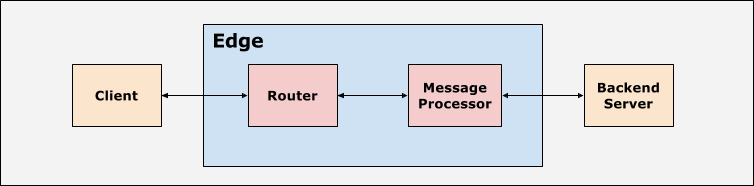
The client application, routers, and Message Processors are configured with suitable timeout values. Apigee Edge expects a response for every API request within a time period based on the timeout values. If the response is not received within the specified time period, then a 504 Gateway Timeout response is returned.
> [!NOTE]
> **Note**: For the purposes of this playbook, the terms "target server" and "backend server" are used interchangeably.
## Possible Causes
In Apigee Edge, the typical cause of a 504 Gateway Timeout response from the backend server is:
| **Cause** | **Description** | **Troubleshooting Instructions For** |
|---|---|---|
| [Backend Server responding with 504 Gateway Timeout](https://docs.apigee.com/api-platform/troubleshoot/runtime/504-gateway-timeout-backend-server.md.txt#possible-cause) | The backend server times out and returns a 504 Gateway Timeout response to the Message Processor. | Edge Private and Public Cloud Users |
## Backend Server responding with 504 Gateway Timeout
The backend server may respond with an HTTP response code of 504 Gateway Timeout.
### Diagnosis
This section explains how to correctly diagnose a 504 Gateway Timeout. Procedures for both Private and
Public Cloud users are listed.
#### Procedure #1: Using Trace (Private and Public Cloud users)
1. Enable [Trace](https://docs.apigee.com/api-platform/debug/using-trace-tool-0.md.txt) in the Apigee UI for the affected API.
2. Send a request to the backend server.
3. If the failing API request shows a 504 response from the backend server in Trace, then the cause of the 504 Gateway Timeout is the backend server.
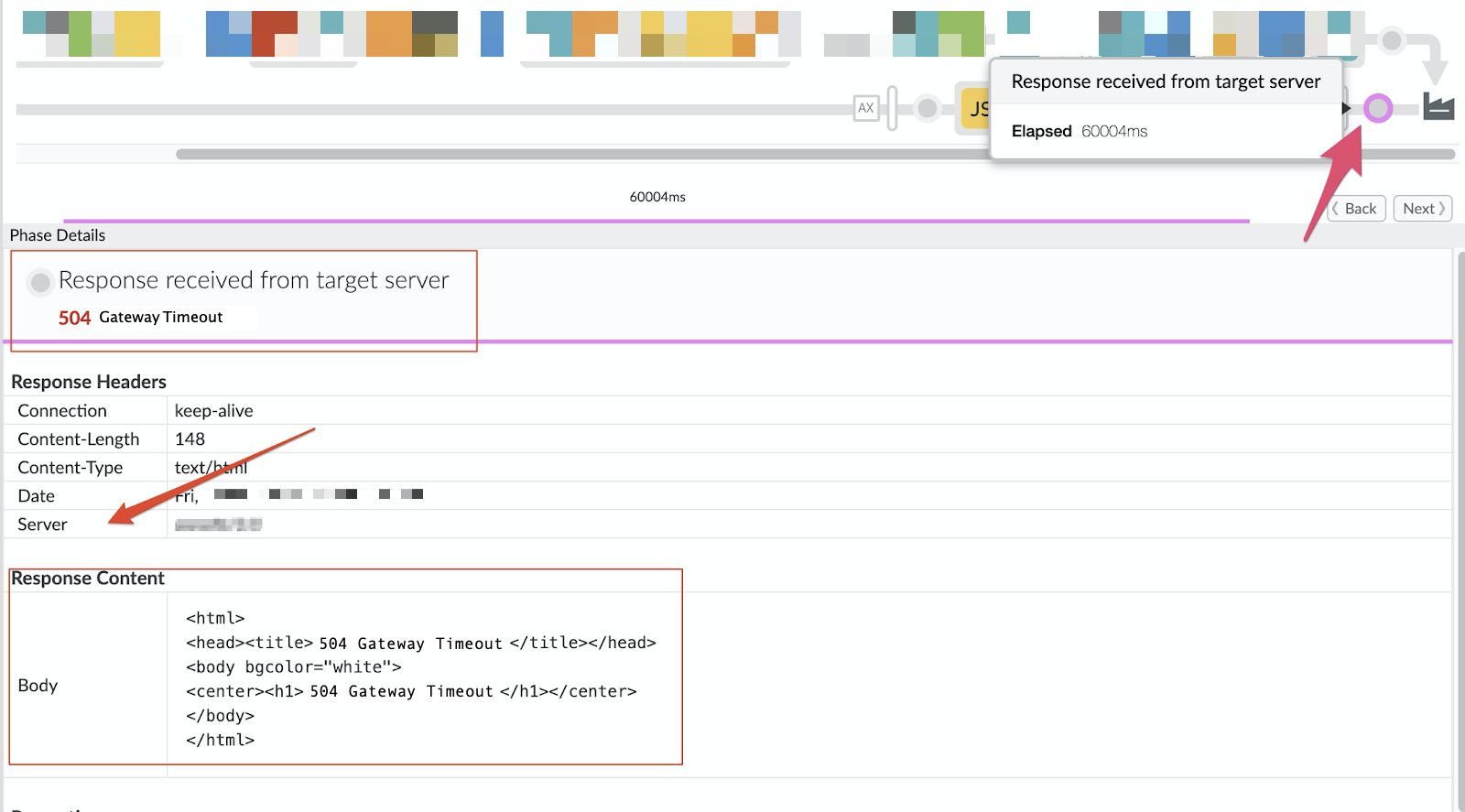
4. To determine the response time, click on the **Response received from target server** phase in Trace. In the example shown, the elapsed time is 60004 ms:
> [!NOTE]
> **Note**: The elapsed time for the phase will be greater than, or equal to, the timeout set at the backend server. In most cases, the elapsed time is a few milliseconds more than the timeout.
The Phase Details section provides additional information:
- It highlights the **504 Gateway Timeout** response received from the backend server.
- The **Response Content** section displays the full body of the response from the backend server. As noted earlier, the format and the content of the response payload may differ based on the backend server implementation.
- The **Response Header \> Server** section may indicate where the response originated.
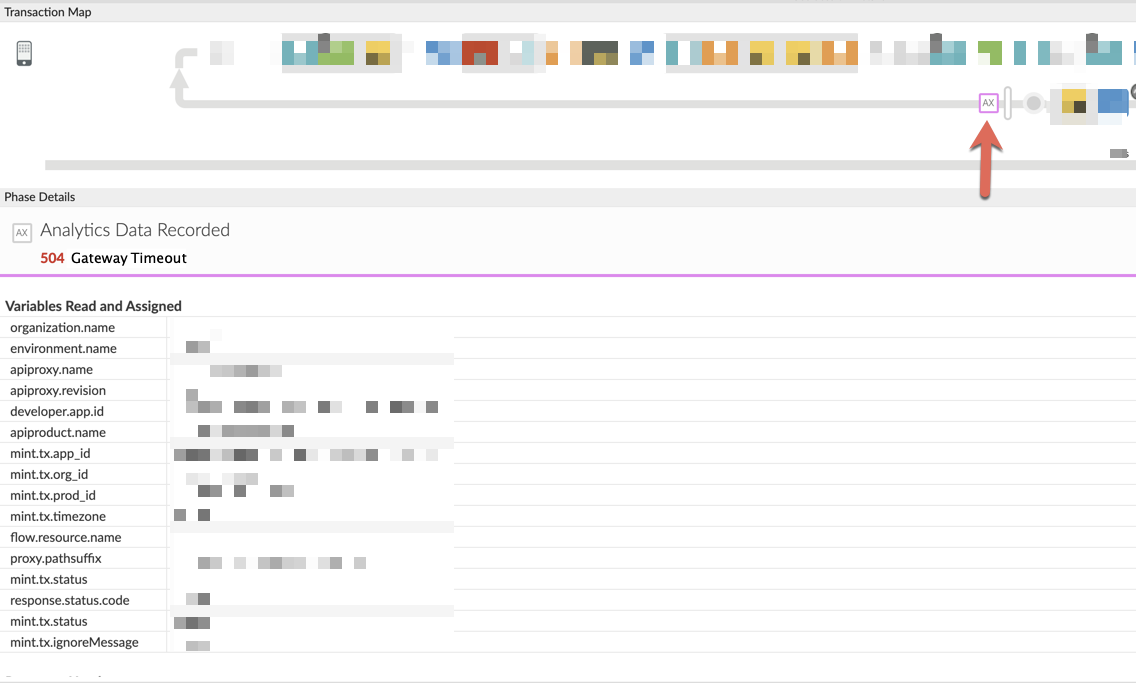
5. To view Analytics data and confirm the diagnosis, click on the **Analytics Data Recorded** phase in Trace, as shown in the figure below:
The **Response Headers** section of the Phase Details displays the values of
`X-Apigee-fault-code` and `X-Apigee-fault-source`, as shown in the
figure below:
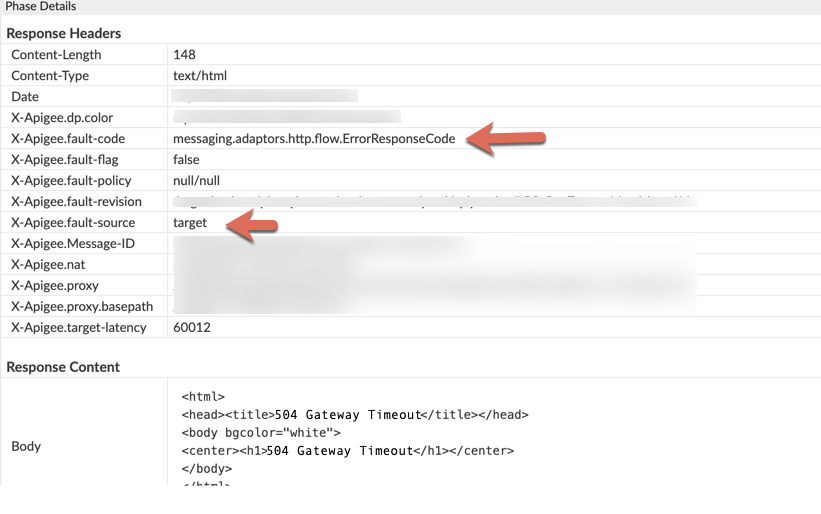
If these fields contain the values shown in the table below, the 504 error response originates
from the backend server:
| **Response Headers** | **Value** |
|---|---|
| X-Apigee-fault-source | target |
| X-Apigee-fault-code | messaging.adaptors.http.flow.ErrorResponseCode |
6. Check for [proxy chaining](https://docs.apigee.com/api-platform/fundamentals/connecting-proxies-other-proxies.md.txt). Follow these steps to determine if the backend server is invoking another proxy in Apigee:
1. Navigate back to the **Request sent to target server** phase and click the **Show Curl** button to view the backend server host alias.
2. If the backend server host alias points to a virtual host alias, then proxy chaining is in place. Repeat the steps above for each chained proxy to diagnose the cause of the 504 Gateway Timeout error response. 504 Gateway timeouts occurring in chained proxies at other stages of the request/response cycle can be diagnosed using [this playbook](https://docs.apigee.com/api-platform/troubleshoot/runtime/504-gateway-timeout.md.txt).
3. If the backend server host alias points to the backend server, proceed to [Resolution](https://docs.apigee.com/api-platform/troubleshoot/runtime/504-gateway-timeout-backend-server.md.txt#resolution).
#### Procedure #2: Invoke the backend server API directly (Public and Private Cloud users)
Call the backend server directly to confirm the same 504 Gateway Timeout response behavior encountered
when the request is made through Apigee Edge.
1. Ensure that you have all the required headers, query parameters, and credentials needed to pass to the backend server as part of the request.
2. If the backend service is publicly accessible, then you can use the `curl` command, Postman, or any other REST Client and invoke the backend server API directly.
3. If the backend server is accessible only from the Message Processors, use the `curl` command, Postman, or any other REST Client toinvoke the backend server API directly from the Message Processor.
> [!NOTE]
> **Note:** This can be performed only by Private Cloud Users.
4. If the backend service returns a504 Gateway Timeout response, proceed to [Resolution](https://docs.apigee.com/api-platform/troubleshoot/runtime/504-gateway-timeout-backend-server.md.txt#resolution).
#### Procedure #3: Check NGINX Access Logs (Private Cloud users only)
NGINX access logs can help determine whether the 504 error response was sent by the backend server.
This is particularly useful if the issue occurred in the past, is intermittent, or cannot be captured
in Trace. Use these steps to check the NGINX access logs:
1. View the NGINX access logs using this command:
```
/opt/apigee/var/log/edge-router/nginx/ ORG ~ENV.PORT# _access_log
```
2. Check for 504 error responses for the affected API proxy. You can check a specific time period, if the issue occurred in the past, or determine if requests are still failing with a 504 error response.
3. If there are any 504 error responses, determine whether the error response originates from the backend server.
4. The figure below is an example of an NGINX log entry showing a 504 error response caused by the target server:
5. 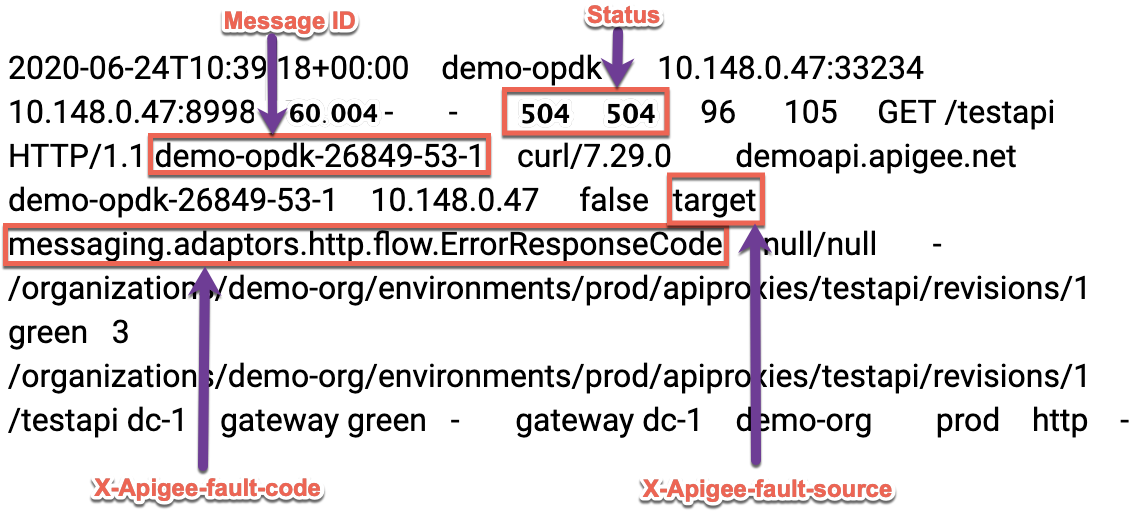
6. If the `X-Apigee-fault-source` and `X-Apigee-fault-code` fields contain the values shown in the table below, the 504 response originates from the backend server:
| **Response Headers** | **Value** |
|---|---|
| X-Apigee-fault-source | target |
| X-Apigee-fault-code | messaging.adaptors.http.flow.ErrorResponseCode |
7. Review the affected API proxy to check for [proxy chaining](https://docs.apigee.com/api-platform/fundamentals/connecting-proxies-other-proxies.md.txt) i.e., the backend server/target endpoint is invoking another proxy in Apigee. If the API proxy is using [proxy chaining](https://docs.apigee.com/api-platform/fundamentals/connecting-proxies-other-proxies.md.txt), repeat the steps above for each chained proxy to diagnose the cause of the 504 Gateway Timeout error response. 504 Gateway timeouts occurring in chained proxies at other stages can be diagnosed using [this playbook](https://docs.apigee.com/api-platform/troubleshoot/runtime/504-gateway-timeout.md.txt).
8. If there is no [proxy chaining](https://docs.apigee.com/api-platform/fundamentals/connecting-proxies-other-proxies.md.txt), and the 504 error response originates from the backend server, proceed to [Resolution](https://docs.apigee.com/api-platform/troubleshoot/runtime/504-gateway-timeout-backend-server.md.txt#resolution).
#### Procedure #4: Using API Monitoring (Public Cloud users only)
[API Monitoring](https://docs.apigee.com/api-monitoring.md.txt) enables you to isolate problem
areas quickly to diagnose error, performance, and latency issues and their source, such as developer apps,
API proxies, backend targets, or the API platform.
[Step through a sample scenario](https://docs.apigee.com/api-monitoring/sample-scenarios.md.txt)
that demonstrates how to troubleshoot 5xx issues with your APIs using API Monitoring. For example,
set up an alert to notify administrators when the number of 504 status codes exceeds a particular threshold.
> [!NOTE]
> **Note:** API Monitoring lists 504 error responses coming from the backend server or another proxy invoked as part of [proxy chaining](https://docs.apigee.com/api-platform/fundamentals/connecting-proxies-other-proxies.md.txt) under the fault code `messaging.adaptors.http.flow.ErrorResponseCode`. To receive notifications when a 504 error response is sent from the backend server, set the alert response/status code to `504` and the fault code to `messaging.adaptors.http.flow.ErrorResponseCode.`
### Resolution
Using the diagnostic procedures outlined above, you can work with the backend server team to fix
the issue in the backend server. This may include adjusting timeouts in the backend servers or
timeouts in any load balancers in front of target servers.
## Gather Diagnostic Information
If the issue persists, share the following diagnostic information with [Apigee Support](https://cloud.google.com/apigee/support).
If you are a Public Cloud user, provide the following information:
- Organization Name
- Environment Name
- API Proxy Name
- Complete `curl `command used to reproduce the 504 error response
- Trace file with API requests receiving a 504 Gateway Timeout error response
If you are a Private Cloud user, provide the following information:
- Complete error message observed for the failing requests
- Environment Name
- API Proxy Bundle
- Trace file with API requests receiving a **504 Gateway Timeout** error response
- NGINX access logs
```
/opt/apigee/var/log/edge-router/nginx/ ORG ~ENV.PORT# _access_log
```
- Message Processor logs
```
/opt/apigee/var/log/edge-message-processor/logs/system.log
```