You're viewing **Apigee Edge** documentation.
[Go to the
**Apigee X** documentation](http://cloud.google.com/apigee/docs/hybrid/v1.9/precog-add-environment). info
Notice the company logo that appears in the top navigation bar in the portal. You're going to replace it in this step.
**To replace the logo**:
1. Obtain a copy of your company logo that would be suitable for use in the top navigation bar for **desktop** (approximate size: 192 x 32 pixels) and
**mobile** (approximate size: 156 x 32 pixels) displays.
> [!NOTE]
> **Note:** If your desktop and mobile logos are a different size than the defaults, they are resized automatically to 60% of the height of the navigation bar.
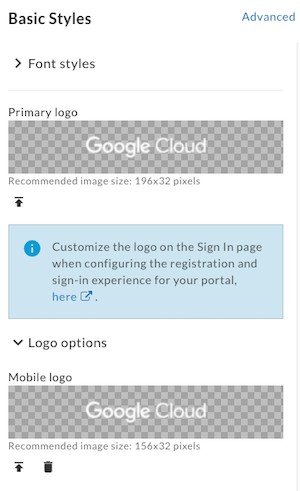
2. In the Theme Editor, to replace the logo in the top navigation bar on **desktop** displays:
a. Under **Basic Styles** in the right pane click  under the **Primary logo** field.
b. Browse for the **desktop version of your logo** in your local directory.
c. Click **Open** to upload the file.
3. To replace the logo in the top navigation bar on **mobile** displays:
a. Under **Basic Styles** in the right pane expand **Logo options** and click  under the **Mobile logo** field.
b. Browse for the **mobile version of your logo** in your local directory.
c. Click **Open** to upload the file.
4. Click **Save**.
5. View your changes in the preview pane or click **Preview** to preview the portal changes in a browser.
Depending on the width of your browser, you may see the desktop or mobile version of the logo.
6. Click **Publish** to publish the changes to your portal. Confirm the operation when prompted.
7. Click **View Portal** to open the live portal in a new browser tab (or refresh the tab in which it is already open).
Next, you'll **edit page content** in the portal.
### Next step
[Step 1](https://docs.apigee.com/api-platform/tutorials/portal/create-portal)
[Step 2](https://docs.apigee.com/api-platform/tutorials/portal/customize-color-palette)
[Step 3](https://docs.apigee.com/api-platform/tutorials/portal/customize-logo)
[Step 4: Edit page content](https://docs.apigee.com/api-platform/tutorials/portal/edit-page)
[Step 5](https://docs.apigee.com/api-platform/tutorials/portal/set-up-navigation)
[Step 6](https://docs.apigee.com/api-platform/tutorials/portal/publish-api)