You're viewing **Apigee Edge** documentation.
[Go to the
**Apigee X** documentation](http://cloud.google.com/apigee/docs/hybrid/v1.9/install-create-tls-certificates). info
Next, you'll update the top (header) and bottom (footer) navigation bars to include the **Get Started** page.
**To set up navigation:**
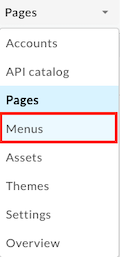
1. Select **Menus** in the portal drop-down to open the Menus page.
First you'll update the top (header) navigation bar to add **Get Started** as a menu item. Notice that
**Header** is selected by default in the menu drop-down.
2. Click **+ Menu Item**.
3. In the navigation menu dialog, enter the following details:
| Field | Value |
|---|---|
| Name | **Get Started** |
| Page Path or URL | Click **...** and select **Get Started (get-started)** in the list. (You may need to scroll.) |
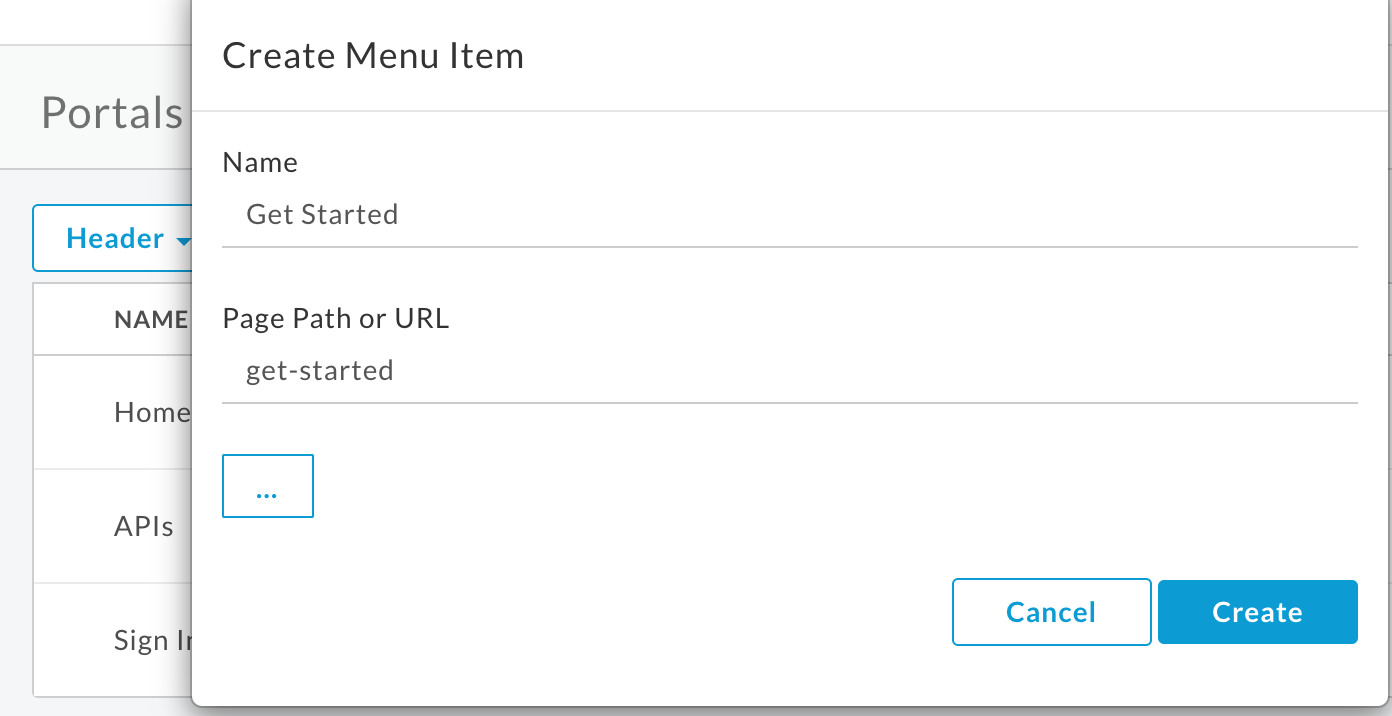
4. Click **Create**.
5. Rearrange the Get Started menu item:
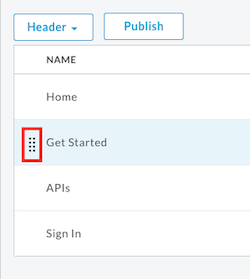
1. Position your cursor over the **Get Started** menu item to display the actions.
2. Click and hold the mouse button over the handle () that appears to the left of the menu item name.
3. Drag the menu item to position it before APIs and release the mouse button.
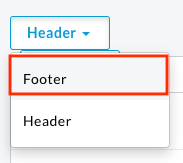
6. Select **Footer** in the menu drop-down to update the bottom (footer) navigation bar.
7. Repeat steps 2 through 5 to add **Get Started** as a menu item.
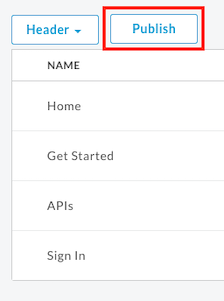
8. Click **Publish** to publish your changes to the live portal. Confirm the operation when prompted.
9. Click **Live Portal** to open the live portal in a new browser tab (or refresh the tab in which it is already open).
10. Click **Get Started** in the top navigation bar to display the Get Started page.
Next, you'll **publish an API** to the portal.
### Next step
[Step 1](https://docs.apigee.com/api-platform/tutorials/portal/create-portal)
[Step 2](https://docs.apigee.com/api-platform/tutorials/portal/customize-color-palette)
[Step 3](https://docs.apigee.com/api-platform/tutorials/portal/customize-logo)
[Step 4](https://docs.apigee.com/api-platform/tutorials/portal/edit-page)
[Step 5](https://docs.apigee.com/api-platform/tutorials/portal/set-up-navigation)
[Step 6: Publish an API](https://docs.apigee.com/api-platform/tutorials/portal/publish-api)