You're viewing **Apigee Edge** documentation.
[Go to the
**Apigee X** documentation](http://cloud.google.com/apigee/docs/hybrid/v1.9/config-prop-ref). info
> [!NOTE]
> **Note:** This document is applicable for Edge Public and Private Cloud users.
This document explains how to configure cipher suites on virtual hosts and Routers in Apigee Edge.
A cipher suite is a set of algorithms that help secure a network connection that uses TLS.
The client and the server must agree on the specific cipher suite that is going to be used
in exchanging messages. If the client and server do not agree on a cipher suite, then the
requests fail with TLS Handshake failures.
In Apigee, cipher suites should be mutually agreed upon between the client applications and
Routers.
You may want to modify the cipher suites on Apigee Edge for the following reasons:
- To avoid any cipher suites mismatch between client applications and Apigee Routers
- To use more secure cipher suites either to fix any security vulnerabilities or for enhanced security
Cipher suites can be configured either on the virtual hosts or Apigee Routers. Note
that Apigee accepts cipher suites only in the **OpenSSL cipher strings** format at
both the virtual host and the Router. The
[OpenSSL ciphers manpage](https://www.openssl.org/docs/man1.0.2/man1/ciphers.html)
provides the SSL or TLS cipher suites from the relevant specification and their OpenSSL equivalents.
**For example:**
If you want to configure the ` TLS_ECDHE_RSA_WITH_AES_128_GCM_SHA256 `cipher
suite at the virtual host or the Apigee Router, then you need to identify the
corresponding OpenSSL cipher string from the
[OpenSSL ciphers manpage](https://www.openssl.org/docs/man1.0.2/man1/ciphers.html).
The OpenSSL cipher string for the cipher suite `TLS_ECDHE_RSA_WITH_AES_128_GCM_SHA256`
is `ECDHE-RSA-AES128-GCM-SHA256.` So, you need to use the OpenSSL cipher string
`ECDHE-RSA-AES128-GCM-SHA256` while configuring the cipher suite in the virtual host
or on the Apigee Router.
## Before you begin
- To learn about the OpenSSL cipher strings for the different cipher suites, read [OpenSSL ciphers manpage](https://www.openssl.org/docs/man1.0.2/man1/ciphers.html).
- If you aren't familiar with virtual host properties, read [Virtual host property reference](https://docs.apigee.com/api-platform/fundamentals/virtual-host-property-reference).
- If you aren't familiar with configuring properties for Edge on Private Cloud, read [How to configure Edge](https://docs.apigee.com/private-cloud/v4.50.00/how-configure-edge).
## Configuring cipher suites on virtual hosts
This section explains how to configure cipher suites in the virtual hosts associated with an organization and environment. Cipher suites can be configured in the virtual host through the property `ssl_ciphers`, which represents the list of cipher suites supported by the virtual host.
> [!NOTE]
>
> **Required permissions:** To perform this task, you must have one of the following permissions:
>
> - You need to be an `org admin` of the specific organization
> - You should be in a custom role with permission to modify the specific virtual host in which you need to configure the cipher suites.
See [Supported cipher suites](https://docs.apigee.com/how-to-guides/configuring-cipher-suites-on-virtual-host-routers#supported-cipher-suites) for a list of the cipher
suites that Apigee supports.
You can configure the virtual host using one of the following methods:
- Using the Edge UI
- Using the Edge API
> [!NOTE]
> **Note:**
>
> 1. If you use the cipher suite name `TLS_ECDHE_RSA_WITH_AES_128_GCM_SHA256`, any other form of cipher suite name, or invalid cipher suite names other than OpenSSL cipher strings to configure in the virtual host, you will see the following error:
>
>
> **With Edge UI:**
>
> ```
> Invalid value TLS_ECDHE_RSA_WITH_AES_128_GCM_SHA256 for ssl_ciphers. Expected values are openssl cipher strings separated by :
> ```
> 2. **With Management API:**
>
> ```
>
> messaging.config.beans.InvalidValue
> Invalid value TLS_ECDHE_RSA_WITH_AES_128_GCM_SHA256 for ssl_ciphers. Expected values are openssl cipher strings separated by :
>
>
> ```
> 3. If you specify one or more cipher suite names or invalid ciphers, along with at least one valid OpenSSL cipher string, then Apigee Edge will consider only the valid OpenSSL cipher strings and ignore the rest. You will not see any errors in this case.
> 4. Only the supported OpenSSL Cipher strings corresponding to the protocol version will be accepted while the rest of them will be ignored. For example: If TLSv1.2 protocol is used, then the old ciphers that don't support TLSv1.2 will be ignored.
### Using Edge UI
**Note:** The virtual host cannot be edited using classic UI. If you don't have access to the new UI, use the Edge API. For more information on the differences, see [Transition from Classic Edge UI](https://docs.apigee.com/api-platform/get-started/transition-from-classic-ui).
To configure the virtual host using the Edge UI, do the following:
1. Login to the [Edge UI](https://apigee.com/edge).
2. Navigate to **Admin \> Virtual Hosts**.
3. Select a specific **Environment** where you want to make this change.
4. Select the specific virtual host for which you would like to configure the cipher suites.
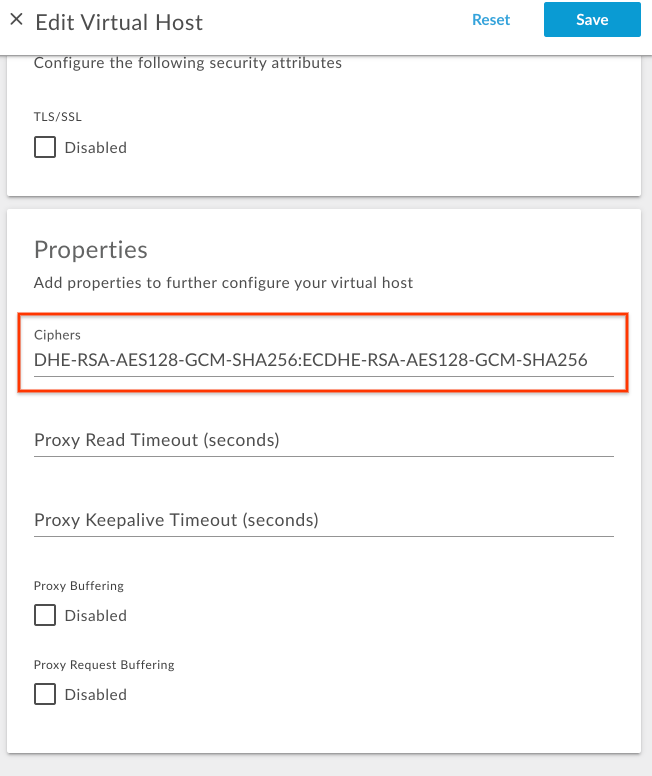
5. Under **Properties** , update the **Ciphers** value with a colon-delimited list of OpenSSL cipher strings.
For example, if you want to allow only the cipher suites
`TLS_DHE_RSA_WITH_AES_128_GCM_SHA256` and
`TLS_ECDHE_RSA_WITH_AES_128_GCM_SHA256`, then determine the corresponding
OpenSSL cipher strings from the
[OpenSSL ciphers manpage](https://www.openssl.org/docs/man1.0.2/man1/ciphers.html)
as shown in the following table:
| Cipher Suite | OpenSSL cipher string |
|---|---|
| `TLS_DHE_RSA_WITH_AES_128_GCM_SHA256` | `DHE-RSA-AES128-GCM-SHA256` |
| `TLS_ECDHE_RSA_WITH_AES_128_GCM_SHA256` | `ECDHE-RSA-AES128-GCM-SHA256` |
Add the OpenSSL cipher string with colon separation as shown in the following figure:
6. **Save** the change.
### Using Edge API
To configure the cipher suites on a virtual host using the Edge API, do the following:
1. Get the current virtual host configuration using the [Get virtual host](https://apidocs.apigee.com/docs/virtual-hosts/1/routes/organizations/%7Borg_name%7D/environments/%7Benv_name%7D/virtualhosts/%7Bvirtualhost_name%7D/get) API as shown below:
**Public Cloud user:**
```
curl -v -X GET https://api.enterprise.apigee.com/v1/organizations/{organization-name}/environments/{environment-name}/virtualhosts/{virtualhost-name} -u {username}
```
**Private Cloud user:**
```
curl -v -X GET http://{management_server_IP}:8080/v1/organizations/{organization-name}/environments/{environment-name}/virtualhosts/{virtualhost-name} -u {username}
```
```
{
"hostAliases": [
"api.myCompany,com"
],
"interfaces": [],
"listenOptions": [],
"name": "secure",
"port": "443",
"retryOptions": [],
"sSLInfo": {
"ciphers": [],
"clientAuthEnabled": "false",
"enabled": "true",
"ignoreValidationErrors": false,
"keyAlias": "myCompanyKeyAlias",
"keyStore": "ref://myCompanyKeystoreref",
"protocols": []
},
"useBuiltInFreeTrialCert": false
}
```
2.
Add the property `ssl_ciphers` to the existing virtual host configuration
JSON payload under `properties` with the appropriate OpenSSL cipher strings.
For example, if you want to allow only the cipher suites
`TLS_DHE_RSA_WITH_AES_128_GCM_SHA256` and
`TLS_ECDHE_RSA_WITH_AES_128_GCM_SHA256`, then determine the corresponding
OpenSSL cipher strings from the
[OpenSSL ciphers manpage](https://www.openssl.org/docs/man1.0.2/man1/ciphers.html)
as shown in the following table:
| Cipher Suite | OpenSSL cipher string |
|---|---|
| `TLS_DHE_RSA_WITH_AES_128_GCM_SHA256` | `DHE-RSA-AES128-GCM-SHA256` |
| `TLS_ECDHE_RSA_WITH_AES_128_GCM_SHA256` | `ECDHE-RSA-AES128-GCM-SHA256` |
Add the following `properties` code block:
**Sample updated virtual host configuration:**
```
{
"hostAliases": [
"api.myCompany,com",
],
"interfaces": [],
"listenOptions": [],
"name": "secure",
"port": "443",
"retryOptions": [],
"properties": {
"property": [
{
"name": "ssl_ciphers",
"value": "DHE-RSA-AES128-GCM-SHA256:ECDHE-RSA-AES128-GCM-SHA256"
}
]
},
"sSLInfo": {
"ciphers": [],
"clientAuthEnabled": "false",
"enabled": "true",
"ignoreValidationErrors": false,
"keyAlias": "myCompanyKeyAlias",
"keyStore": "ref://myCompanyKeystoreref",
"protocols": []
},
"useBuiltInFreeTrialCert": false
}
```
3. Save the updated virtual host configuration in a file. For example, `virtualhost-payload.json`.
4. Update the `virtualhost` configuration with the change using the [Update a virtual host](https://apidocs.apigee.com/docs/virtual-hosts/1/routes/organizations/%7Borg_name%7D/environments/%7Benv_name%7D/virtualhosts/%7Bvirtualhost_name%7D/put) API as follows:
**Public Cloud user:**
```
curl -v -X POST Content-Type: application/json
https://api.enterprise.apigee.com/v1/organizations/{organization-name}/environments/{environment-name}/virtualhosts/{virtualhost-name} -d @virtualhost-payload.json -u {username}
```
**Private Cloud user:**
```
curl -v -X POST Content-Type: application/json
http://{management_server_IP}:8080/v1/organizations/{organization-name}/environments/{environment-name}/virtualhosts/{virtualhost-name} -d @virtualhost-payload.json -u {username}
```
### Supported cipher suites
Apigee supports the following cipher suites:
```
ECDHE-RSA-AES256-GCM-SHA384
ECDHE-RSA-AES256-SHA384
ECDHE-RSA-AES256-SHA
DHE-RSA-AES256-GCM-SHA384
DHE-RSA-AES256-SHA256
DHE-RSA-AES256-SHA
DHE-RSA-CAMELLIA256-SHA
AES256-GCM-SHA384
AES256-SHA256
AES256-SHA
CAMELLIA256-SHA
ECDHE-RSA-AES128-GCM-SHA256
ECDHE-RSA-AES128-SHA256
ECDHE-RSA-AES128-SHA
DHE-RSA-AES128-GCM-SHA256
DHE-RSA-AES128-SHA256
DHE-RSA-AES128-SHA
DHE-RSA-CAMELLIA128-SHA
AES128-GCM-SHA256
AES128-SHA256
AES128-SHA
CAMELLIA128-SHA
```
## Verifying cipher suites on virtual hosts
This section explains how to verify that the cipher suites have been successfully
modified on the virtual host using the Edge API.
> [!NOTE]
> **Note:** Use this procedure to verify that the cipher suites have been successfully modified on the virtual host whether you used the Edge UI or the Edge API to configure the cipher suites.
1. Execute the [Get virtual host](https://apidocs.apigee.com/docs/virtual-hosts/1/routes/organizations/%7Borg_name%7D/environments/%7Benv_name%7D/virtualhosts/%7Bvirtualhost_name%7D/get) API to get the `virtualhost` configuration as shown below:
**Public Cloud user:**
```
curl -v -X GET https://api.enterprise.apigee.com/v1/organizations/{organization-name}/environments/{environment-name}/virtualhosts/{virtualhost-name} -u {username}
```
**Private Cloud user:**
```
curl -v -X GET http://{management_server_IP}:8080/v1/organizations/{organization-name}/environments/{environment-name}/virtualhosts/{virtualhost-name} -u {username}
```
2. Verify that the property `ssl_ciphers` has been set to the new value.
**Sample updated virtual host configuration:**
```
{
"hostAliases": [
"api.myCompany,com",
],
"interfaces": [],
"listenOptions": [],
"name": "secure",
"port": "443",
"retryOptions": [],
"properties": {
"property": [
{
"name": "ssl_ciphers",
"value": "DHE-RSA-AES128-GCM-SHA256:ECDHE-RSA-AES128-GCM-SHA256"
}
]
},
"sSLInfo": {
"ciphers": [],
"clientAuthEnabled": "false",
"enabled": "true",
"ignoreValidationErrors": false,
"keyAlias": "myCompanyKeyAlias",
"keyStore": "ref://myCompanyKeystoreref",
"protocols": []
},
"useBuiltInFreeTrialCert": false
}
```
In the example above, note that `ssl_ciphers` has been set with the new value.
3. If you still see the old value for `ssl_ciphers`, then verify that you have followed all the steps outlined in [Configuring cipher suites on virtual hosts](https://docs.apigee.com/how-to-guides/configuring-cipher-suites-on-virtual-host-routers#configure-cs-on-vh) correctly. If you have missed any step, repeat all the steps again correctly.
4. If you are still not able to update or add cipher suites to virtual host, then contact [Apigee Edge Support](https://docs.apigee.com/api-platform/troubleshoot/support).
## Configuring cipher suites on Routers
> [!NOTE]
> **Note:** The instructions in this section are for Edge Private Cloud users only.
This section explains how to configure cipher suites on the Routers. Cipher suites can be
configured through the Router property
`conf_load_balancing_load.balancing.driver.server.ssl.ciphers`, which represents
the colon-separated accepted cipher suites.
> [!NOTE]
> **Note:**
>
> 1. Since this change is made at the Router level, it is important to note that it affects all the virtual hosts associated with the organizations served by the specific Routers.
> 2. If you specify one or more cipher suite names or invalid ciphers, along with at least one valid OpenSSL cipher string, then Apigee Edge will consider only the valid OpenSSL cipher strings and ignore the rest. You will not see any errors/issues in this case.
> 3. Only the supported OpenSSL Cipher strings corresponding to the protocol version will be accepted while the rest of them will be ignored. For example: If TLSv1.2 protocol is used, then the old ciphers that don't support TLSv1.2 will be ignored.
> 4. Ensure you are using all the valid OpenSSL cipher strings. If all the ciphers in the list are invalid, then this change may cause all the secure virtual hosts to go down and may result in runtime impact.
> [!NOTE]
>
> **Required permissions:** To perform this task, you must have the following permissions:
>
> - Access to the specific Router machine where you would like to configure the Cipher suites
> - Access to create and edit the Router component properties file in the `/opt/apigee/customer/application` folder
To configure cipher suites on the Routers, do the following:
1.
On the Router machine, open the following file in an editor. If it does not already exist,
then create it.
```
/opt/apigee/customer/application/router.properties
```
For example, to open the file with `https://en.wikipedia.org/wiki/Vi`,
enter the following:
```
vi /opt/apigee/customer/application/router.properties
```
2. Add a line in the following format to the `properties` file, substituting a value for colon_separated_cipher_suites:
```
conf_load_balancing_load.balancing.driver.server.ssl.ciphers=colon_separated_cipher_suites
```
For example, if you want to allow only the cipher suites
`TLS_DHE_RSA_WITH_AES_128_GCM_SHA256` and
`TLS_ECDHE_RSA_WITH_AES_128_GCM_SHA256`, then determine the corresponding
OpenSSL cipher strings from the
[OpenSSL ciphers manpage](https://www.openssl.org/docs/man1.0.2/man1/ciphers.html)
as shown in the following table:
| Cipher Suite | OpenSSL cipher string |
|---|---|
| `TLS_DHE_RSA_WITH_AES_128_GCM_SHA256` | `DHE-RSA-AES128-GCM-SHA256` |
| `TLS_ECDHE_RSA_WITH_AES_128_GCM_SHA256` | `ECDHE-RSA-AES128-GCM-SHA256` |
And then add the following line:
```
conf_load_balancing_load.balancing.driver.server.ssl.ciphers=DHE-RSA-AES128-GCM-SHA256:ECDHE-RSA-AES128-GCM-SHA256
```
3. Save your changes.
4. Ensure this properties file is owned by the `apigee` user as shown below:
```
chown apigee:apigee /opt/apigee/customer/application/router.properties
```
5. Restart the Router as shown below:
```
/opt/apigee/apigee-service/bin/apigee-service edge-router restart
```
6. If you have more than one Router, repeat the above steps on all the Routers.
## Verifying cipher suite on Routers
> [!NOTE]
> **Note:** The instructions in this section are for Edge Private Cloud users only.
This section explains how to verify that the cipher suites have been successfully modified on the Routers.
1. On the Router, search for the property `conf_load_balancing_load.balancing.driver.server.ssl.ciphers` using the Apigee search utility from `/opt/apigee` folder and check to see if it has been set with the new value as follows:
```
/opt/apigee/apigee-service/bin/apigee-service edge-router configure -search conf_load_balancing_load.balancing.driver.server.ssl.ciphers
```
2. If the new cipher suites are successfully set on the router, then the above command shows the new values.
The following is the sample result from the `search` command above when the
cipher suites were updated to `DHE-RSA-AES128-GCM-SHA256` and
`ECDHE-RSA-AES128-GCM-SHA256`:
```
Found key conf_load_balancing_load.balancing.driver.server.ssl.ciphers, with value, DHE-RSA-AES128-GCM-SHA256:ECDHE-RSA-AES128-GCM-SHA256, in /opt/apigee/customer//application/router.properties
```
In the example output above, notice that the property
`conf_load_balancing_load.balancing.driver.server.ssl.ciphers` has been set
with the new cipher suite values. This indicates that the cipher suite was successfully
updated to the OpenSSL cipher strings `DHE-RSA-AES128-GCM-SHA25`and
`ECDHE-RSA-AES128-GCM-SHA256` on the Router.
3. If you still see the old values for cipher suites `conf_load_balancing_load.balancing.driver.server.ssl.ciphers`, then verify that you have followed all the steps outlined in [Configuring cipher suites on Routers](https://docs.apigee.com/how-to-guides/configuring-cipher-suites-on-virtual-host-routers#configure=cipher-suites=routers) correctly. If you have missed any step, repeat all the steps again correctly.
4. If you are still not able to modify the Cipher suites on Routers, then contact [Apigee Edge Support](https://docs.apigee.com/api-platform/troubleshoot/support).