> [!CAUTION]
> **Caution:** This documentation covers Edge for Private Cloud 4.16.05, which is no longer supported. Google does not provide security patches, bug fixes, or technical support for this version. The current supported version is 4.54.00. See the [Edge for Private Cloud documentation](https://docs.apigee.com/private-cloud/latest/overview) for the current version, or [All versions](https://docs.apigee.com/private-cloud/versions) to compare releases.
*Edge for Private Cloud v. 4.16.05*
## Hardware Requirements
You must meet the following minimum hardware requirements for a highly available
infrastructure in a production grade environment. For all installation scenarios described in
[Installation Topologies](https://docs.apigee.com/private-cloud/v4.16.05/installation-topologies), the following tables list the
minimum hardware requirements for the installation components.
In these tables the hard disk requirements are in addition to the hard disk space required by
the operating system. Depending on your applications and network traffic, your installation might
require more or fewer resources than listed below.
| **Installation Component** | **RAM** | **CPU** | **Minimum hard disk** |
|---|---|---|---|
| Cassandra | 16GB | 8-core | 250GB local storage with SSD or fast HDD supporting 2000 IOPS |
| Message Processor/Router on same machine | 8/16GB | 4‑core^†^ | 100GB |
| Analytics - Postgres/Qpid on same server (not recommended for production) | 16GB\* | 8-core\* | 500GB - 1TB\*\* network storage\*\*\*, preferably with SSD backend, supporting 1000 IOPS or higher\*. |
| Analytics - Postgres standalone | 16GB\* | 8-core\* | 500GB - 1TB\*\* network storage\*\*\*, preferably with SSD backend, supporting 1000 IOPS or higher\*. |
| Analytics - Qpid standalone | 8GB | 4-core | 30GB - 50GB local storage with SSD or fast HDD For installations greater than 250 TPS, HDD with local storage supporting 1000 IOPS is recommended. |
| Other (OpenLDAP, UI, Management Server) | 4GB | 2-core | 60GB |
| † Adjust Message Processor system requirements based on throughput: The minimum recommendation is 4-cores, and 8-cores for a high throughput system. You can run performance tests to determine the optimal size for your APIs. ||||
| \*Adjust Postgres system requirements based on throughput: - Less than 250 TPS: 8GB, 4-core can be considered with managed network storage\*\*\* supporting 1000 IOPS or higher - Greater than 250 TPS: 16GB, 8-core, managed network storage\*\*\* supporting 1000 IOPS or higher - Greater than 1000 TPS: 16GB, 8-core, managed network storage\*\*\* supporting 2000 IOPS or higher - Greater than 2000 TPS: 32GB, 16-core, managed network storage\*\*\* supporting 2000 IOPS or higher - Greater than 4000 TPS: 64GB, 32-core, managed network storage\*\*\* supporting 4000 IOPS or higher ||||
| \*\*The Postgres hard disk value is based on the out of the box analytics captured by Edge. If you add custom values to the analytics data, then these values should be increased accordingly. Use the following formula to estimate the required storage:
(# bytes/request) \* (requests per second) \* (seconds per hour) \* (hours of peak usage per day) \* (days per month) \* (months of data retention) = bytes of storage needed
For example:
(2K bytes of analytics data per request) \* 100 req/sec \* 3600 secs/hr \* 18 hours peak usage per day \* 30 days/month \* 3 months retention = 1,194,393,600,000 bytes or 1194.4 GB. ||||
| \*\*\* Network Storage is recommended for Postgresql database because: - It gives the ability to dynamically scale up the storage size if and when required. - Network IOPS can be adjusted on the fly in most of today's environment/Storage/Network subsystems. - Storage level snapshots can be enabled as part of backup and recovery solutions. ||||
In addition, the following lists the hardware requirements if you wish to install the
Monetization Services:
| **Component with Monetization** | **RAM** | **CPU** | **Hard disk** |
|---|---|---|---|
| Management Server (with Monetization Services) | 8GB | 4-core | 60GB |
| Analytics - Postgres/Qpid on same server | 16GB | 8-core | 500GB - 1TB network storage, preferably with SSD backend, supporting 1000 IOPS or higher, or use the rule from the table above. |
| Analytics - Postgres standalone | 16GB | 8-core | 500GB - 1TB network storage, preferably with SSD backend, supporting 1000 IOPS or higher, or use the rule from the table above. |
| Analytics - Qpid standalone | 8GB | 4-core | 40GB |
The following lists the hardware requirements if you wish to install API BaaS:
| **API BaaS Component** | **RAM** | **CPU** | **Hard disk** |
|---|---|---|---|
| ElasticSearch\* | 8GB | 4-core | 60 - 80GB |
| API BaaS Stack \* | 8GB | 4-core | 60 - 80GB |
| API BaaS Portal | 1GB | 2-core | 20GB |
| Cassandra (Optional --- typically you use the same Cassandra cluster for both Edge and API BaaS Services) | 16GB | 8-core | 250GB local storage with SSD or fast HDD supporting 2000 IOPS |
| \* You can install ElasticSearch and API BaaS Stack on the same node. If you do, configure ElasticSearch to use 4GB of memory (default). If ElasticSearch is installed on its own node, then configure it to use 6GB of memory. ||||
**Note**:
- If the root file system is not large enough for the installation, it is recommended to place the data onto a larger disk.
- If an older version of Apigee Edge for Private Cloud was installed on the machine, ensure that you delete the folder /tmp/java before a new installation.
- The system wide temporary folder /tmp needs execute permissions in order to start Cassandra.
- If user "apigee" was created prior to the installation, ensure that "/home/apigee" exists as home directory and is owned by "apigee:apigee".
## Operating System and third-party
software requirements
These installation instructions and the supplied installation files have been tested on the
operating systems and third-party software listed here: [https://apigee.com/docs/api-services/reference/supported-software](https://docs.apigee.com/release/supported-software).
## Creating the apigee user
The installation procedure creates a Unix system user named 'apigee'. Edge directories and
files are owned by 'apigee', as are Edge processes. That means Edge components run as the
'apigee' user. if necessary, you can run components as a different user. See "Binding the Router
to a protected port" in [Install Edge components on a
node](https://docs.apigee.com/private-cloud/v4.16.05/install-edge-components-node) for an example.
## Installation directory
By default, the installer writes all files to the /opt/apigee directory. You cannot change this
directory location.
> [!NOTE]
> **Note:** While you cannot change this directory, you can create a symlink to map /opt/apigee to another location. See "Creating a symlink from /opt/apigee" at [Install the Edge apigee-setup utility](https://docs.apigee.com/private-cloud/v4.16.05/install-edge-apigee-setup-utility) for more information.
In the instructions in this guide, the installation directory is noted as /\/apigee, where /\ is /opt by default.
## Java
You need a supported version of Java1.8 installed on each machine prior to the installation.
Supported JDKs are listed here:
[https://apigee.com/docs/api-services/reference/supported-software](https://docs.apigee.com/release/supported-software)
Ensure that JAVA_HOME points
to the root of the JDK for the user performing the installation.
## Network Setting
It is recommended to check the network setting prior to the installation. The installer
expects that all machines have fixed IP addresses. Use the following commands to validate the
setting:
- hostname returns the name of the machine
- hostname -i returns the IP address for the hostname that can be addressed from other machines.
Depending on your operating system type and version, you might have to edit /etc/hosts and /etc/sysconfig/network if the hostname is not
set correctly. See the documentation for your specific operating system for more information.
## Cassandra
All Cassandra nodes have to be connected to a ring.
Cassandra automatically adjusts its Java heap size based on the available memory. For more,
see [Tuning Java
resources](https://docs.datastax.com/en/cassandra/2.0/cassandra/operations/ops_tune_jvm_c.html). In the event of a performance degradation or high memory consumption.
After installing the Edge for Private Cloud, you can check that Cassandra is configured
correctly by examining the /\/apigee/apigee-cassandra/conf/cassandra.yaml
file. For example, ensure that the Edge for Private Cloud installation script set the following
properties:
- cluster_name
- initial_token
- partitioner
- seeds
- listen_address
- rpc_address
- snitch
**Warning**: Do not edit this file.
## PostgreSQL database
After you install Edge, you can adjust the following PostgreSQL database settings based on the
amount of RAM available on your system:
```
conf_postgresql_shared_buffers = 35% of RAM # min 128kB
conf_postgresql_effective_cache_size = 45% of RAM
conf_postgresql_work_mem = 512MB # min 64kB
```
> [!NOTE]
> **Note:** These settings assume that the PostgreSQL database is only used for Edge analytics, and not for any other purpose.
To set these values:
1. Edit postgresql.properties:
\> vi /\/apigee/customer/application/postgresql.properties
If the file does not exist, create it.
2. Set the properties listed above.
3. Save your edits.
4. Restart the PostgreSQL database:
\> /\/apigee/apigee-service/bin/apigee-service apigee-postgresql restart
## jsvc
"jsvc" is a prerequisite for using API BaaS. Version 1.0.15-dev is installed when you install
the API BaaS.
## Network Security Services (NSS)
Network Security Services (NSS) is a set of libraries that supports development of
security-enabled client and server applications. You should ensure that you have installed NSS
v3.19, or later.
To check your current version:
```
> yum info nss
```
To update NSS:
```
> yum update nss
```
See [this article](https://rhn.redhat.com/errata/RHSA-2015-1981.html) from RedHat
for more information.
## AWS AMI
If you are installing Edge on an AWS Amazon Machine Image (AMI) for Red Hat Enterprise Linux
7.x, you must first run the following command:
```
> yum-config-manager --enable rhui-REGION-rhel-server-extras rhui-REGION-rhel-server-optional
```
## Tools
The installer uses the following UNIX tools in the standard version as provided by EL5 or
EL6.
|---|---|---|---|---|
| awk | dirname | ls | rpm | unzip |
| basename | echo | perl | rpm2cpio | useradd |
| bash | expr | pgrep (from procps) | sed | wc |
| bc | grep | ps | tar | yum |
| curl | hostname | pwd | tr | chkconfig |
| date | id | python | uname | sudo |
Note:
- The executable for the tool 'useradd' is located in /usr/sbin and for chkconfig in /sbin.
- With sudo access you can gain access over the environment of the calling user, for example, usually you would call "sudo \" or "sudo PATH=$PATH:/usr/sbin:/sbin \".
- Ensure that you have "patch" tool installed prior to a service pack (patch) installation.
**ntpdate** -- It is recommended to have the servers time synchronized. If
not already configured, 'ntpdate' utility could serve this purpose, which verifies
whether servers are time synchronized. You can use "yum install ntp" to install the
utility. This is particularly useful for replicating OpenLDAP setups. Note that you set up server
time zone in UTC.
**openldap 2.4** -- The on-premises installation requires OpenLDAP 2.4. If
your server has an Internet connection, then the Edge install script downloads and installs
OpenLDAP. If your server does not have an Internet connection, you must ensure that OpenLDAP is
already installed before running the Edge install script. On RHEL/CentOS, you can run
"yum install openldap-clients openldap-servers" to install the OpenLDAP.
For 13-host installations, and 12-host installations with two Data Centers, you require
OpenLDAP replication because there are multiple nodes hosting OpenLDAP.
## Firewalls and Virtual Hosts
The term "virtual" commonly gets overloaded in the IT arena, and so it is with an
Apigee Edge for Private Cloud deployment and virtual hosts. To clarify, there are two primary
uses of the term "virtual":
- **Virtual machines (VM)**: Not required, but some deployment use VM technology to create isolated servers for their Apigee components. VM hosts, like physical hosts, can have network interfaces and firewalls. These installation instructions do not specifically support VM installations.
- **Virtual hosts**: Web endpoints, analogous to an Apache virtual host.
A router in a VM can expose multiple virtual hosts (as long as they differ from one another in
their host alias or in their interface port).
Just as a naming example, a single physical server "A" might be running two VMs,
named "VM1" and "VM2". Let's assume VM1 exposes a virtual Ethernet
interface, which gets named eth0
inside the VM, and which is assigned IP address 111.111.111.111 by the virtualization
machinery or a network DHCP server; and then assume VM2 exposes a virtual Ethernet interface also
named eth0 and it gets assigned an IP address 111.111.111.222.
We might have an Apigee router running in each of the two VMs. The routers expose virtual host
endpoints as in this hypothetical example:
The Apigee router in VM1 exposes three virtual hosts on its eth0 interface (which has some
specific IP address), api.mycompany.com:80, api.mycompany.com:443, and test.mycompany.com:80.
The router in VM2 exposes api.mycompany.com:80 (same name and port as
exposed by VM1).
The physical host's operating system might have a network firewall; if so, that firewall
must be configured to pass TCP traffic bound for the ports being exposed on the virtualized
interfaces (111.111.111.111:{80, 443} and 111.111.111.222:80). In addition, each
VM's operating system may provide its own firewall on its eth0 interface and these too must
allow ports 80 and 443 traffic to connect.
The basepath is the third component involved in routing API calls to different API proxies
that you may have deployed. API proxy bundles can share an endpoint if they have different
basepaths. For example, one basepath can be defined as http://api.mycompany.com:80/ and another
defined as http://api.mycompany.com:80/salesdemo.
In this case, you need a load balancer or traffic director of some kind splitting the
http://api.mycompany.com:80/ traffic between the two IP addresses (111.111.111.111 on VM1 and 111.111.111.222 on VM2). This function is
specific to your particular installation, and is configured by your local networking group.
The basepath is set when you deploy an API. From the above example, you can deploy two APIs,
mycompany and testmycompany, for the organization
mycompany-org with the virtual
host that has the host alias of api.mycompany.com and the port set to
80. If you do not declare a
basepath in the deployment, then the router does not know which API to send incoming requests
to.
However, if you deploy the API testmycompany with the base URL of
/salesdemo, then users access
that API using http://api.mycompany.com:80/salesdemo. If you
deploy your API mycompany with the base URL of / then your users access the API by the URL
http://api.mycompany.com:80/.
### Edge port requirements
The need to manage the firewall goes beyond just the virtual hosts; both VM and physical host
firewalls must allow traffic for the ports required by the components to communicate with each
other.
The following image shows the ports requirements for each Edge component:
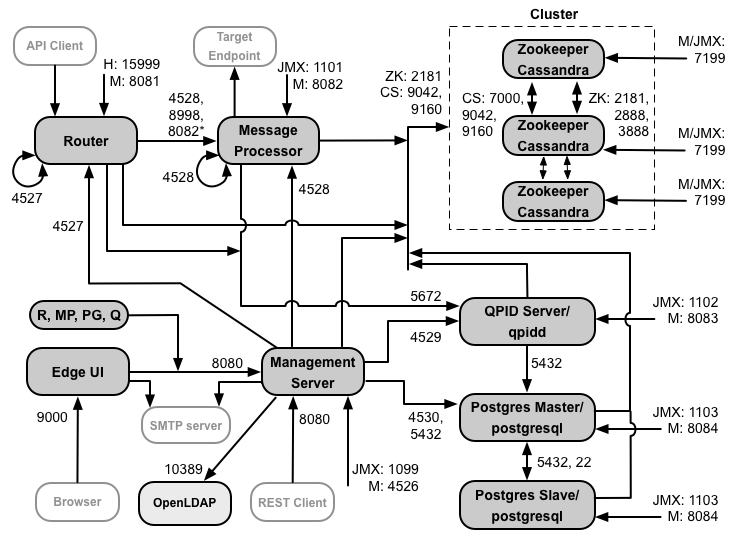
**Notes on this diagram:**
- \*Port 8082 on the Message Processor only has to be open for access by the Router when you configure TLS/SSL between the Router and Message Processor. If you do not configure TLS/SSL between the Router and Message Processor, the default configuration, port 8082 still must be open on the Message Processor to manage the component, but the Router does not require access to it.
- The ports prefixed by "M" are ports used to manage the component and must be open on the component for access by the Management Server.
- The following components require access to port 8080 on the Management Server: Router, Message Processor, UI, Postgres, and Qpid.
- A Message Processor must open port 4528 as its management port. If you have multiple Message Processors, they must all be able to access each other over port 4528 (indicated by the loop arrow in the diagram above for port 4528 on the Message Processor). If you have multiple Data Centers, the port must be accessible from all Message Processors in all Data Centers.
- While it is not required, you can open port 4527 on the Router for access by any Message Processor. Otherwise, you might see error messages in the Message Processor log files.
- A Router must open port 4527 as its management port. If you have multiple Routers, they must all be able to access each other over port 4527 (indicated by the loop arrow in the diagram above for port 4527 on the Router).
- The Edge UI requires access to the Router, on the ports exposed by API proxies, to support the **Send** button in the trace tool.
- The Management Server requires access to the JMX port on the Cassandra nodes.
- Access to JMX ports can be configured to require a username/password. See [How to Monitor](https://docs.apigee.com/private-cloud/v4.16.05/how-monitor) for more information.
- You can optionally configure TLS/SSL access for certain connections, which can use different ports. See [TLS/SSL](https://docs.apigee.com/api-platform/system-administration/ssl) for more.
- If configuring two Postgres nodes to use master-standby replication, you must open port 22 on each node for ssh access. You can optionally open ports on individual nodes to allow ssh access.
- You can configure the Management Server and Edge UI to send emails through an external SMTP server. If you do, you must ensure that the Management Server and UI can access the necessary port on the SMTP server. For non-TLS SMTP, the port number is typically 25. For TLS-enabled SMTP, it is often 465, but check with your SMTP provider.
The table below shows the ports need to be opened in firewalls, by Edge component:
| **Component** | **Port** | **Description** |
|---|---|---|
| **Standard HTTP ports** | 80, 443 | HTTP plus any other ports you use for virtual hosts |
| **Management Server** | 8080 | Port for Edge management API calls. These components require access to port 8080 on the Management Server: Router, Message Processor, UI, Postgres, and Qpid. |
| **Management Server** | 1099 | JMX port |
| **Management Server** | 4526 | For distributed cache and management calls |
| **Management UI** | 9000 | Port for browser access to management UI |
| **Message Processor** | 8998 | Message Processor port for communications from Router |
| **Message Processor** | 8082 | Default management port for Message Processor and must be open on the component for access by the Management Server. If you configure TLS/SSL between the Router and Message Processor, used by the Router to make health checks on the Message Processor. |
| **Message Processor** | 1101 | JMX port |
| **Message Processor** | 4528 | For distributed cache and management calls between Message Processors, and for communication from the Router |
| **Router** | 8081 | Default management port for Router and must be open on the component for access by the Management Server. |
| **Router** | 4527 | For distributed cache and management calls |
| **Router** | 15999 | Health check port. A load balancer uses this port to determine if the Router is available. To get the status of a Router, the load balancer makes a request to port 15999 on the Router: ``` > curl -v http://:15999/v1/servers/self/reachable ``` If the Router is reachable, the request returns HTTP 200. |
| **ZooKeeper** | 2181 | Used by other components like Management Server, Router, Message Processor and so on |
| **ZooKeeper** | 2888, 3888 | Used internally by ZooKeeper for ZooKeeper cluster (known as ZooKeeper ensemble) communication |
| **Cassandra** | 7000, 9042, 9160 | Apache Cassandra ports for communication between Cassandra nodes and for access by other Edge components. |
| **Cassandra** | 7199 | JMX port. Must be open for access by the Management Server. |
| **Qpid** | 5672 | Used for communications from the Router and Message Processor to Qpid server |
| **Qpid** | 8083 | Default management port on Qpid server and must be open on the component for access by the Management Server. |
| **Qpid** | 1102 | JMX port |
| **Qpid** | 4529 | For distributed cache and management calls |
| **Postgres** | 5432 | Used for communication from Qpid/Management Server to Postgres |
| **Postgres** | 8084 | Default management port on Postgres server and must be open on the component for access by the Management Server. |
| **Postgres** | 1103 | JMX port |
| **Postgres** | 4530 | For distributed cache and management calls |
| **Postgres** | 22 | If configuring two Postgres nodes to use master-standby replication, you must open port 22 on each node for ssh access. |
| **LDAP** | 10389 | OpenLDAP |
| **SmartDocs** | 59002 | The port on the Edge router where SmartDocs page requests are sent. |
| *Note: In addition, you may need to open ports in the firewalls for testing. For example, 59001, and so on.* |||
The next table shows the same ports, listed numerically, with the source and destination
components:
| **Port Number** | **Purpose** | **Source Component** | **Destination Component** |
|---|---|---|---|
| **\** | HTTP plus any other ports you use for virtual host API call traffic. Ports 80 and 443 are most commonly used; the Message Router can terminate TLS/SSL connections. | External client (or load balancer) | Listener on Message Router |
| **1099 through 1103** | JMX Management | JMX Client | Management Server (1099) Message Processor (1101) Qpid Server (1102) Postgres Server (1103) |
| **2181** | Zookeeper client communication | Management Server Router Message Processor Qpid Server Postgres Server | Zookeeper |
| **2888 and 3888** | Zookeeper internode management | Zookeeper | Zookeeper |
| **4526 through 4530** | RPC Management ports used for distributed cache and calls from the Management Servers to the other components | Management Server | Management Server (4526) Router (4527) Message Processor (4528) Qpid Server (4529) Postgres Server (4530) |
| **4528** | For distributed cache calls between Message Processors, and for communication from the Router | Router Message Processor | Message Processor |
| **5432** | Postgres client | Qpid Server | Postgres |
| **5672** | Used for sending analytics from Router and Message Processor to Qpid | Router Message Processor | Qpid Server |
| **7000** | Cassandra inter-node communications | Cassandra | Other Cassandra node |
| **7199** | JMX management. Must be open for access on the Cassandra node by the Management Server. | JMX client | Cassandra |
| **8080** | Management API port | Management API clients | Management Server |
| **8081 through 8084** | Component API ports, used for issuing API requests directly to individual components. Each component opens a different port; the exact port used depends on the configuration but must be open on the component for access by the Management Server | Management API clients | Router (8081) Message Processor (8082) Qpid Server (8083) Postgres Server (8084) |
| **8998** | Communication between router an message processor | Router | Message Processor |
| **9000** | Default Edge management UI port | Browser | Management UI Server |
| **9042** | CQL native transport | Router Message Processor Management Server | Cassandra |
| **9160** | Cassandra thrift client | Router Message Processor Management Server | Cassandra |
| **10389** | LDAP port | Management Server | OpenLDAP |
| **15999** | Health check port. A load balancer uses this port to determine if the Router is available. | Load balancer | Router |
| **59002** | The router port where SmartDocs page requests are sent | SmartDocs | Router |
A message processor keeps a dedicated connection pool open to Cassandra, which is configured
to never timeout. When a firewall is between a message processor and Cassandra server, the
firewall can time out the connection. However, the message processor is not designed to
reestablish connections to Cassandra.
To prevent this situation, Apigee recommends that the Cassandra server, message processor, and
routers be in the same subnet so that a firewall is not involved in the deployment of these
components.
If a firewall is between the router and message processors, and has an idle tcp timeout set,
our recommendations is to:
1. Set net.ipv4.tcp_keepalive_time = 1800 in sysctl settings on Linux OS, where 1800 should be lower than the firewall idle tcp timeout. This setting should keep the connection in an established state so that the firewall does not disconnect the connection.
2. On all Message Processors, edit /\/apigee/customer/application/message-processor.properties to add the following property. If the file does not exist, create it.
conf_system_casssandra.maxconnecttimeinmillis=-1
3. Restart the Message Processor:
\> /opt/apigee/apigee-service/bin/apigee-service edge-message-processor restart
4. On all Routers, edit /\/apigee/customer/application/router.properties to add the following property. If the file does not exist, create it.
conf_system_casssandra.maxconnecttimeinmillis=-1
5. Restart the Router:
\> /opt/apigee/apigee-service/bin/apigee-service edge-router restart
If you install the 12 host clustered configuration with two Data Centers, ensure that the
nodes in the two Data Centers can communicate over the ports shown below:
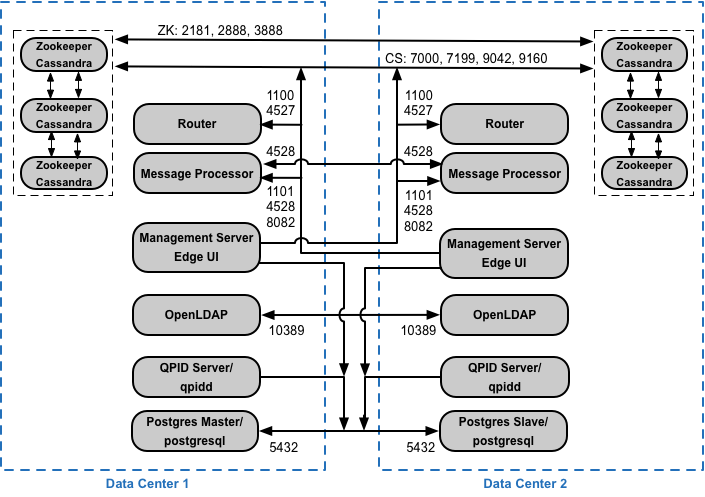
> [!NOTE]
> **Note:**
>
> - All Management Servers must be able to access all Cassandra nodes in all other Data Centers.
> - All Message Processors in all Data Centers must all be able to access each other over port 4528.
> - The Management Server must be able to access all Message Processors over port 8082.
> - All Management Servers and all Qpid nodes must be able to access Postgres in all other Data Centers.
> - **For security reasons**, other than the ports shown above and any others required by your own network requirements, no other ports should be open between data centers.
### API BaaS port requirements
If you opt to install the API BaaS, you add the API BaaS Stack and API BaaS Portal components.
These components use the ports shown in the figure below:
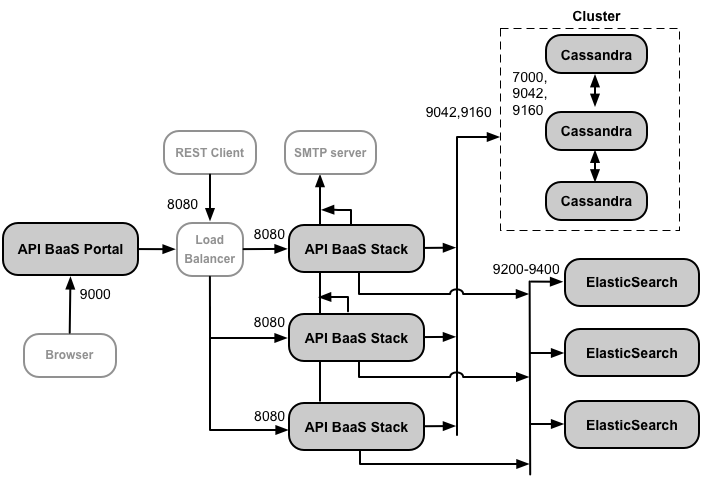
**Notes on this diagram:**
- The Cassandra nodes can be dedicated to API BaaS, or can be shared with Edge.
- A production installation of API BaaS uses a load balancer between the API BaaS Portal node and API BaaS Stack nodes. When configuring the Portal, and when making BaaS API calls, you specify the IP address or DNS name of the load balancer, not of the Stack nodes.
- You must configure all Baas Stack nodes to send emails through an external SMTP server. For non-TLS SMTP, the port number is typically 25. For TLS-enabled SMTP, it is often 465, but check with your SMTP provider.
The table below shows the default ports that need to be opened in firewalls, by component:
| **Component** | **Port** | **Description** |
|---|---|---|
| **API BaaS Portal** | 9000 | Port for the API BaaS UI |
| **API BaaS Stack** | 8080 | Port where API request are received |
| **ElasticSearch** | 9200 to 9400 | For communicating with API BaaS Stack and for communicating between ElasticSearch nodes |
## Licensing
Each installation of Edge requires a unique license file that you obtain from Apigee. You will
need to provide the path to the license file when installing the management server, for example
/tmp/license.txt.
The installer copies the license file to /\/apigee/customer/conf/license.txt.
If license file is valid, the management server validates the expiry and allowed Message
Processor (MP) count. If any of the license settings is expired, you can find the logs in the
following location: /\/apigee/var/log/edge-management-server/logs.
In this case you can contact [Apigee Support](https://support@apigee.com) for
migration details.