> [!CAUTION]
> **Caution:** This documentation covers Edge for Private Cloud 4.17.01, which is no longer supported. Google does not provide security patches, bug fixes, or technical support for this version. The current supported version is 4.54.00. See the [Edge for Private Cloud documentation](https://docs.apigee.com/private-cloud/latest/overview) for the current version, or [All versions](https://docs.apigee.com/private-cloud/versions) to compare releases.
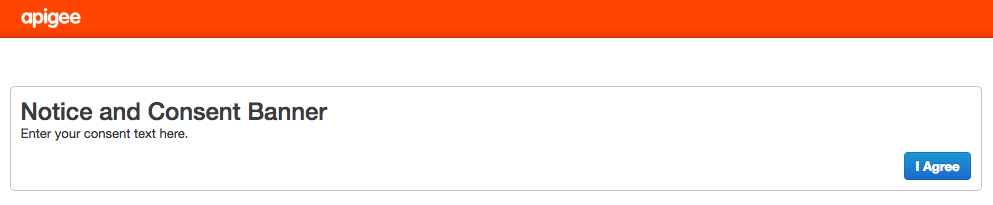
You can display a consent banner when a user first accesses the Edge UI. The consent banner
displays HTML-formatted text and a button that the user selects to proceed to the log in screen.
For example:
To add a consent banner:
1. Open the ui.properties file in an editor. If the file does not exist, create it::
\> vi /opt/apigee/customer/application/ui.properties
2. Set the following properties:
# Enable the consent banner:
conf_apigee-base_apigee.feature.enableconsentbanner="true"
# Set the button text:
conf_apigee-base_apigee.consentbanner.buttoncaption="I Agree"
# Set the HTML text:
conf_apigee-base_apigee.consentbanner.body="\Notice and Consent Banner\\\Enter your consent text here.\\"
3. Save your changes.
4. Restart the Edge UI:
\> /opt/apigee/apigee-service/bin/apigee-service edge-ui restart
When you next open the Edge UI in a browser, you will have to accept the conent agreement
before you can log in.