> [!CAUTION]
> **Caution:** This documentation covers Edge for Private Cloud 4.18.05, which is no longer supported. Google does not provide security patches, bug fixes, or technical support for this version. The current supported version is 4.54.00. See the [Edge for Private Cloud documentation](https://docs.apigee.com/private-cloud/latest/overview) for the current version, or [All versions](https://docs.apigee.com/private-cloud/versions) to compare releases.
*Edge for Private Cloud v4.18.05*
An on-premises installation of Edge Private Cloud, or an Edge instance, consists of multiple
Edge components installed on a set of server nodes. The following image shows the relationship
among the planet, regions, pods, organizations, environments, and virtual hosts that make up an
Edge instance:
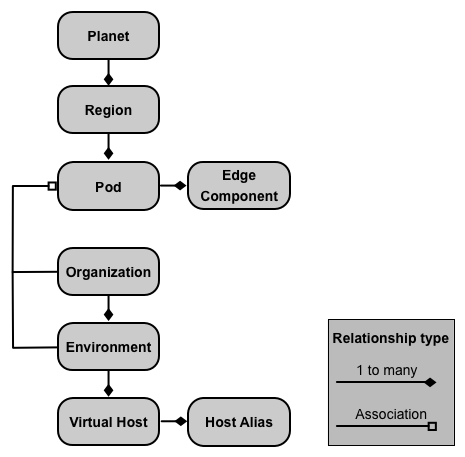
The following table describes these relationships:
| Component | Contains | Associated with | Default |
|---|---|---|---|
| **Planet** | One or more regions | | n/a |
| **Region** | One or more pods | | "dc-1" |
| **Pod** | One or more Edge components | | "central" "gateway" "analytics" |
| **Organization** | One or more environments | One or more pods containing Message Processors, and a user acting as the org admin | none |
| **Environment** | One or more virtual hosts | One or more Message Processors in a pod associated with the parent organization | none |
| **Virtual Host** | One or more host aliases | | none |
## About Planets
A *planet* represents an entire Edge hardware and software environment and can contain
one or more regions. In Edge, a planet is a logical grouping of regions: you do not
explicitly create or configure a planet as part of installing Edge.
## About Regions
A *region* is a grouping of one or more pods. By default, when you install Edge, the
installer creates a single region named "dc-1" containing three pods, as the following table
shows:
| **Region** | **Pods in the region** |
|---|---|
| "dc-1" | "gateway", "central", "analytics" |
The following image shows the default regions:
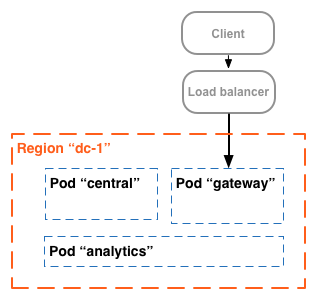
This image shows the load balancer directing traffic to the "gateway" pod. The "gateway" pod
contains the Edge Router and Message Processor components that handle API requests. Unless you
define multiple data centers, you should not have to create additional regions.
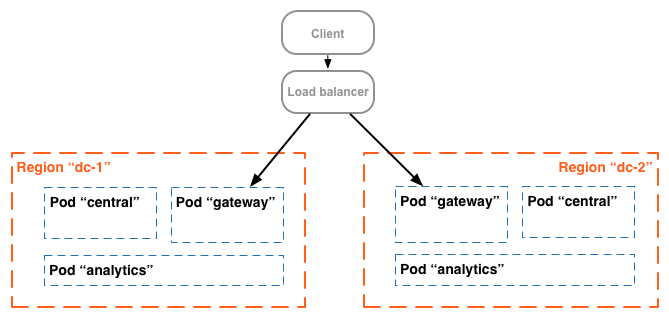
In a more complex installation, you can create two or more regions. One reason to create
multiple regions is to organize machines geographically, which minimizes network transit time. In
this scenario, you host API endpoints so that they are geographically *close* to the
consumers of those APIs.
In Edge, each region is referred to as a *data center*. A data center in the
Eastern US can then handle requests arriving from Boston, Massachusetts, while a data center in
Singapore can handle requests originating from devices or computers in Asia.
For example, the following image shows two regions, corresponding to two data centers:
## About Pods
A *pod* is a grouping of one or more Edge components and Cassandra datastores. The Edge
components can be installed on the same node, but are more commonly installed on different nodes.
A Cassandra datastore is a data repository used by the Edge components in the pod.
By default, when you install Edge, the installer creates three pods and associates the
following Edge components and Cassandra datastores with each pod:
| **Pod** | **Edge components** | **Cassandra datastores** ||
|---|---|---|---|
| "gateway" | Router, Message Processor | cache-datastore counter-datastore dc-datastore | keyvaluemap-datastore kms-datastore |
| "central" | Management Server, Zookeeper, LDAP, UI, Qpid | application-datastore apimodel-datastore audit-datastore auth-datastore | identityzone-datastore edgenotification-datastore management-server scheduler-datastore user-settings-datastore |
| "analytics" | Postgres | analytics-datastore | reportcrud-datastore |
The Edge components and Cassandra datastores in the "gateway" pod are required for API
processing. These components and datastores must be up and running to process API requests. The
components and datastores in the "central" and "analytics" pods are not required to process APIs,
but add additional functionality to Edge.
The following image shows the components in each pod:
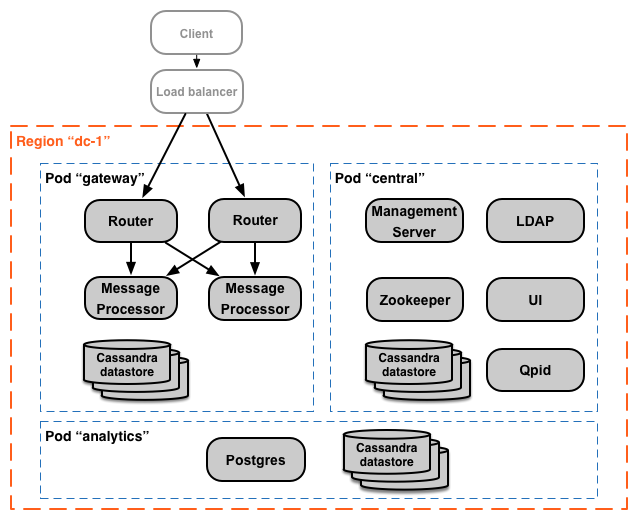
You can add additional Message Processor and Router pods to the three that are created by
default. Alternatively, you can add additional Edge components to an existing pod. For example,
you can add additional Routers and Message Processors to the "gateway" pod to handle increased
traffic loads.
Notice that the "gateway" pod contains the Edge Router and Message Processor components.
Routers only send requests to Message Processors in the same pod and not to Message Processors in
other pods.
You can use the following API call to view server registration details at the end of the
installation for each pod. This is a useful monitoring tool.
```
curl -u adminEmail:pword http://ms_IP:8080/v1/servers?pod=podName
```
Where ms_IP is the IP address or DNS name of the Management Server,
and podName is one of the following:
- `gateway`
- `central`
- `analytics`
For example, for the "gateway" pod:
```
curl -u adminEmail:pword http://ms_IP:8080/v1/servers?pod=gateway
```
Apigee returns output similar to the following:
```
[ {
"externalHostName" : "localhost",
"externalIP" : "192.168.1.11",
"internalHostName" : "localhost",
"internalIP" : "192.168.1.11",
"isUp" : true,
"pod" : "gateway",
"reachable" : true,
"region" : "dc-1",
"tags" : {
"property" : [ {
"name" : "jmx.rmi.port",
"value" : "1101"
}, ... ]
},
"type" : [ "message-processor" ],
"uUID" : "276bc250-7dd0-46a5-a583-fd11eba786f8"
},
{
"internalIP" : "192.168.1.11",
"isUp" : true,
"pod" : "gateway",
"reachable" : true,
"region" : "dc-1",
"tags" : {
"property" : [ ]
},
"type" : [ "dc-datastore", "management-server", "cache-datastore", "keyvaluemap-datastore", "counter-datastore", "kms-datastore" ],
"uUID" : "13cee956-d3a7-4577-8f0f-1694564179e4"
},
{
"externalHostName" : "localhost",
"externalIP" : "192.168.1.11",
"internalHostName" : "localhost",
"internalIP" : "192.168.1.11",
"isUp" : true,
"pod" : "gateway",
"reachable" : true,
"region" : "dc-1",
"tags" : {
"property" : [ {
"name" : "jmx.rmi.port",
"value" : "1100"
}, ... ]
},
"type" : [ "router" ],
"uUID" : "de8a0200-e405-43a3-a5f9-eabafdd990e2"
} ]
```
The `type` attribute lists the component type. Note that it lists the Cassandra
datastores registered in the pod. While Cassandra nodes are installed in the "gateway" pod, you
will see Cassandra datastores registered with all pods.
## About Organizations
An *organization* is a container for all the objects in an Apigee account, including
APIs, API products, apps, and developers. An organization is associated with one or more pods,
where each pod must contain one or more Message Processors.
> [!NOTE]
> **Note:** In the default installation, where you only have a single "gateway" pod that contains all the Message Processors, you only associate an org with the "gateway" pod. Unless you define multiple data centers, and multiple Message Processors pods, you cannot associate an organization with multiple pods.
In an on-premises installation of Edge Private Cloud, there are no organizations by default.
When you create an organization, you specify two pieces of information:
1. A user who functions as the organization administrator. That user can then add additional users to the organization, and set the role of each user.
2. The "gateway" pod, the pod containing the Message Processors.
An organization can contain one or more environments. The default Edge installation procedure
prompts you to create two environments: "test" and "prod". However, you can create more
environments as necessary, such as "staging", "experiments", etc.
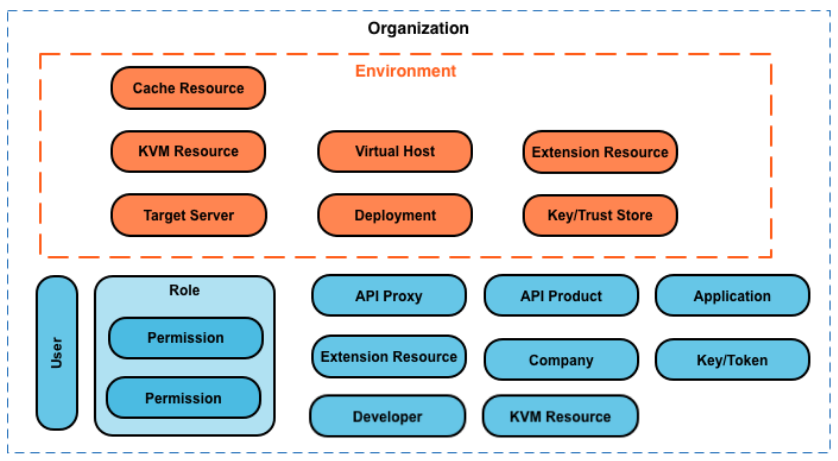
Organization provides scope for some Apigee capabilities. For example, key-value-map (KVM)
data is available at the organization level, meaning from all environments. Other capabilities,
such as caching, are scoped to a specific environment. Apigee analytics data is partitioned by a
combination of organization and environment.
Shown below are the major objects of an organization, including those defined globally in the
organization, and those defined specifically to an environment:
## About Environments
An *environment* is a runtime execution context for the API proxies in an organization.
You must deploy an API proxy to an environment before it can be accessed. You can deploy an API
proxy to a single environment or to multiple environments.
An organization can contain multiple environments. For example, you might define a "dev",
"test", and "prod" environment in an organization.
When you create an environment, you associate it with one or more Message Processors. You can
think of an environment as a named set of Message Processors on which API proxies run. Every
environment can be associated with the same Message Processors, or with different ones.
To create an environment, specify two pieces of information:
1. The organization containing the environment.
2. The Message Processors that handle API proxy requests to the environment. These Message Processors must be in a pod associated with the environment's parent organization.
By default, when you create an environment, Edge associates all available Message Processors in the "gateway" pod with the environment. Alternatively, you can specify a subset of the available Message Processors so that different Message Processors handle requests to different environments.
A Message Processor can be associated with multiple environments. For example, your Edge
installation contains two Message Processors: A and B. You then create three environments in your
organization: "dev", "test", and "prod":
- For the "dev" environment, you associate Message Processor A because you do not expect a large volume of traffic.
- For the "test" environment, you associate Message Processor B because you do not expect a large volume of traffic.
- For the "prod" environment, you associate both Message Processors A and B to handle the production-level volume.
The Message Processors assigned to an environment can all be from the same pod, or can be from
multiple pods, spanning multiple regions and data centers. For example, you define the
environment "global" in your organization that includes Message Processors from three regions,
meaning three different data centers: US, Japan, and Germany.
Deploying an API proxy to the "global" environment causes the API proxy to run on Message
Processors in all of three data centers. API traffic arriving at a Router in any one of those
data centers would be directed only to Message Processors in that data center because Routers
only direct traffic to Message Processors in the same pod.
## About virtual hosts
A *virtual host* defines the port on the Edge Router on which an API proxy is exposed,
and, by extension, the URL that apps use to access the API proxy. Every environment must define
at least one virtual host.
Ensure that the port number specified by the virtual host is open on the Router node. You can
then access an API proxy by making a request to the following URLs:
```
http://routerIP:port/proxy-base-path/resource-name
https://routerIP:port/proxy-base-path/resource-name
```
Where:
- `http` or `https`: If the virtual host is configured to supports TLS/SSL, use HTTPS. If the virtual host does not support TLS/SSL, use HTTP.
- routerIP:port is the IP address and port number of the virtual host.
- proxy-base-path and resource-name are defined when you create the API proxy.
Typically, you do not publish your APIs to customers with an IP address and port number.
Instead, you define a DNS entry for the Router and port. For example:
```
http://myAPI.myCo.com/proxy-base-path/resource-name
https://myAPI.myCo.com/proxy-base-path/resource-name
```
You also must create a host alias for the virtual host that matches the domain name of the DNS
entry. From the example above, you would specify a host alias of **myAPI.myCo.com** .
If you do not have a DNS entry, set the host alias to the IP address of the Router and port of
the virtual host, as routerIP:port.
For more, see [About virtual hosts](https://docs.apigee.com/api-platform/fundamentals/virtual-hosts).
## Creating your first organization,
environment, and virtual host
After you complete the Edge installation process, your first action is typically to create an
organization, environment, and virtual host through the "onboarding" process. To perform
onboarding, run the following command on the Edge Management Server node:
```
/opt/apigee/apigee-service/bin/apigee-service apigee-provision setup-org -f configFile
```
This command takes as input a config file that defines a user, organization, environment, and
virtual host.
For example, you create:
- A user of your choosing to function as the organization administrator
- An organization named `example`
- An environment in the organization named `prod` that is associated with all Message Processors in the "gateway" pod
- A virtual host in the environment named `default` that allows HTTP access on port 9001
- Host alias for the virtual host
After running that script, you can access your APIs by using a URL in the form:
```
http://routerIP:9001/proxy-base-path/resource-name
```
You can later add any number of organizations, environments, and virtual hosts.
For more information, see [Onboard an organization](https://docs.apigee.com/private-cloud/v4.18.05/onboard-organization).