> [!CAUTION]
> **Caution:** This documentation covers Edge for Private Cloud 4.19.06, which is no longer supported. Google does not provide security patches, bug fixes, or technical support for this version. The current supported version is 4.54.00. See the [Edge for Private Cloud documentation](https://docs.apigee.com/private-cloud/latest/overview) for the current version, or [All versions](https://docs.apigee.com/private-cloud/versions) to compare releases.
This document describes how to add a data center (also called a region) to an existing data
center.
> [!NOTE]
> **Note:** If you require three or more data centers, please contact your Sales Rep or Account Executive to engage with Apigee.
> [!WARNING]
> **Caution:** If you need to update Apigee Edge as well as add a data center, you must perform these actions in separate procedures. Complete one procedure before starting the other.
## Considerations before adding a data center
Before you install add a data center, you must understand how to configure OpenLDAP,
ZooKeeper, Cassandra, and Postgres servers across the data centers. You must also ensure that the
necessary ports are open between the nodes in the two data centers.
- **OpenLDAP**
Each data center has its own OpenLDAP server configured with replication enabled. When you
install the new data center, you must configure OpenLDAP to use replication, and you must
reconfigure the OpenLDAP server in the existing data center to use replication.
- **ZooKeeper**
For the `ZK_HOSTS` property for
both data centers, specify the IP addresses or DNS names of all ZooKeeper nodes from both data
centers, in the same order, and mark any nodes with the with ":observer" modifier.
Nodes without the `:observer` modifier are called "voters". You must have an odd
number of "voters" in your configuration.
In this topology, the ZooKeeper host on host 9 is the observer:
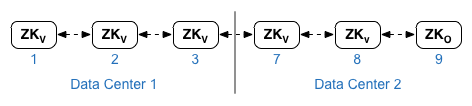
In the example configuration file shown below, node 9 is tagged with the
`:observer` modifier so that you have five voters: Nodes 1, 2, 3, 7, and 8.
For the `ZK_CLIENT_HOSTS`
property for each data center, specify the IP addresses or DNS names of only the ZooKeeper
nodes in the data center, in the same order, for all ZooKeeper nodes in the data
center.
- **Cassandra**
All data centers must to have the same number of Cassandra nodes.
For `CASS_HOSTS` for each data center, ensure that you specify all Cassandra IP
addresses (not DNS names) for both data
centers. For data center 1, list the Cassandra nodes in that data center first. For data center
2, list the Cassandra nodes in that data center first. List the Cassandra nodes in the same
order for all Cassandra nodes in the data center.
All Cassandra nodes must have a suffix ':d,r'; for example
'ip:1,1 = data center 1 and rack/availability zone 1 and 'ip:2,1 =
data center 2 and rack/availability zone 1.
For example, "192.168.124.201:1,1 192.168.124.202:1,1 192.168.124.203:1,1 192.168.124.204:2,1
192.168.124.205:2,1 192.168.124.206:2,1"
The first node in rack/availability zone 1 of each data center will be used as the seed
server. In this deployment model, Cassandra setup will look like this:
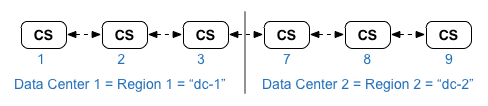
- **Postgres**
By default, Edge installs all Postgres nodes in master mode. However, when you have multiple
data centers, you configure Postgres nodes to use master-standby replication so that if the
master node fails, the standby node can continue to server traffic. Typically, you configure
the master Postgres server in one data center, and the standby server in the second data
center.
If the existing data center is already configured to have two Postgres nodes running in
master/standby mode, then as part of this procedure, deregister the existing standby node and
replace it with a standby node in the new data center.
The following table shows the before and after Postgres configuration for both
scenarios:
| Before | After |
|---|---|
| Single Master Postgres node in **dc-1** | Master Postgres node in **dc-1** Standby Postgres node in **dc-2** |
| Master Postgres node in **dc-1** Standby Postgres node in **dc-1** | Master Postgres node in **dc-1** Standby Postgres node in **dc-2** Deregister old Standby Postgres node in **dc-1** |
- **Port requirements**
You must ensure that the necessary ports are open between the nodes in the two data centers.
For a port diagram, see [Port requirements](https://docs.apigee.com/private-cloud/v4.19.06/port-requirements).
## Updating the existing data center
Adding a data center requires you to perform the steps to install and configure the new data
center nodes, but it also requires you to update nodes in the original data center. These
modifications are necessary because you are adding new Cassandra and ZooKeeper nodes in the new
data center that have to be accessible to the existing data center, and you have to reconfigure
OpenLDAP to use replication.
## Creating the configuration files
Shown below are the silent configuration files for the two data centers, where each data
center has 6 nodes as shown in [Installation topologies](https://docs.apigee.com/private-cloud/v4.19.06/installation-topologies). Notice that the config file for dc-1 adds
additional settings to:
- Configure OpenLDAP with replication across two OpenLDAP nodes.
- Add the new Cassandra and ZooKeeper nodes from dc-2 to the config file for dc-1.
|---|---|
| ``` # Datacenter 1 IP1=IPorDNSnameOfNode1 IP2=IPorDNSnameOfNode2 IP3=IPorDNSnameOfNode3 IP7=IPorDNSnameOfNode7 IP8=IPorDNSnameOfNode8 IP9=IPorDNSnameOfNode9 HOSTIP=$(hostname -i) MSIP=$IP1 ADMIN_EMAIL=opdk@google.com APIGEE_ADMINPW=Secret123 LICENSE_FILE=/tmp/license.txt USE_LDAP_REMOTE_HOST=n LDAP_TYPE=2 LDAP_SID=1 LDAP_PEER=$IP7 APIGEE_LDAPPW=secret MP_POD=gateway-1 REGION=dc-1 ZK_HOSTS="$IP1 $IP2 $IP3 $IP7 $IP8 $IP9:observer" ZK_CLIENT_HOSTS="$IP1 $IP2 $IP3" # Must use IP addresses for CASS_HOSTS, not DNS names. CASS_HOSTS="$IP1:1,1 $IP2:1,1 $IP3:1,1 $IP7:2,1 $IP8:2,1 $IP9:2,1" SKIP_SMTP=n SMTPHOST=smtp.example.com SMTPUSER=smtp@example.com SMTPPASSWORD=smtppwd SMTPSSL=n SMTPPORT=25 SMTPMAILFROM="My Company " ``` | ``` # Datacenter 2 IP1=IPorDNSnameOfNode1 IP2=IPorDNSnameOfNode2 IP3=IPorDNSnameOfNode3 IP7=IPorDNSnameOfNode7 IP8=IPorDNSnameOfNode8 IP9=IPorDNSnameOfNode9 HOSTIP=$(hostname -i) MSIP=$IP7 ADMIN_EMAIL=opdk@google.com APIGEE_ADMINPW=Secret123 LICENSE_FILE=/tmp/license.txt USE_LDAP_REMOTE_HOST=n LDAP_TYPE=2 LDAP_SID=2 LDAP_PEER=$IP1 APIGEE_LDAPPW=secret MP_POD=gateway-2 REGION=dc-2 ZK_HOSTS="$IP1 $IP2 $IP3 $IP7 $IP8 $IP9:observer" ZK_CLIENT_HOSTS="$IP7 $IP8 $IP9" # Must use IP addresses for CASS_HOSTS, not DNS names. CASS_HOSTS="$IP7:2,1 $IP8:2,1 $IP9:2,1 $IP1:1,1 $IP2:1,1 $IP3:1,1" SKIP_SMTP=n SMTPHOST=smtp.example.com SMTPUSER=smtp@example.com SMTPPASSWORD=smtppwd SMTPSSL=n SMTPPORT=25 SMTPMAILFROM="My Company " ``` |
## Add a new data center
Use the procedure below to add a new data center.
> [!WARNING]
> **Note:** Cassandra uses the fixed data-center names `dc-1`, `dc-2`, and so on, *irrespective* of the region names specified in the `REGION` property of the [configuration file](https://docs.apigee.com/private-cloud/v4.19.06/edge-configuration-file-reference) for the regions in which you install the new nodes. In the following procedure, you must use Cassandra's data center names (`dc-1`, `dc-2`, etc.) in the commands.
In the procedure, the data centers have
the following names:
- **dc-1**: the existing data center
- **dc-2**: the new data center
To add a new data center:
1. **On dc-1** , rerun setup.sh on the original Cassandra nodes with the new dc-1 config file that includes the Cassandra nodes from dc-2:
```
/opt/apigee/apigee-setup/bin/setup.sh -p ds -f configFile1
```
2. **On dc-1** , rerun setup.sh on the Management Server node:
```
/opt/apigee/apigee-setup/bin/setup.sh -p ms -f configFile1
```
3. **On dc-2** , install `apigee-setup` on all nodes. See [Install the Edge apigee-setup utility](https://docs.apigee.com/private-cloud/v4.19.06/install-edge-apigee-setup-utility) for more info.
4. **On dc-2** , install Cassandra and ZooKeeper on the appropriate nodes:
```
/opt/apigee/apigee-setup/bin/setup.sh -p ds -f configFile2
```
5. **On dc-2** , run the rebuild command on all Cassandra nodes, specifying the region name of dc-1:
```
/opt/apigee/apigee-cassandra/bin/nodetool [-u username -pw password] -h cassIP rebuild dc-1
```
You only need to pass your username and password if you
[enabled JMX authentication for Cassandra](https://docs.apigee.com/private-cloud/v4.19.06/how-monitor#cassauthenable).
6. **On dc-2** , install the Management Server on the appropriate node:
```
/opt/apigee/apigee-setup/bin/setup.sh -p ms -f configFile2
```
7. **On the Management Server node in dc-2** , install `apigee-provision`, which installs the `apigee-adminapi.sh` utility:
```
/opt/apigee/apigee-service/bin/apigee-service apigee-provision install
```
8. **On dc-2** , install the Routes and Message Processors on the appropriate nodes:
```
/opt/apigee/apigee-setup/bin/setup.sh -p rmp -f configFile2
```
9. **On dc-2** , install Qpid on the appropriate nodes:
```
/opt/apigee/apigee-setup/bin/setup.sh -p qs -f configFile2
```
10. **On dc-2** , install Postgres on the appropriate node:
```
/opt/apigee/apigee-setup/bin/setup.sh -p ps -f configFile2
```
11. Setup Postgres master/standby for the Postgres nodes. The Postgres node in dc-1 is the master, and the Postgres node in dc-2 is the standby server.
> [!NOTE]
> **Note** : If **dc-1** is already configured to have two Postgres nodes running in master/standby mode, then as part of this procedure, use the **existing master Postgres node in dc-1** as the master, and the **Postgres node in dc-2** as the standby server. Later in this procedure, you will deregister the existing Postgres standby server in **dc-1**.
1. On the master node in **dc-1** , edit the config file to set:
```
PG_MASTER=IPorDNSofDC1Master
PG_STANDBY=IPorDNSofDC2Standby
```
2. Enable replication on the new master:
```
/opt/apigee/apigee-service/bin/apigee-service apigee-postgresql setup-replication-on-master -f configFIle
```
3. On the standby node in **dc-2** , edit the config file to set:
```
PG_MASTER=IPorDNSofDC1Master
PG_STANDBY=IPorDNSofDC2Standby
```
4. On the standby node in **dc-2** , stop the server and then delete any existing Postgres data:
/opt/apigee/apigee-service/bin/apigee-service apigee-postgresql stop
rm -rf /opt/apigee/data/apigee-postgresql/
If necessary, you can backup this data before deleting it.
5. Configure the standby node in **dc-2** :
```
/opt/apigee/apigee-service/bin/apigee-service apigee-postgresql setup-replication-on-standby -f configFile
```
12. On dc-1, update the analytics configuration and configure the organizations.
1. **On the Management Server node of dc-1** , get the UUID of the Postgres node:
```
apigee-adminapi.sh servers list -r dc-1 -p analytics -t postgres-server \
--admin adminEmail --pwd adminPword --host localhost
```
The UUID appears at the end of the returned data. Save that value.
> [!NOTE]
> **Note**: If dc-1 is configured to have two Postgres nodes running in master/standby mode, you see two IP addresses and UUIDs in the output. Save both UUIDs. From the IPs, you should be able to determine which UUID is for the master and which is for the standby node.
2. **On the Management Server node of dc-2**, get the UUID of the Postgres node as shown in the previous step. Save that value.
3. **On the Management Server node of dc-1** , determine the name of the analytics and consumer groups. Many of the commands below require that information.
By default, the name of the analytics group is "axgroup-001", and the name of the consumer
group is "consumer-group-001". In the silent config file for a region, you can set the name
of the analytics group by using the `AXGROUP` property.
If you are unsure of the names of the analytics and consumer groups, use the following
command to display them:
```
apigee-adminapi.sh analytics groups list \
--admin adminEmail --pwd adminPword --host localhost
```
This command returns the analytics group name in the name field, and the consumer group
name in the consumer-groups field.
4. On the **Management Server node of dc-1** , remove the existing Postgres server from the analytics group:
1. Remove the Postgres node from the consumer-group:
```
apigee-adminapi.sh analytics groups consumer_groups datastores remove \
-g axgroup-001 -c consumer-group-001 -u UUID \
-Y --admin adminEmail --pwd adminPword --host localhost
```
If **dc-1** is configured to have two Postgres nodes running in
master/standby mode, remove both:
```
apigee-adminapi.sh analytics groups consumer_groups datastores remove \
-g axgroup-001 -c consumer-group-001 -u "UUID_1,UUID_2" \
-Y --admin adminEmail --pwd adminPword --host localhost
```
2. Remove the Postgres node from the analytics group:
```
apigee-adminapi.sh analytics groups postgres_server remove \
-g axgroup-001 -u UUID -Y --admin adminEmail \
--pwd adminPword --host localhost
```
If dc-1 is configured to have two Postgres nodes running in master/standby mode,
remove both:
```
apigee-adminapi.sh analytics groups postgres_server \
remove -g axgroup-001 -u UUID1,UUID2 -Y --admin adminEmail \
--pwd adminPword --host localhost
```
5. **On the Management Server node of dc-1** , add the new master/standby Postgres servers to the analytics group:
1. Add both Postgres servers to the analytics group:
```
apigee-adminapi.sh analytics groups postgres_server \
add -g axgroup-001 -u "UUID_1,UUID_2" --admin adminEmail \
--pwd adminPword --host localhost
```
Ehere UUID_1 corresponds to the master Postgres node in
**dc-1** , and UUID_2 corresponds to the standby Postgres
node in **dc-2**.
2. Add the PG servers to the consumer-group as master/standby:
```
apigee-adminapi.sh analytics groups consumer_groups datastores \
add -g axgroup-001 -c consumer-group-001 -u "UUID_1,UUID_2" --admin adminEmail \
--pwd adminPword --host localhost
```
6. Add the Qpid servers from **dc-2** to the analytics group:
1. **On the Management Server node of dc-1** , get the UUIDs of the Qpid nodes in **dc-2** :
```
apigee-adminapi.sh servers list -r dc-2 -p central -t qpid-server \
--admin adminEmail --pwd adminPword --host localhost
```
The UUIDs appear at the end of the returned data. Save those values.
2. **On the Management Server node of dc-1** , add the Qpid nodes to the analytics group (run both commands):
apigee-adminapi.sh analytics groups qpid_server \
add -g axgroup-001 -u "UUID_1" --admin adminEmail \
--pwd adminPword --host localhost
apigee-adminapi.sh analytics groups qpid_server \
add -g axgroup-001 -u "UUID_2" --admin adminEmail \
--pwd adminPword --host localhost
3. **On the Management Server node of dc-1** , add the Qpid nodes to the consumer group (run both commands):
apigee-adminapi.sh analytics groups consumer_groups consumers \
add -g axgroup-001 -c consumer-group-001 -u "UUID_1" \
--admin adminEmail --pwd adminPword --host localhost
apigee-adminapi.sh analytics groups consumer_groups consumers \
add -g axgroup-001 -c consumer-group-001 -u "UUID_2" \
--admin adminEmail --pwd adminPword --host localhost
7. Deregister and delete the old Postgres standby server from dc-1:
1. Deregister the existing **dc-1** Postgres standby server:
```
apigee-adminapi.sh servers deregister -u UUID -r dc-1 \
-p analytics -t postgres-server -Y --admin adminEmail \
--pwd adminPword --host localhost
```
Where UUID is the old standby Postgres node in dc-1.
2. Delete the existing dc-1 Postgres standby server:
> [!NOTE]
> **Note**: This command does not uninstall the Postgres server node. It only removes it from the list of Edge nodes. You can later uninstall Postgres from the node, if necessary.
```
apigee-adminapi.sh servers delete -u UUID \
--admin adminEmail --pwd adminPword --host localhost
```
13. Update Cassandra keyspaces with correct replication factor for the two data centers. You only have to run this step once on any Cassandra server in either data center:
> [!NOTE]
> **Note**: The commands below all set the replication factor to "3", indicating three Cassandra nodes in the cluster. Modify this value as necessary for your installation.
1. Start the Cassandra `cqlsh` utility:
```
/opt/apigee/apigee-cassandra/bin/cqlsh cassandraIP
```
2. Execute the following CQL commands at the "cqlsh\>" prompt to set the replication levels for Cassandra keyspaces:
1.
```
ALTER KEYSPACE "identityzone" WITH replication = { 'class': 'NetworkTopologyStrategy', 'dc-1': '3','dc-2': '3' };
```
2.
```
ALTER KEYSPACE "system_traces" WITH replication = { 'class': 'NetworkTopologyStrategy', 'dc-1': '3','dc-2': '3' };
```
3. View the keyspaces by using the command:
```
select * from system.schema_keyspaces;
```
4. Exit `cqlsh`:
```
exit
```
14. Run the following `nodetool` command on all Cassandra nodes in dc-1 to free memory:
```
/opt/apigee/apigee-cassandra/bin/nodetool [-u username -pw password] -h cassandraIP cleanup
```
You only need to pass your username and password if you
[enabled JMX authentication for Cassandra](https://docs.apigee.com/private-cloud/v4.19.06/how-monitor#cassauthenable).
15. For each organization and for each environment that you want to support across data centers:
1. **On the Management Server node of dc-1** , add the new MP_POD to the Organization:
```
apigee-adminapi.sh orgs pods add -o orgName -r dc-2 -p gateway-2 \
--admin adminEmail --pwd adminPword --host localhost
```
Where gateway-2 is the name of the gateway pod as defined by the
MP_POD property in the dc-2 config file.
2. Add the new Message Processors to the org and environment:
1. **On the Management Server node of dc-2** , get the UUIDs of the Message Processor nodes in dc-2:
```
apigee-adminapi.sh servers list -r dc-2 -p gateway-2 \
-t message-processor --admin adminEmail --pwd adminPword --host localhost
```
The UUIDs appear at the end of the returned data. Save those values.
2. **On the Management Server node of dc-1** , for each Message Processor in dc-2, add the Message Processor to an environment for the org:
```
apigee-adminapi.sh orgs envs servers add -o orgName -e envName \
-u UUID --admin adminEmail --pwd adminPword --host localhost
```
3. **On the Management Server node of dc-1** , check the organization:
```
apigee-adminapi.sh orgs apis deployments -o orgName -a apiProxyName \
--admin adminEmail --pwd adminPword --host localhost
```
Where apiProxyName is the name of an API proxy deployed in the organization.