> [!CAUTION]
> **Caution:** This documentation covers Edge for Private Cloud 4.19.06, which is no longer supported. Google does not provide security patches, bug fixes, or technical support for this version. The current supported version is 4.54.00. See the [Edge for Private Cloud documentation](https://docs.apigee.com/private-cloud/latest/overview) for the current version, or [All versions](https://docs.apigee.com/private-cloud/versions.md.txt) to compare releases.
> [!NOTE]
> **Note:** Do not install the portal on the same servers as Apigee Edge.
Apigee Developer Services portal (or simply, *the portal*) requires the following minimal hardware and software:
| Hardware | Requirement |
|---|---|
| Operating system | These installation instructions and related installation files have been tested on the operating systems listed in [Supported software and supported versions](https://docs.apigee.com/release/supported-software.md.txt). |
| CPU | 2-core |
| RAM | 4 GB |
| Hard disk | 120 GB |
| Java | You must have version Java 1.8 installed on each Postgres machine prior to the installation. Supported JDKs are listed at [Supported software and supported versions](https://docs.apigee.com/release/supported-software.md.txt). |
| Network interface | Active internet connection required. As part of the installation process, the installer downloads resources from the web. If your environment is set up to proxy outgoing HTTP and HTTPS requests, then your proxy must be configured to correctly handle redirected requests that might occur during a download. For example, a request to `https://drupal.org/` returns an HTTP 301 status code and redirects to `https://www.drupal.org/`. Your proxy should be configured to return an HTTP 200 status code with the requested content from the redirect. For SAP installations, if your environment is set up to proxy outgoing HTTPS requests, then your proxy must support TLSv1.0. OpenSSL 0.9.8 does not support TLSv1.1 or TLSv1.2, only TLSv1.0. |
## Red Hat Enterprise Linux requirements
Red Hat Enterprise Linux (RHEL) has extra requirements due to a subscription needed to access
software downloads from Red Hat. The server must be able to connect to the Internet to download
RPMs via yum. If using RHEL, the server must be registered on the Red Hat Network (RHN) and
registered to the server optional channel.
The Red Hat requirements are checked during the install and the portal installer prompts you
if RHEL is not already registered. If you already have Red Hat login credentials, you can use the
following command to register RHEL before beginning the installation process:
```
subscription-manager register --username=username --password=password --auto-attach
```
Where username and password are your Red Hat credentials.
If you have a trial version of RHEL, you can obtain a 30-day trial license. See
for more information.
## SMTP requirements
Apigee recommends, but does not require, that you configure an SMTP server to send email
messages from the portal. If configured, you must ensure that Drupal can access the
necessary port on the SMTP server. For non-TLS SMTP, the port number is typically 25. For
TLS-enabled SMTP, it is often 465, but check with your SMTP provider.
## Additional requirements
To perform the installation, you must have root access.
## Deployment architecture requirements
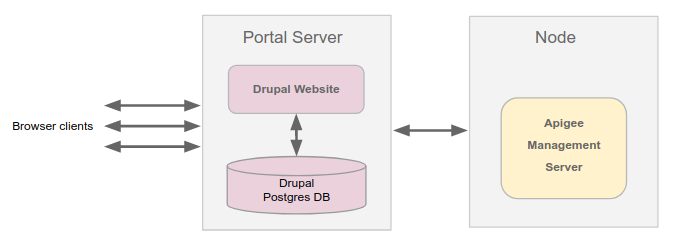
The portal has a single interface with the Apigee Management Server via a REST
API in order to store and retrieve information about a user's applications. The portal must be
able to connect to the Management Server via HTTP or HTTPS, depending on your installation.
## Information required before you start the
install
Before starting the install, you must have the following information available:
1. Which platform are you configuring: Red Hat or CentOS? If this is a Red Hat install, the machine must be registered on the Red Hat Network to download RPMs.
2. Do you plan on installing Postgres on the local machine? If you want a simple install with everything on the same machine, then install Postgres locally.
3. If you intend to access a remote Postgres server, get the following information about the Postgres server:
- hostname
- port
- database name
- username
- password
The remote Postgres server should already be configured before you start the
installation.
4. What is the fully-qualified domain name of the web server? (This information will be added to /etc/hosts.) This should be an IP address or hostname, such as `portalserver.example.com`. The default value is `localhost`.
5. There are three pieces of information that allow your portal to communicate with the Apigee Edge management server. This information is as follows:
1. **URL of the Apigee Management API Endpoint** : This will be either a hostname or an IP address. This is the REST endpoint to which all calls are made to create apps and register developers for app keys. The default endpoint is `https://api.enterprise.apigee.com/v1`.
For an Edge for Private Cloud installation, the URL is in the form:
```
http://Edge_IP:8080/v1
```
or:
```
https://Edge_IP:SSL_port/v1
```
Where Edge_IP is the IP address of the Edge management server and
SSL_port is the SSL port for the Edge management API. For example, 8443.
2. **Apigee Organization name**: There is a relationship between portals and Apigee Edge organizations. You will set up the default organization when you set up the Management API Endpoint. The default value is my-org.
3. **Username and password for the management API endpoint** : The calls from the portal to Edge must be performed by an administrator for your organization.
This username/password is for an administrator on your organization and should be used only
for connecting to Edge from the portal. For example, if you specify the credentials of a
user, and that user is ever deleted on Edge, then the portal will no longer be able to
connect to Edge. Therefore, create an administrator on your organization just for this
connection.
For example:
```
dc_devportal+ORGNAME@apigee.com:MyP@ssw0rd
```