
By default, when a user logs out of the New Edge UI, the New Edge UI clears the local session
cookies for the user's session and redirects to /edge. When Apigee SSO is
configured with a SAML external Identity Provider (IDP), if the user's IDP session is still
active in the browser, the IDP automatically re-authenticates the user and signs them back in to
the New Edge UI.
To terminate the external IDP session when a user signs out of the New Edge UI and prevent
automatic re-authentication, configure the SSO_LOGOUT_URL property on the New Edge UI
and register the New Edge UI URL as an allowed redirect origin in your IDP.
Configure SSO_LOGOUT_URL on the New Edge UI
- Open the configuration file you used to enable SSO on the New Edge UI (for example,
/opt/silent.conf) and add theSSO_LOGOUT_URLproperty pointing to your external IDP's sign-out endpoint:SSO_LOGOUT_URL=https://idp_domain/signout_endpoint?redirect_param=MANAGEMENT_UI_SCHEME://MANAGEMENT_UI_IP:MANAGEMENT_UI_PORT/edge
- Execute the following command to apply the configuration to
edge-management-ui:/opt/apigee/apigee-service/bin/apigee-service edge-management-ui configure-sso -f /opt/silent.conf
Allow post-logout redirection in your IDP
If your SSO_LOGOUT_URL includes a post-logout redirect parameter back to the New
Edge UI, you must allowlist the New Edge UI origin in your IDP so it redirects back to the login
prompt after terminating the session.
For example, if you are using Okta as your IDP:
- Log in to the Okta Admin Console.
- Navigate to Security > API > Trusted Origins.
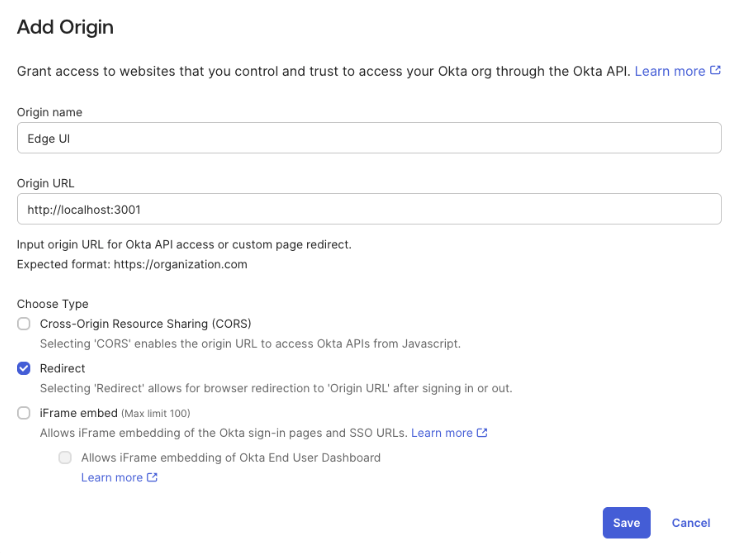
- Click Add Origin and enter the following details:
- Origin Name: Enter a descriptive name (for example,
New Edge UI). - Origin URL: Enter the base URL of your New Edge UI in the following
form:
MANAGEMENT_UI_SCHEME://MANAGEMENT_UI_IP:MANAGEMENT_UI_PORT
For example:
http://192.168.1.1:3001 - Type: Select Redirect (allows browser redirection to
the Origin URL after signing in or out). The following image shows this information for
Okta:
- Origin Name: Enter a descriptive name (for example,
- Click Save.
When a user next logs out of the New Edge UI, both the New Edge UI session and the external IDP session are terminated, and the user is returned to the IDP sign-in screen.