
When a user sets or resets their password in the New Edge UI, a password page appears that contains fields to set the password and text describing the password policy requirements:
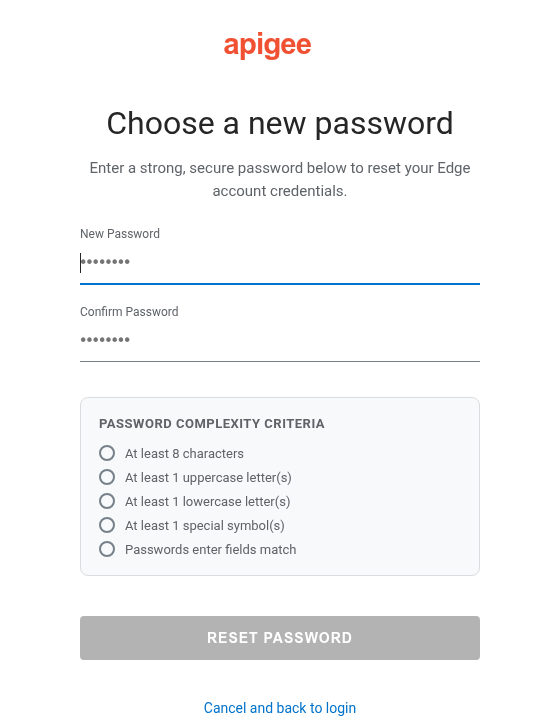
You can configure the password hint text and password policy validation settings in the New
Edge UI by setting the following properties in the
/opt/apigee/customer/application/management-ui.properties file:
conf_uebe_passwordPolicy_pwdHint: Sets the password hint text displayed to users.conf_uebe_passwordPolicy_pwdMinLength: Sets the minimum required password length (default is8).conf_uebe_passwordPolicy_pwdValidationRegex: Sets the regular expression used to validate passwords in the New Edge UI.
To set these properties:
- Open the
management-ui.propertiesfile in an editor. If the file does not exist, create it:vi /opt/apigee/customer/application/management-ui.properties
- Set
conf_uebe_passwordPolicy_pwdHintand optionallyconf_uebe_passwordPolicy_pwdMinLengthandconf_uebe_passwordPolicy_pwdValidationRegex. For example:conf_uebe_passwordPolicy_pwdHint="Password must be at least 13 characters long and contain at least one special character." conf_uebe_passwordPolicy_pwdMinLength=13 conf_uebe_passwordPolicy_pwdValidationRegex="^(?=.*[a-z])(?=.*[A-Z])(?=.*\d)(?=.*[^\da-zA-Z]).{13,}$" - Save your changes.
- Make sure the properties file is owned by the
apigeeuser:chown apigee:apigee /opt/apigee/customer/application/management-ui.properties
- Restart the New Edge UI:
/opt/apigee/apigee-service/bin/apigee-service edge-management-ui restart