
The SAML specification defines three entities:
- Principal (New Edge UI user)
- Service provider (Apigee SSO)
- Identity provider (returns SAML assertion)
When SAML is enabled, the principal (a New Edge UI user) requests access to the service provider (the Apigee SSO). The Apigee SSO (in its role as a Federated Identity Broker) then requests and obtains an identity assertion from the SAML IDP and uses that assertion to generate the OIDC and OAuth2 tokens required to access the New Edge UI. The user is then redirected back to the New Edge UI.
This process is as follows:
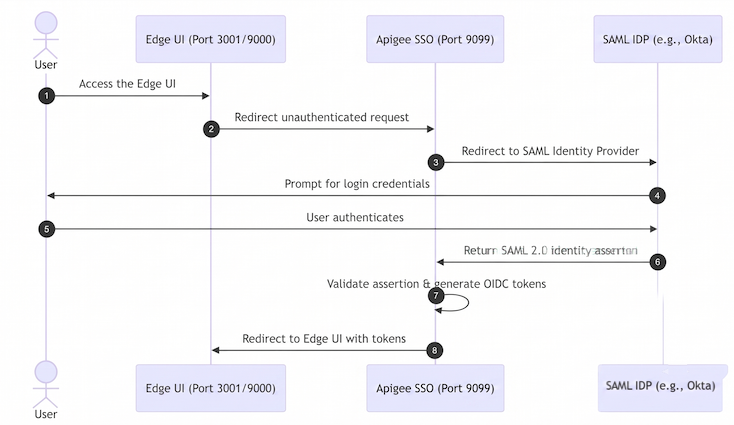
In this diagram:
- The user attempts to access the New Edge UI by making a request to the login URL for the Edge
UI. For example:
https://edge_management_ui_IP_DNS:3001 - Unauthenticated requests are redirected to the Apigee SSO.
- The SSO redirects the request to the SAML IDP. For example,
https://idp.customer.com. - If the user is not logged in to the identity provider, they are prompted to log in.
- The user logs in.
- The user is authenticated by the SAML IDP, which generates a SAML 2.0 assertion and returns it to the Apigee SSO.
- The Apigee SSO validates the assertion, extracts the user identity from the assertion,
generates the OIDC/OAuth2 authentication tokens for the New Edge UI, and redirects the user to
the main New Edge UI page at the following URL:
https://edge_management_ui_IP_DNS:3001/edge
Edge supports many IDPs, including Okta and the Microsoft Active Directory Federation Services (ADFS). For Okta, see the following section.
To configure your SAML IDP, Edge requires an email address to identify the user. Therefore, the identity provider must return an email address as part of the identity assertion.
In addition, you will need to configure your IDP with the following information to ensure it can communicate with the Apigee SSO:
| Setting | Description |
|---|---|
| Assertion Consumer Service URL (Single Sign On URL) | This is the redirect URL back to the Apigee SSO after the user enters their IDP credentials. It takes the form: protocol://apigee_sso_IP_DNS:port/callback For example: http://1.2.3.4:9099/callback |
| The SP entity ID (or Audience URI) | By default, the Apigee SSO expects the SP Entity ID to be If you override this default by setting the |
Configuring Okta
To configure Okta:
- Log in to Okta.
- Select Applications and then select your SAML application.
- Select the Assignments tab to add any users to the application. These users will be able to log in to the New Edge UI and make Edge API calls. However, you must first add each user to an Edge organization and specify the user's role. See Register new Edge users for more.
- Select the Sign on tab to obtain the Identity Provider Single Sign-On URL (for
lib_settings_saml_sso_url) and download the X.509 Certificate (forlib_settings_saml_ca_file). You will need both to configure the SAML settings in your/opt/apigee/customer/application/openldap.propertiesfile (see SAML SSO configuration). - Select the General tab to configure the Okta application, as shown in the
following table:
Setting Description Single sign on URL Specifies the redirect URL back to the SSO for use after the user enters their Okta credentials. This URL is in the form:
http://apigee_sso_IP_DNS:9099/callback
If the Apigee SSO terminates TLS:
https://apigee_sso_IP_DNS:9443/callback
If a load balancer terminates TLS:
https://load_balancer_IP_or_DNS:443/callback
Use this for Recipient URL and Destination URL Set this checkbox. Audience URI (SP Entity ID) Set this to apigee-saml-login-opdk. This is the default Edge SP Entity ID. If you override this value using thelib_settings_saml_entity_issuerproperty in your configuration, specify your custom Entity ID here instead.Default RelayState Leave blank. Name ID format Specify EmailAddress.Application username Specify Okta username.Attribute Statements Specify the attributes that map to the lib_settings_saml_username_attr,lib_settings_saml_email_attr, andlib_settings_saml_groups_attrproperties in/opt/apigee/customer/application/openldap.properties(see SAML SSO configuration). Typically, you should mapname,email, andgroups.
Once configured, Okta will successfully pass the SAML assertion back to the Apigee SSO during login.