

「安裝及設定 Apigee SSO」一文說明如何安裝及設定 Apigee SSO,以便在預設通訊埠 9099 上使用 HTTP。根據預設,Apigee SSO 使用 HTTP。
如要啟用 HTTPS 存取權,請使用下列其中一種模式設定 Apigee SSO:
- SSL_PROXY:以 Proxy 模式設定 Apigee SSO,也就是在 OpenLDAP 節點前方安裝負載平衡器,並在負載平衡器上終止 TLS。Apigee SSO 會監聽 HTTP,但會使用負載平衡器的 HTTPS 配置發布網址。
- SSL_TERMINATION:在您選擇的通訊埠上,直接在 Apigee SSO 啟用 TLS 存取權。這個模式必須指定標準 PEM 編碼憑證和私密金鑰。
您可以在初次安裝及設定 Apigee SSO 時啟用 HTTPS,也可以日後再啟用。
以下各節說明設定檔 (/opt/silent.conf 和 /opt/apigee/customer/application/openldap.properties) 中要更新的其他權杖。setup-sso 指令碼會自動剖析這兩個檔案中的變數、套用設定,並啟動內嵌的 Apigee SSO。請參閱「
安裝及設定 Apigee SSO」,瞭解設定檔必須具備哪些權杖,才能成功設定 SSO。
啟用 SSL_PROXY 模式
在 SSL_PROXY 模式中,系統會使用 Apigee SSO 前端的負載平衡器,並在負載平衡器上終止 TLS。在下圖中,負載平衡器會在通訊埠 443 終止 TLS,然後將要求轉送至通訊埠 9099 的 Apigee SSO:
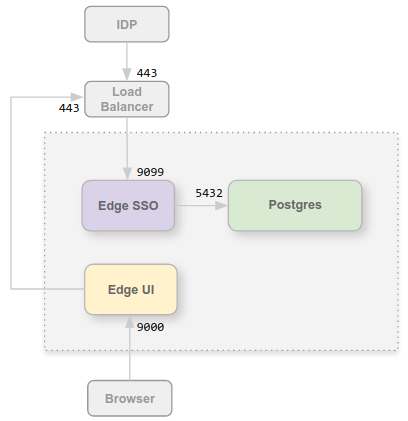
在這個設定中,您信任從負載平衡器到 OpenLDAP 節點的連線,因此不需要為該內部連線使用 TLS。不過,IDP 等外部實體現在必須透過通訊埠 443 存取 Apigee SSO,而非透過通訊埠 9099 這個未受保護的通訊埠。
在 SSL_PROXY 模式下設定 Apigee SSO 的原因,是 Apigee SSO 會自動產生 IDP 在外部使用的重新導向網址,做為驗證程序的一部分。因此,這些重新導向網址必須包含負載平衡器上的外部通訊埠編號和 HTTPS 配置 (在本例中為通訊埠 443),而非 Apigee SSO 上的內部 HTTP 通訊埠 (通訊埠 9099)。
如要為 SSL_PROXY 模式設定 Apigee SSO,請按照下列步驟操作:
- 在
/opt/apigee/customer/application/openldap.properties檔案中新增下列設定:# Update the port the Apigee SSO listens on locally. etc_sso_config_bind_port=9099 # Set the publicly accessible Issuer URL (the load balancer URL). # This prevents setup-sso from automatically appending the port. etc_sso_config_issuer_url=https://load_balancer_IP_or_DNS
- 請確認
/opt/silent.conf檔案中已設定下列屬性,更新 HTTPS 的新版 Edge UI 設定:SSO_PUBLIC_URL_SCHEME=https SSO_PUBLIC_URL_HOSTNAME=load_balancer_IP_or_DNS SSO_PUBLIC_URL_PORT=443
- 執行
setup-sso指令碼來套用設定、重新啟動 Apigee SSO,並自動更新 Edge Management Server:/opt/apigee/apigee-service/bin/apigee-service apigee-openldap setup-sso -f /opt/silent.conf
- 更新 IDP 設定 (例如 Okta 或 ADFS),向負載平衡器發出 HTTPS 要求,以便存取 Apigee SSO。詳情請參閱「設定 SAML IDP」。
- 執行 UI 設定指令碼,自動設定並重新啟動 New Edge UI 伺服器:
/opt/apigee/apigee-service/bin/apigee-service edge-management-ui configure-sso -f /opt/silent.conf
啟用 SSL_TERMINATION 模式
如要使用 SSL_TERMINATION 模式,請務必:
- 產生標準 PEM 編碼 TLS 憑證和金鑰。如為正式環境,您必須產生由 CA 簽署的憑證。您無法使用自行簽署的憑證。
- 更新屬性檔案,繫結至安全通訊埠並載入憑證。
如要安裝憑證和金鑰,請按照下列步驟操作:
- 在 OpenLDAP 節點上建立憑證目錄:
sudo mkdir -p /opt/apigee/customer/application/certs/
- 將 PEM 編碼憑證 (
.crt) 和私密金鑰 (.key) 複製到新目錄。 - 將目錄和檔案的擁有者變更為「apigee」使用者,並保護權限:
sudo chown -R apigee:apigee /opt/apigee/customer/application/certs/
sudo chmod 600 /opt/apigee/customer/application/certs/sso.key
sudo chmod 644 /opt/apigee/customer/application/certs/sso.crt
如要為 SSL_TERMINATION 模式設定 Apigee SSO,請按照下列步驟操作:
- 在
/opt/apigee/customer/application/openldap.properties檔案中新增下列設定:# 1. Enable HTTPS listener and configure TLS cert/key lib_settings_enable_sso_https=true etc_sso_config_bind_port_ssl=9443 etc_sso_config_tls_cert_file=/opt/apigee/customer/application/certs/sso.crt etc_sso_config_tls_key_file=/opt/apigee/customer/application/certs/sso.key # 2. Update the Issuer URL to use HTTPS and the SSL port/hostname etc_sso_config_issuer_url=https://hostname_or_IP_of_openldap:9443 # 3. (Optional) Disable plain HTTP if only HTTPS is desired # lib_settings_enable_sso_http=false
- 請確認
/opt/silent.conf檔案中已設定下列屬性,更新 HTTPS 的新版 Edge UI 設定:MANAGEMENT_UI_SSO_ENABLED=y SSO_PUBLIC_URL_SCHEME=https SSO_PUBLIC_URL_HOSTNAME=hostname_or_IP_of_openldap SSO_PUBLIC_URL_PORT=9443
- 執行
setup-sso指令碼來套用設定、重新啟動 Apigee SSO,並自動更新 Edge 管理伺服器:/opt/apigee/apigee-service/bin/apigee-service apigee-openldap setup-sso -f /opt/silent.conf
- 更新 IDP 設定 (例如 Okta 或 ADFS),在通訊埠 9443 上發出 HTTPS 要求,存取 Apigee SSO。詳情請參閱「設定 SAML IDP」。
- 執行 UI 設定指令碼,自動設定新版 Edge UI 伺服器:
/opt/apigee/apigee-service/bin/apigee-service edge-management-ui configure-sso -f /opt/silent.conf