

您目前查看的是 Apigee Edge 說明文件。
前往 Apigee X 說明文件。 info
如要啟用入口網站中公開內容的搜尋功能,可以建立專屬搜尋頁面,並嵌入 Google 自訂搜尋引擎 (CSE)。舉例來說,下圖所示的入口網站會嵌入 Google CSE,方便使用者搜尋 Google 建立索引的內容。
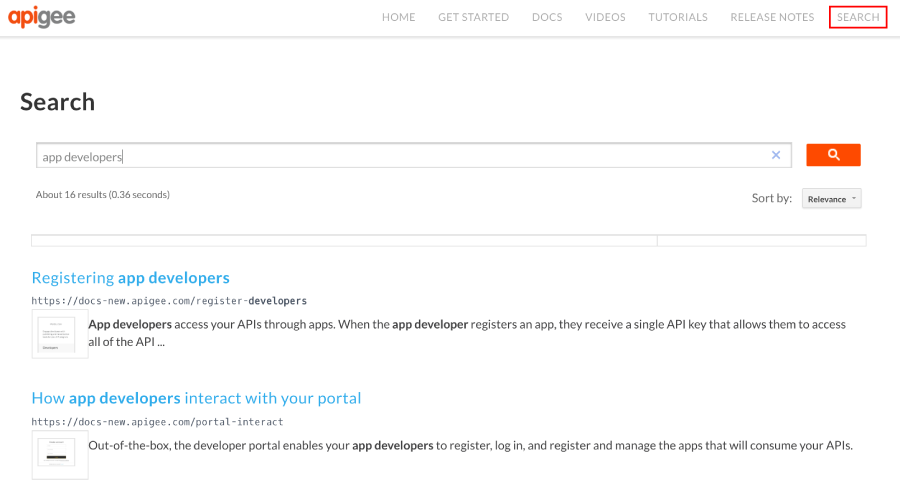
如要建立自訂搜尋頁面,請按照下列步驟操作:
- 發布入口網站內容。
建立 Google 程式化搜尋引擎:
a. 前往 Google 搜尋設定頁面。
b. 按一下「新增」,即可建立新的自訂搜尋引擎。
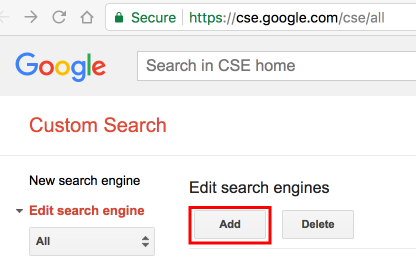
c. 設定自訂搜尋引擎,並找出入口網站網域。請參閱 Google 程式化搜尋說明中的「建立搜尋引擎」。
d. 使用 Google 網站管理員工具驗證及提交網站,加快網站編入索引的速度。請參閱 Google 自訂搜尋說明中的「在網站管理員工具中驗證您的網站」。在入口網站中新增下列自訂指令碼。請參閱「新增自訂指令碼」。
將
cx變數設為 Google 搜尋引擎 ID,並將path值設為搜尋網頁網址。<script> window.portal = { pageEventListeners: { onLoad: (path) => { // Update with your search page URL if (path === '/your-search-page-URL') { // Add your Google search engine ID var cx = 'your-search-engine-id'; var gcse = document.createElement('script'); gcse.type = 'text/javascript'; gcse.async = true; gcse.src = 'https://cse.google.com/cse.js?cx=' + cx; var s = document.getElementsByTagName('script')[0]; s.parentNode.insertBefore(gcse, s); gcse.onload = function () { var search = document.createElement('gcse:search'); // Note the element ID name var searchBox = document.getElementById('search-box'); searchBox.appendChild(search); }; } } } }; </script>在入口網站中建立新的搜尋頁面,並視需要自訂。請參閱「管理入口網站中的網頁」。
在您希望顯示 Google 搜尋框的位置,加入自訂指令碼中定義的自訂搜尋元素 ID (
search-box)。 例如:<div id="search-box"></div>視需要將搜尋頁面新增至入口網站導覽。詳情請參閱「設定導覽」。
發布搜尋頁面和導覽更新。